
BigCommerce Integration and Linking Products with Inventory & Templates
Connecting your BigCommerce store to EZDZSEND is quick and simple. Once connected, your store products, inventory, and orders will sync automatically. Follow this easy step-by-step guide to complete the setup.
🎥 Prefer to watch the video?
Click here to watch the full PayPal integration guide.
Connect your BigCommerce store #
Open your EZDZSEND dashboard and go to Sales Platform → BigCommerce.
You will see two tabs:
- Store List
- Product List
These sections help you manage your connected stores and products.
Add a New BigCommerce Store #
In the Store List tab, click New Record.
A popup opens asking for:
- Name
- Client Id
- Access Token
- Store Id
After entering everything, click Submit.
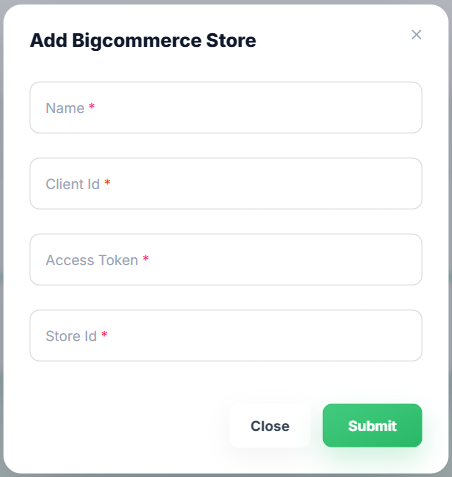
Displays the add new store modal.
Your store will connect instantly and appear in the Store List table:
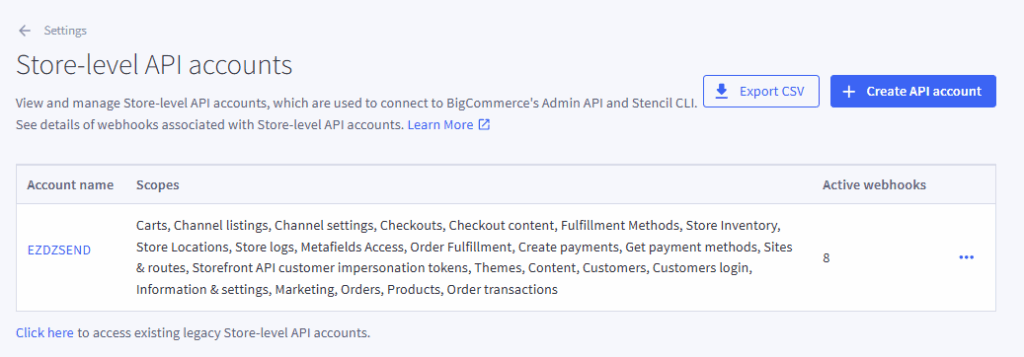
Get Your BigCommerce API Credentials #
To connect your store, you need bigcommerce Client Id, Access Token, and Store Id.
Follow these steps:
1. Open BigCommerce Admin
Login to your BigCommerce store.
2. Go to Settings → API
Choose Store-level API Accounts.
3. Click “Create API Account”
Select Token Type: V2/V3 API Token.
4. Fill the API Details
- Name: Any name you prefer
- API Path: Auto visible
- Set OAuth scopes:
- Content -> Modify
- Checkout content -> Modify
- Customers -> Modify
- Customers login -> Login
- Information & settings -> Modify
- Marketing -> Modify
- Orders -> Modify
- Order transactions -> Modify
- Create payments -> Create
- Get payment methods -> Read-only
- Stored Payment Instruments -> None
- Products -> Modify
- Themes -> Modify
- Carts -> Modify
- Checkouts -> Modify
- Sites & routes -> Modify
- Channel settings -> Modify
- Channel listings -> Modify
- Storefront API tokens -> None
- Storefront API customer impersonation tokens -> Manage
- Store logs -> Read-only
- Store Locations -> Modify
- Store Inventory -> Modify
- Fulfillment Methods -> Modify
- Order Fulfillment -> Modify
- Metafield Ownership -> None
- Metafields Access -> Full
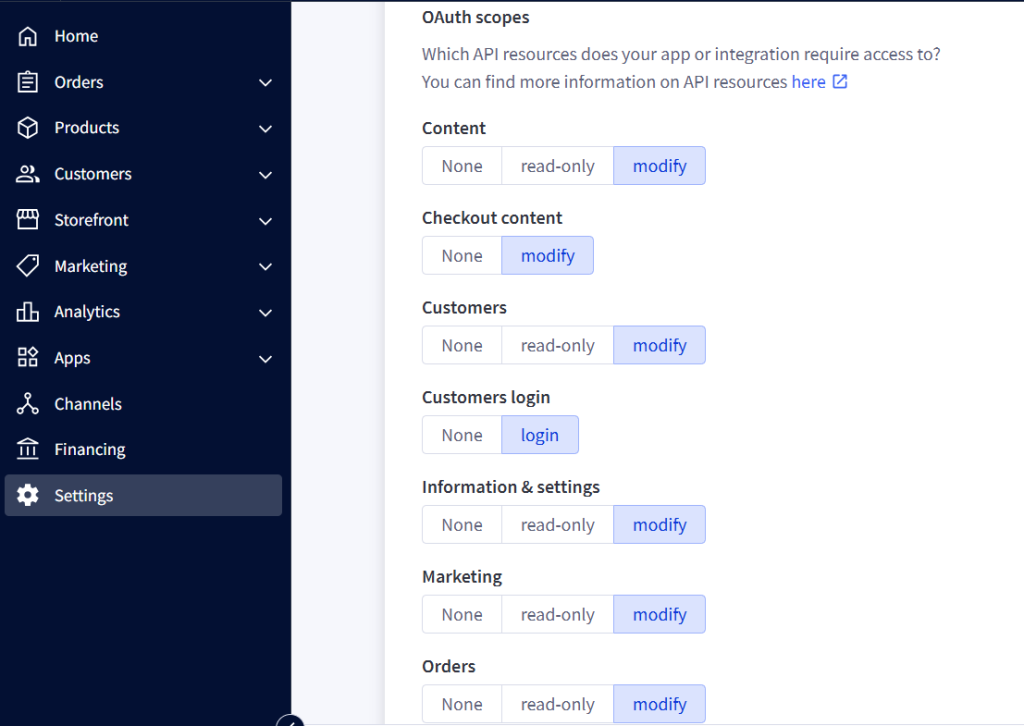
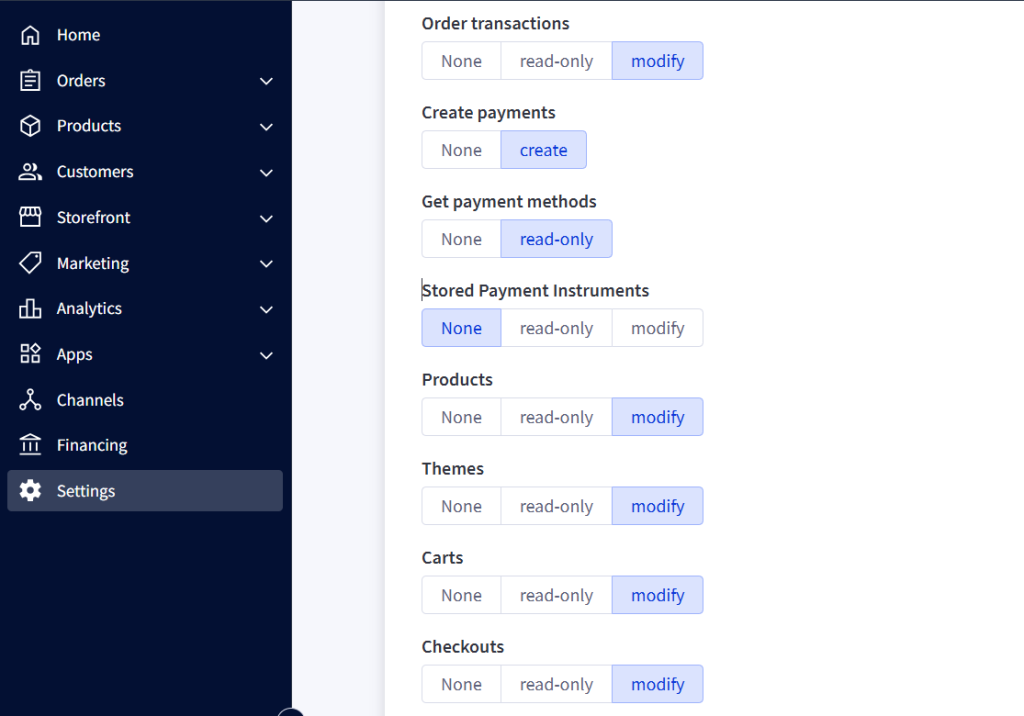
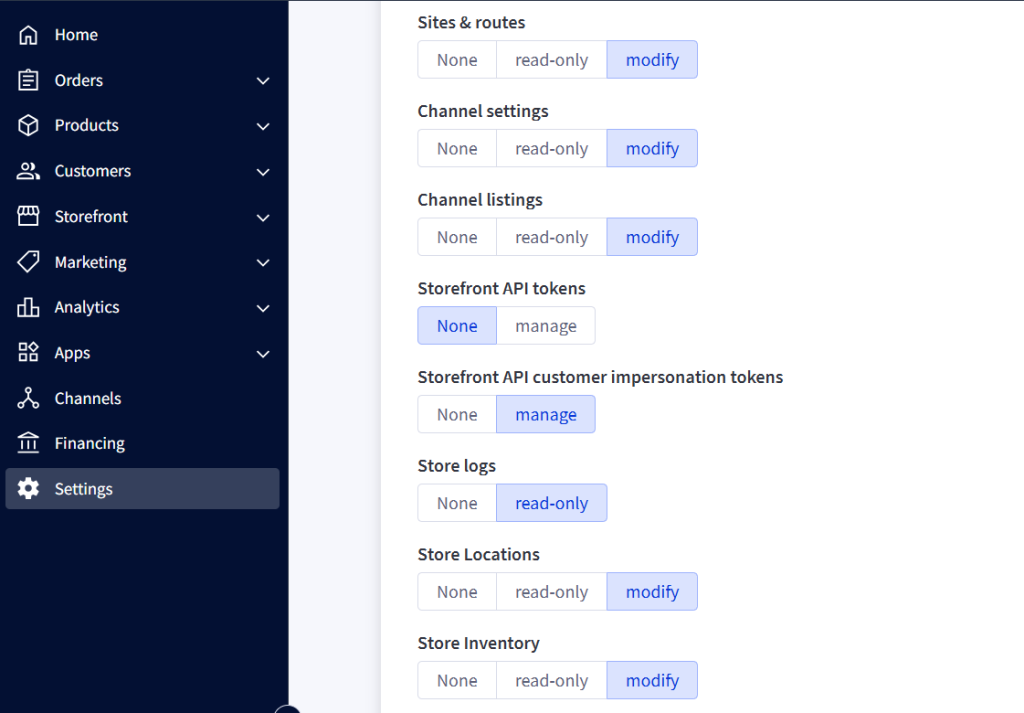
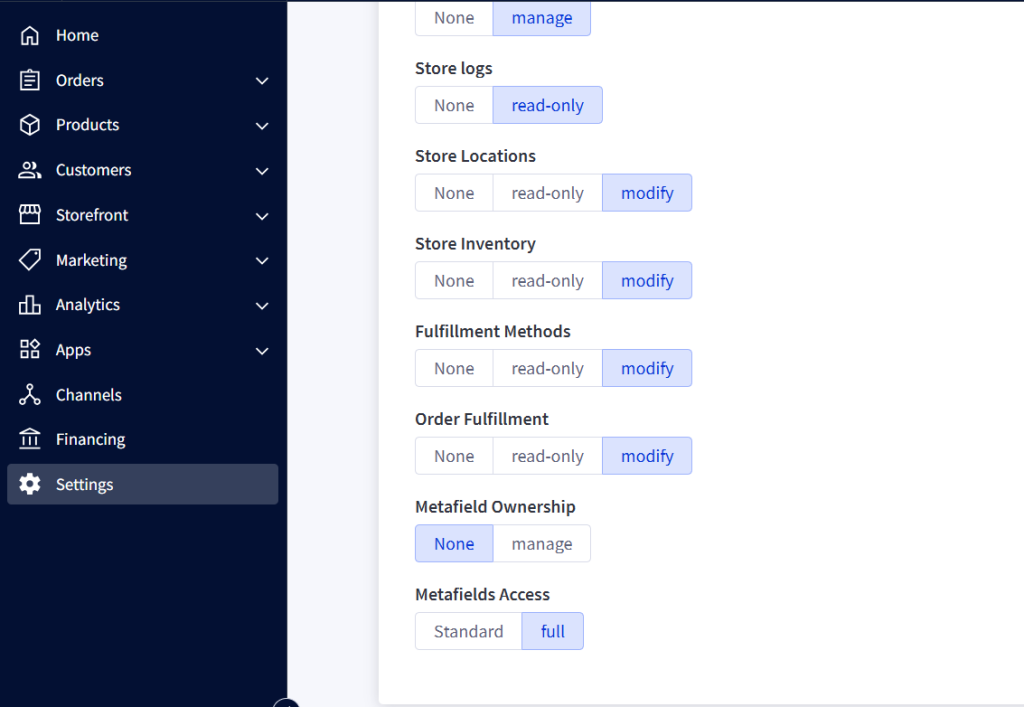
Declare all scopes properly.
5. Save
BigCommerce will show:
- Client Id
- Access Token
6. Get Store Id
Store Id comes from your URL:
Example: store-XXXXXXXXXX → XXXXXXXXXX
Enter these into EZDZSEND and press Submit.
Manage Your Store in EZDZSEND #
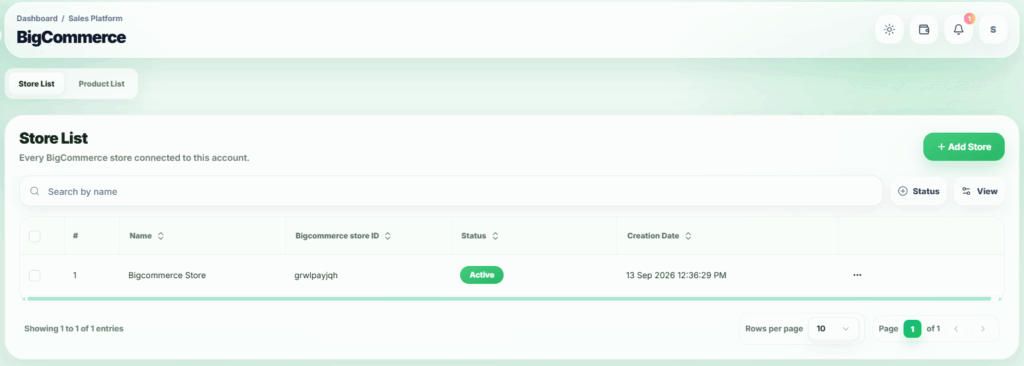
After connecting, your store appears inside Store List.
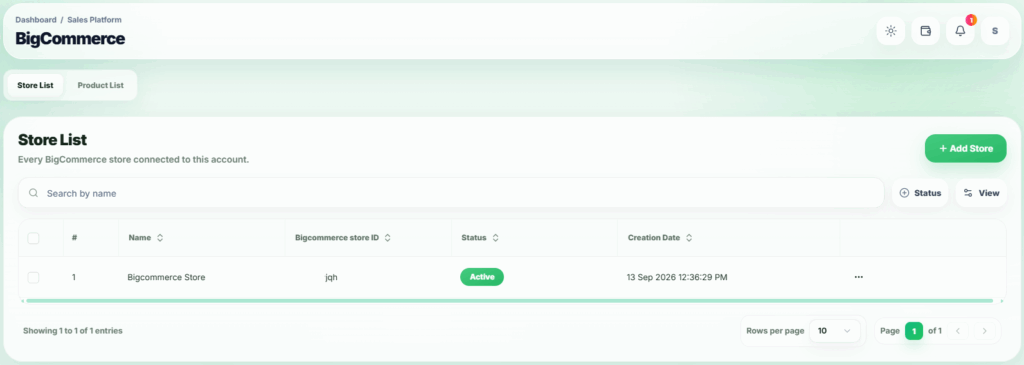
Connected BigCommerce Store Displayed in Store List
Once the store is connected there will be 5 active webhooks.
Actions available:
- Edit → Edit store info.
- Inactive / Active → Change store status.
- Reconnect Store → Sometimes, a connected store may have problems updating properly, such as:
- Expired access tokens
- Revoked permissions
- Webhook or API errors
- Temporary connection failures → In these cases, sellers don’t need to delete the store or do anything complicated. They can use the “Reconnect Store” option to quickly and safely reconnect it, so the store updates correctly again.
- Delete → Remove store (Deleting store will also remove all related transactions and products. All related webhooks are automatically removed from BigCommerce)
Product List & Product Controls #
Open the Product List tab.
Here you can see all products synced from BigCommerce.
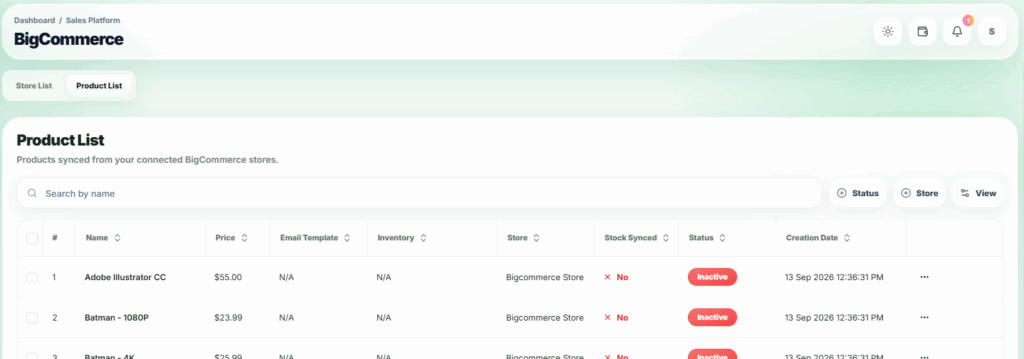
Imported Products from BigCommerce – Action Options Available.
Enable Instant Download via Transactional Emails 📩 #
Because EZDZSEND delivers digital products, it’s important that your customers always receive an instant download link—even if, for any reason, the EZDZSEND email fails to reach them.
To ensure this, you can add a secure backup download button directly inside BigCommerce’s official Order Confirmation Email. This way, customers will always get access to their files without delay.
Follow the steps below:
🔧 Step 1: Open the Transactional Email Editor in BigCommerce
- Go to your BigCommerce Admin Panel
- From the left sidebar, navigate to:
Marketing → Transactional Emails - Find the row named:
Order Email – Sent when an order is created - On the right side, click Actions → Edit Template
🏷️ Step 2: Add a New Email Phrase
Inside the email editor, scroll to Email Template Phrases.
Add a new phrase:
- Phrase Name:
ezdzsend_download_url - Phrase Value:
https://app.ezdzsend.com/download-files/{id}
This phrase will dynamically generate the download link based on the order ID.
🧩 Step 3: Insert the Download Button into the Email Template
Scroll down to the Email Template Code tab.
Inside the HTML editor, locate the main <table> structure.
Then paste the following block of code directly under the first <table> tag:
<table class="row" width="100%" cellspacing="0" cellpadding="0">
  <tr>
    <th class="column" align="center">
      <table>
        <tr>
          <th align="left" style="font-family: Arial, sans-serif;">

            <h2 style="margin: 0 0 12px 0; font-size: 20px; font-weight: 600;">
              Your Download is Ready
            </h2>

            <p style="margin: 0 0 20px 0; font-size: 15px; color: #444;">
              Click the button below to access your digital file.
            </p>

            <table cellpadding="0" cellspacing="0" style="margin: 0 auto;">
              <tr>
                <th>
                  <a href="{{lang 'ezdzsend_download_url' id=order.id}}" target="_blank"
                    style="display: inline-block; padding: 12px 28px; background: #2d8fdb; color: #fff; text-decoration: none; font-size: 16px; border-radius: 4px;">
                    Download
                  </a>
                </th>
              </tr>
            </table>

            <p style="margin-top: 18px; font-size: 13px; color: #666;">
              If the button doesn’t work, use this link:<br>
              <a href="{{lang 'ezdzsend_download_url' id=order.id}}" target="_blank" style="word-break: break-all; color: #2d8fdb;">
                {{lang 'ezdzsend_download_url' id=order.id}}
              </a>
            </p>

          </th>
        </tr>
      </table>
    </th>
  </tr>
</table>
🎉 That’s it!
Now, every time a customer places an order:
- They will instantly receive BigCommerce’s official order email.
- The email will include a Download Now button powered by EZDZSEND.
- Even if your EZDZSEND email doesn’t reach the customer, they will still have immediate access to their file.