
PayPal Integration and Linking Products with Inventory & Templates
Learn how to connect your PayPal Business account with EZDZSEND and add products for instant digital delivery. Once linked, you can sell products directly through PayPal using Buy Now buttons or shareable links.
🎥 Prefer to watch the video?
Click here to watch the full PayPal integration guide.
Connect your PayPal business account #
Open your EZDZSEND dashboard and navigate to Sales Platform → PayPal.
You will see two tabs:
- Store List
- Product List
Add a New PayPal Store #
- In the Store List tab, click New Record.
- A pop-up will appear asking for:
- Store Name → Example: “My PayPal Store”
- PayPal Email → The email linked to your PayPal account. (This must be a PayPal Business Account — Personal accounts cannot be connected.)
- Click Submit.

Displays the add new store modal.
PayPal will prompt to login
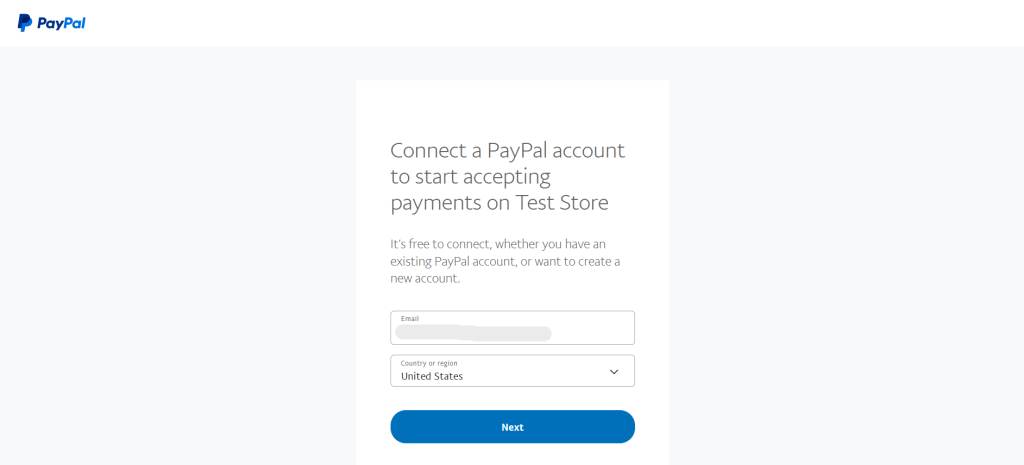
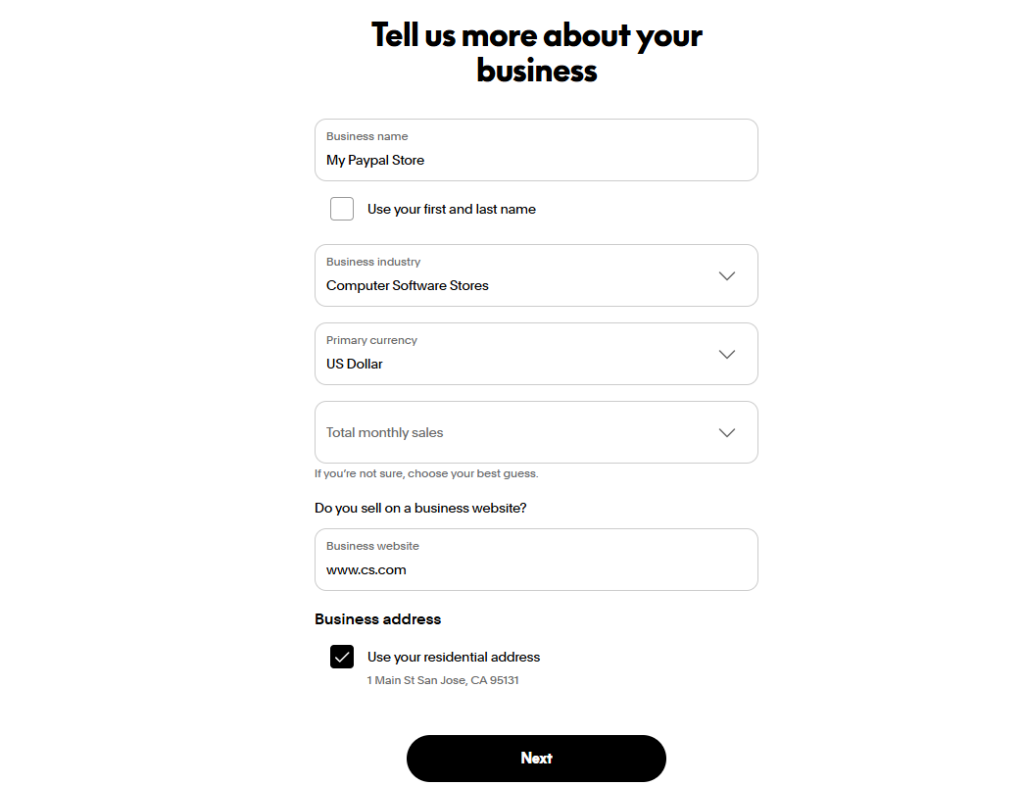

The Journey of Connecting Your PayPal Store
- You are redirected to the PayPal authorization page.
- Log in if your PayPal admin is not already logged in.
- Fill in your business information:
- Business Name → Use your first and last name or company name
- Business Industry → Example: Computer Software Stores
- Primary Currency → USD
- Total Monthly Sales → Enter your estimate
- Business Website → Example: https://ezdzsend.com
- Business Address → Example: 1 Main St, San Jose, CA 95131
- Click Next to continue.
- PayPal confirms setup: “You’re all set! You’re linked to Test Store and ready to take payments on your site.”
- Click Return to My PayPal Store, which redirects back to EZDZSEND → Sales Platform → PayPal.
PayPal Store Table #
After successful verification, your store appears in the Store List table:
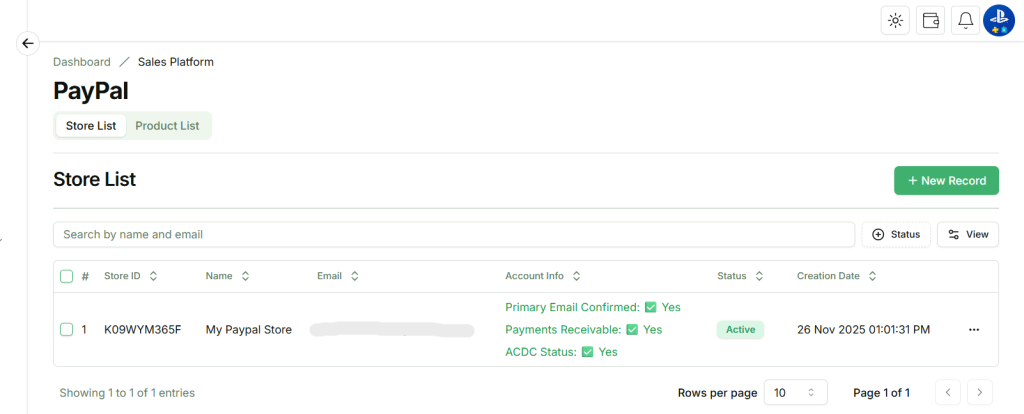
Connected PayPal Store Displayed in Store List
Actions Column:
- Edit → Update store info.
- Inactive / Active → Change store status.
- Delete → Remove store (Deleting this store will also remove all related transactions and products.)
✅ Once confirmed, the store becomes Active in EZDZSEND.
✅ What Each Status Means
- Primary Email Confirmed:
Your main PayPal account email is verified and active. This ensures PayPal can communicate with EZDZSEND properly and your store connection remains secure. - Payments Receivable:
Your PayPal account is fully approved to receive payments. - ACDC Status:
Your PayPal account is eligible for Advanced Credit & Debit Card (ACDC) payments, meaning buyers can pay using cards even without a PayPal account.
Add Products to Your PayPal Store 🛒 #
- Go to the Product List tab.
- Click Add Product.
- Fill in the required fields:
- Select Store → Choose your PayPal store
- Name → Product name
- Price → Product price
- Select Inventory → Choose digital file inventory
- Select Email Template → Optional for automated delivery
- Click Submit.

Displays the add new product modal.
Product List Table #
After adding products, they appear in the Product List table:
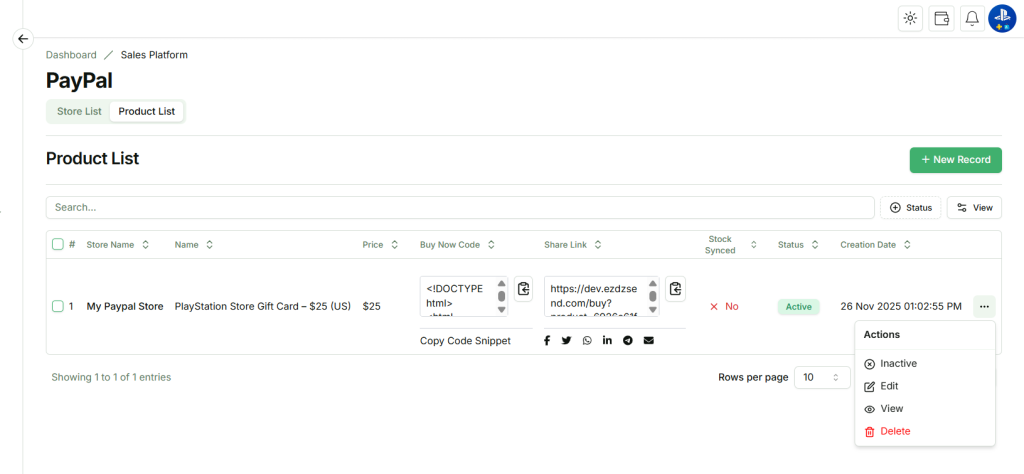
Product List with Action Modal Open
Features & Actions:
- Copy the HTML code snippet to your website to sell via PayPal directly.
- Copy the Share Link to sell the product via social media, email, or other platforms.
- Actions Column:
- Inactive / Active → Change product status.
- Edit → Update product info.
- Delete → Remove product.
- View → See product details.
⭐ Keep Data Synced 🔄
- Orders placed via PayPal → Appear in EZDZSEND Transaction Table.
- Inventory changes → Reflected automatically.
- Credits reduced automatically when a product is bought.