
In the EZDZSEND platform, Inventory FAQs are questions and answers linked to specific inventory items. These FAQs are inventory-wise, meaning each inventory item can have its own set of FAQs. When a buyer purchases a product, the corresponding FAQs are made available to them on the Download Access Page, helping them understand the product, usage instructions, or other relevant information. This ensures buyers have easy access to helpful information without needing to contact the seller.
Sellers Can Do in Inventory FAQs:
From the Inventory FAQs section, sellers have full control over FAQ management. They can:
- Add New FAQ
- Edit FAQ
- View FAQ
- Delete FAQ
- Activate / Inactive FAQ
This setup allows sellers to provide clear, helpful guidance for each product, improving buyer experience and reducing support requests.
Add New FAQ #
Sellers can create new frequently asked questions (FAQs) for one or more inventory items using the Add New FAQ feature. Follow these steps:
1. Navigate to the FAQ List
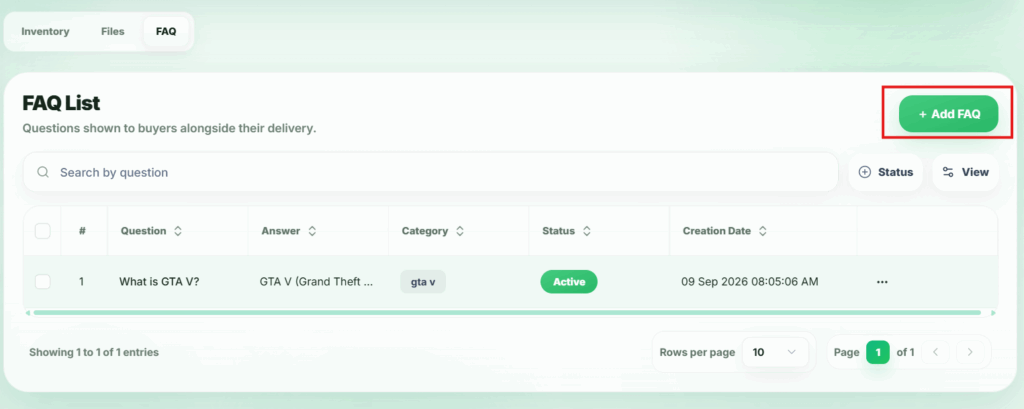
From the seller dashboard, go to the Inventory FAQs section. On this page, you will find a button labeled Add FAQ.
2. Open the New Record Modal
Click the Add FAQ button. A modal will appear where you can create a new FAQ.
3. Select Inventory
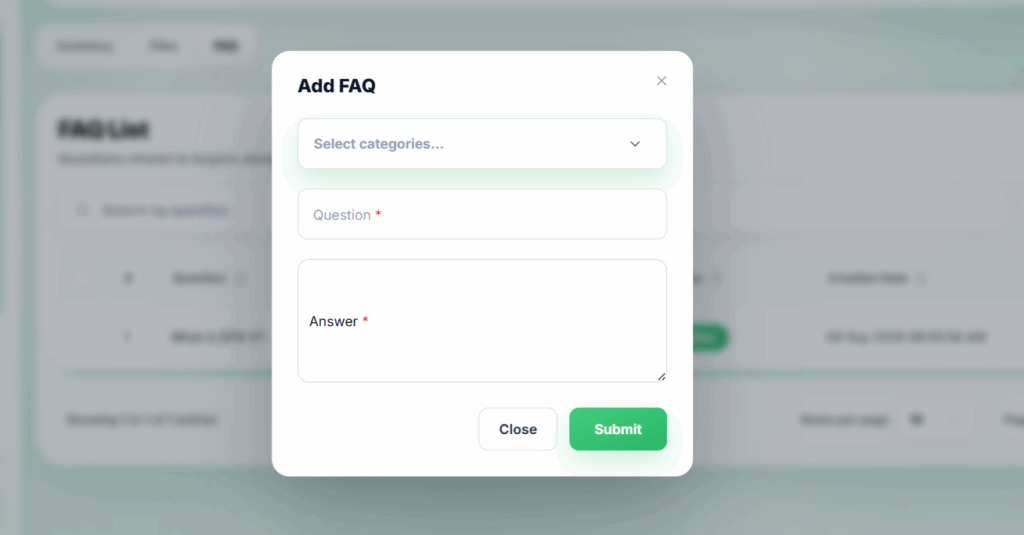
In the modal, first select the inventory items to which this FAQ will apply.
- Sellers can select one, multiple, or all inventory items at a time.
- This selection is mandatory, as it determines which products the FAQ will be linked to.
4. Enter Question and Answer
- Provide the question for the FAQ.
- Fill in the answer for the question.
- Both fields are mandatory.
5. Submit the FAQ
After filling all required fields, click the Submit button.
- The FAQ will be created and linked to the selected inventory items.
- If one inventory is selected, the FAQ applies to that item only.
- If multiple or all inventories are selected, the FAQ will apply to all chosen items.
This feature allows sellers to efficiently add helpful guidance for buyers, ensuring that relevant information is automatically available on the Download Access Page for the selected inventory items.
Edit FAQ #
Sellers can update existing FAQs for their inventory items using the Edit FAQ feature. Follow these steps:
1. Locate the FAQ
From the Inventory FAQs list, find the FAQ you want to edit.
2. Open the Action Menu
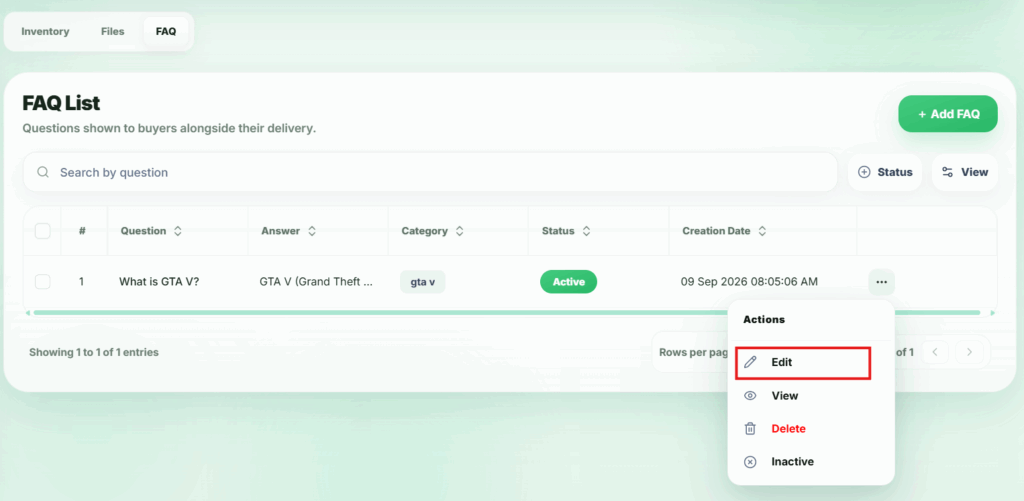
Click the action button (…) next to the FAQ. A popup menu will appear.
3. Select Edit
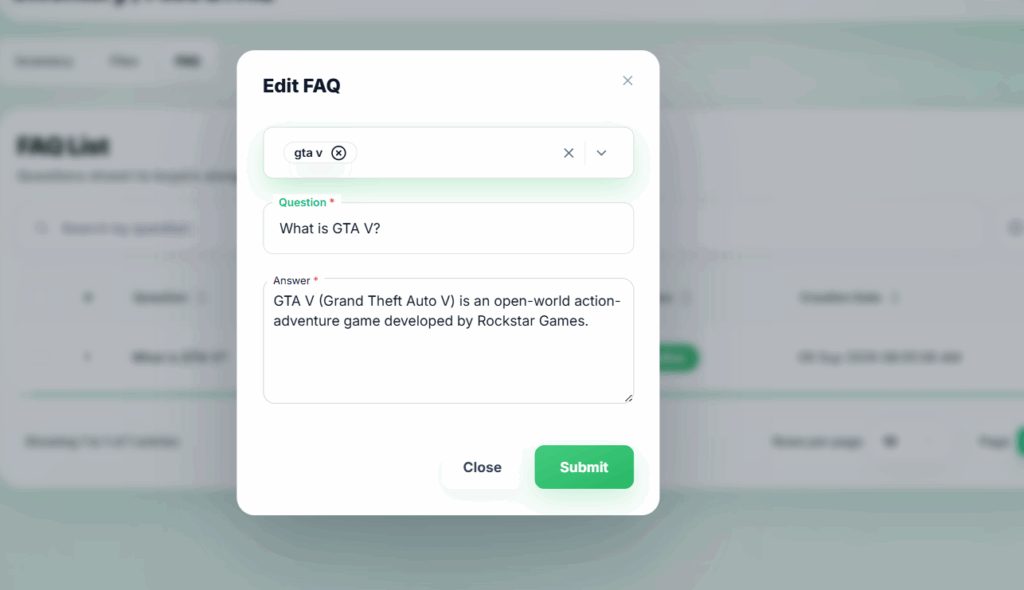
In the popup, click Edit. A modal will appear, similar to the Add New FAQ modal.
4. Update Inventory Selection
- Sellers can select, unselect, or update the inventory items this FAQ is linked to.
- The inventory selection is mandatory to ensure the FAQ applies to the correct items.
5. Edit Question and Answer
- Update the question and/or answer fields as needed.
- Both fields are required.
5. Submit Changes
After making the necessary updates, click the Submit button.
- The changes will be saved and reflected on the buyer’s Download Access Page for all selected inventory items.
This feature allows sellers to keep FAQ information accurate and up to date, ensuring buyers always have access to the latest guidance for the inventory items.
View FAQ #
Sellers can preview the details of an FAQ using the View FAQ feature. Follow these steps:
1. Locate the FAQ
From the Inventory FAQs list, find the FAQ you want to view.
2. Open the Action Menu
Click the action button (…) next to the FAQ. A popup menu will appear.
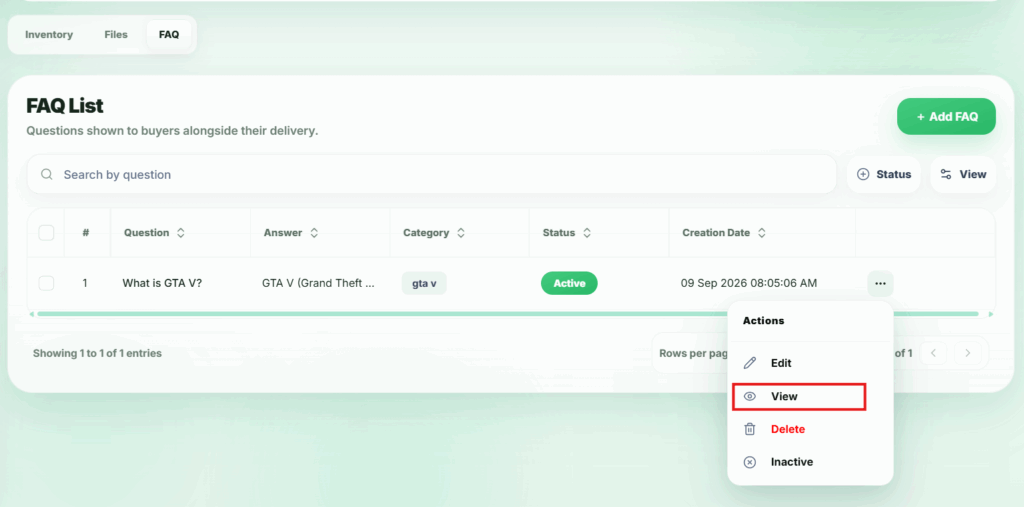
3. Select View
In the popup, click View. A modal will appear showing the full details of the FAQ.
4. View FAQ Details
In the modal, sellers can see:
- The question of the FAQ
- The answer
- The inventory items the FAQ is linked to
- The status (Active or Inactive)
This feature allows sellers to quickly review FAQs and verify that the correct information is linked to the appropriate inventory items, without needing to make any edits.
Delete FAQ #
Sellers can permanently remove an FAQ from their inventory items using the Delete FAQ feature. Follow these steps:
1. Locate the FAQ
From the Inventory FAQs list, find the FAQ you want to delete.
2. Open the Action Menu
Click the action button (…) next to the FAQ. A popup menu will appear.
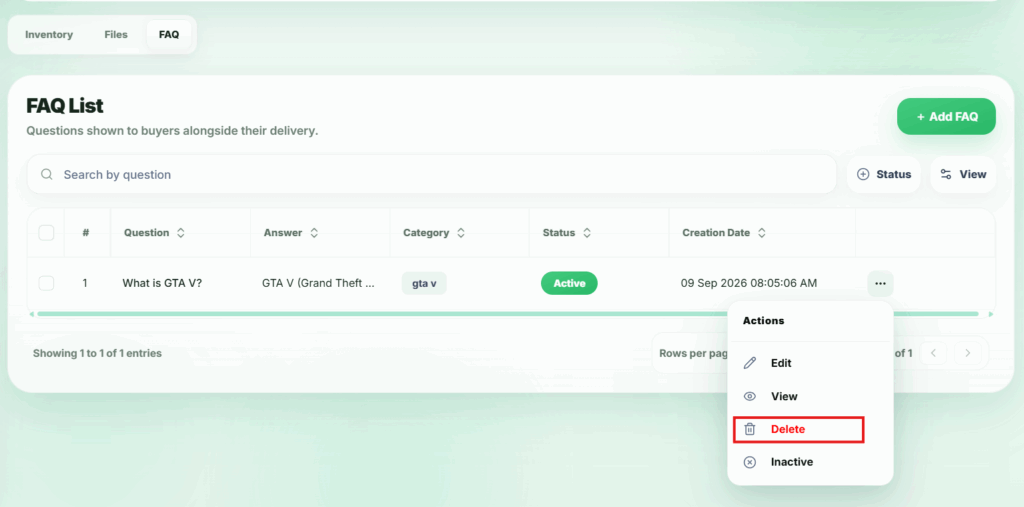
3. Select Delete
In the popup, click Delete. A confirmation modal will appear to prevent accidental deletion.
4. Confirm Deletion
Click Confirm in the modal. The FAQ will be permanently removed from the system.
⚠️ Important:
- Deleting an FAQ is permanent and cannot be undone.
- Once deleted, the FAQ will no longer be visible to buyers on the Download Access Page.
- Use this feature carefully to avoid removing important guidance for customers.
Activate / Inactive FAQ #
Sellers can control whether an FAQ is visible to buyers by marking it as Active or Inactive. Follow these steps:
1. Locate the FAQ
From the Inventory FAQs list, find the FAQ whose status you want to update.
2. Open the Action Menu
Click the action button (…) next to the FAQ. A popup menu will appear.
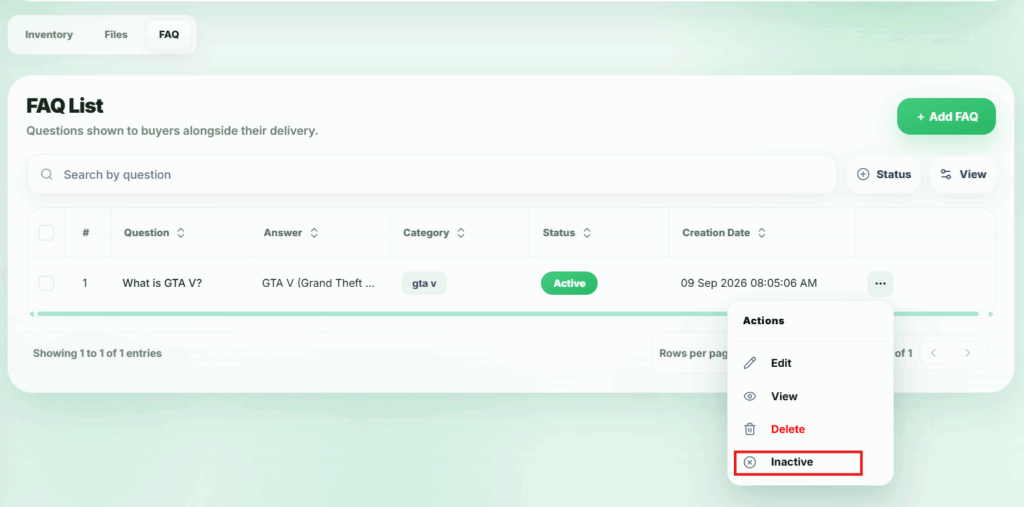
3. Select Active / Inactive
- Click the Active option to make the FAQ visible to buyers.
- Click the Inactive option to hide the FAQ from buyers.
4. Status Update
- Once updated, the FAQ will reflect the new status immediately.
- Inactive FAQs will not be visible to buyers on the Download Access Page.
- Active FAQs will be visible to buyers.
⚠️ Important:
- This feature allows sellers to temporarily hide or show FAQs without deleting them.
- Inactive FAQs can be reactivated at any time if needed.