
The Main Email Templates section manages system-generated emails sent to customers for order success and order resent notifications. These templates are redesignable, allowing sellers to customize the layout and content for consistent, professional communication.
Here Seller Can Do:
- Add Template
- Edit Template details
- Delete Template records
- Activate or inactivate Template
- Import Template list in bulk
- Export Template list
- Perform mass actions:
- Delete selected Template
- Activate all
- Inactivate all
- Filter Template records by:
- Status (Active / Inactive)
Add New Template #
To add a new Template to your Template list, follow these steps:
1. Navigate to the Templates
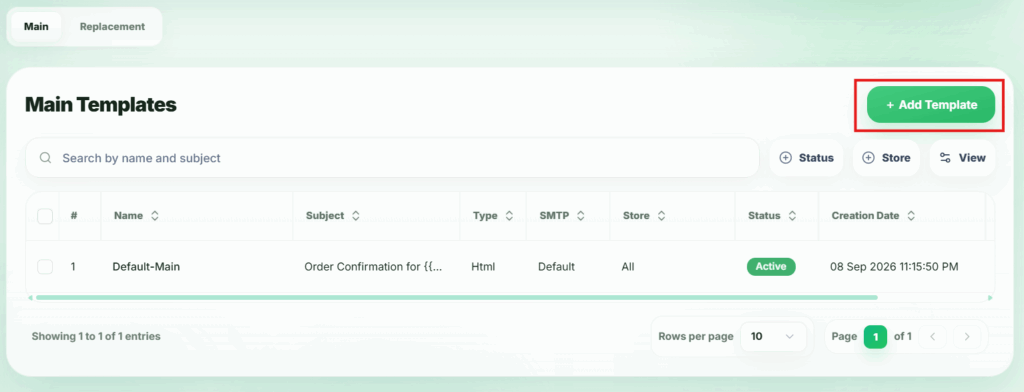
From your seller dashboard, go to the Templates section. Here, you will find a button labeled Add Template.
2. Open the New Record Modal
Clicking Add Template will open a modal where you can add a new Template.
3. Fill in Template Details
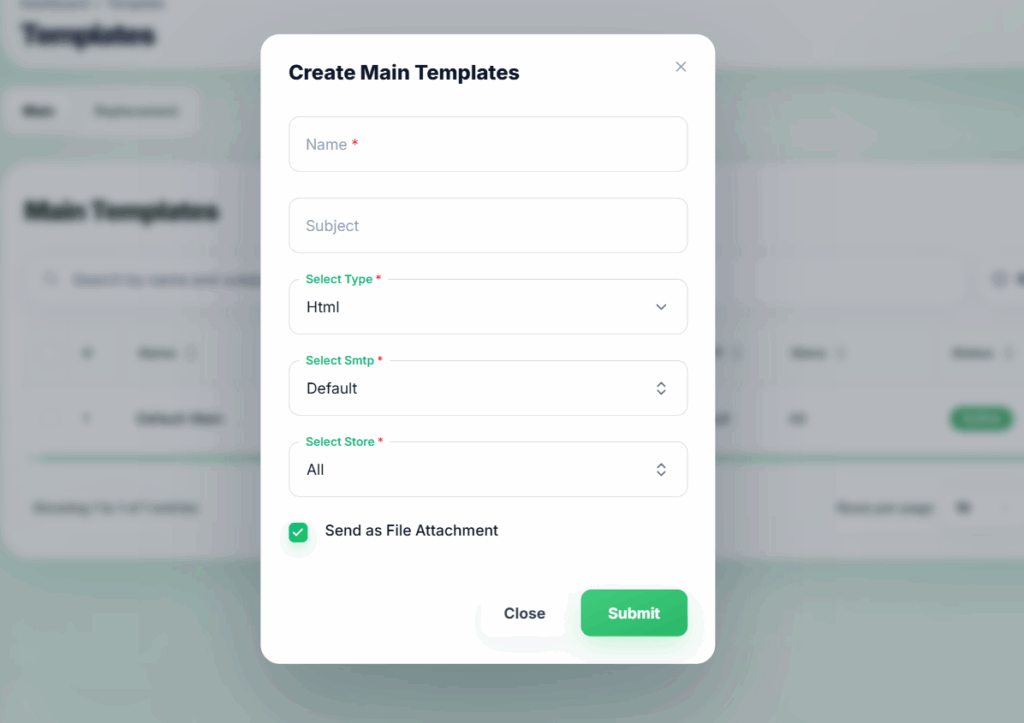
In the modal, provide the following information:
- Name – Give a Template name.
- Subject – Email subject
- Select type – Plain or HTML
- Select SMTP – Select smtp which come from SMTP data
4.Template Added
Once all conditions are satisfied and the required fields are filled correctly, the Template will be successfully created, status active and available in product list.
Update The Template #
Sellers can update and redesign this template to customize its layout and content. Changes will apply to all future emails sent using this template, allowing for consistent and professional communication with customers.
1. Locate the Templates
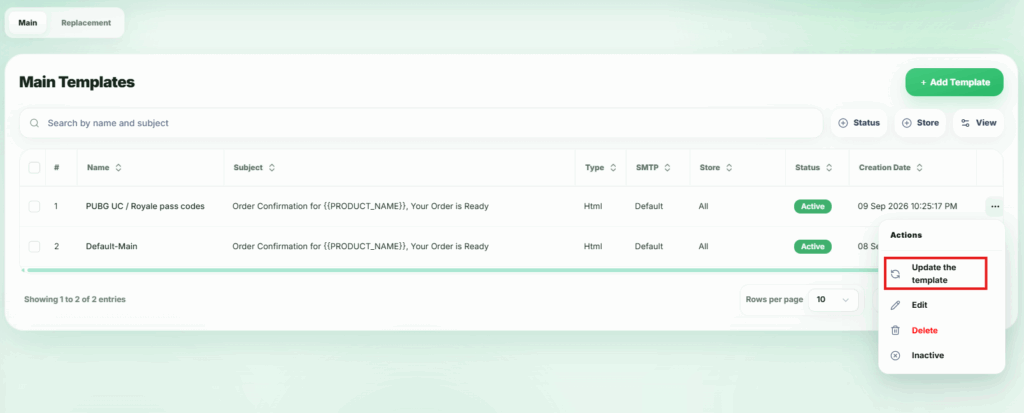
From the Template list, find the Template you want to Update the Template.
2. Open the Action Menu
Click the action button (…) next to the Template. A popup menu will appear.
3. Template Variable Info
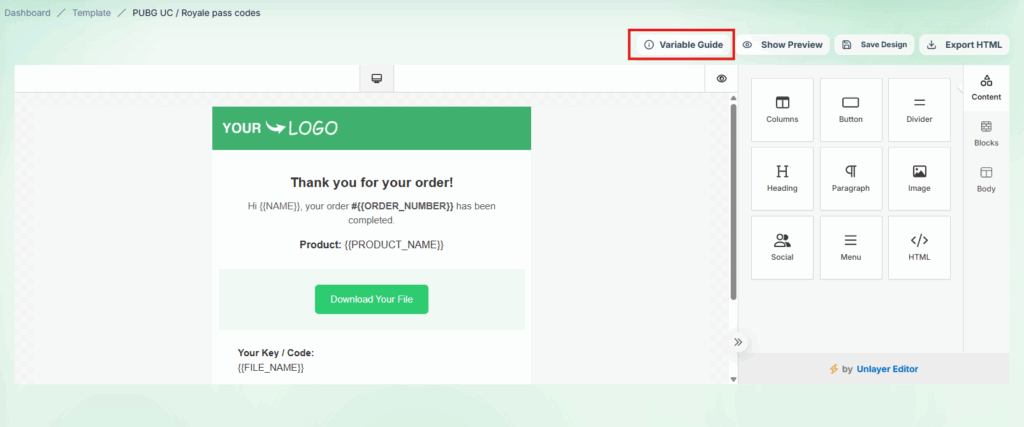
This section displays all available template variables and their format. Sellers can use these variables while designing or updating email templates to dynamically insert order details, customer information, or other system data.
From the Update Template, click Variable Guide button a popup will appear.
4. Template Variable info
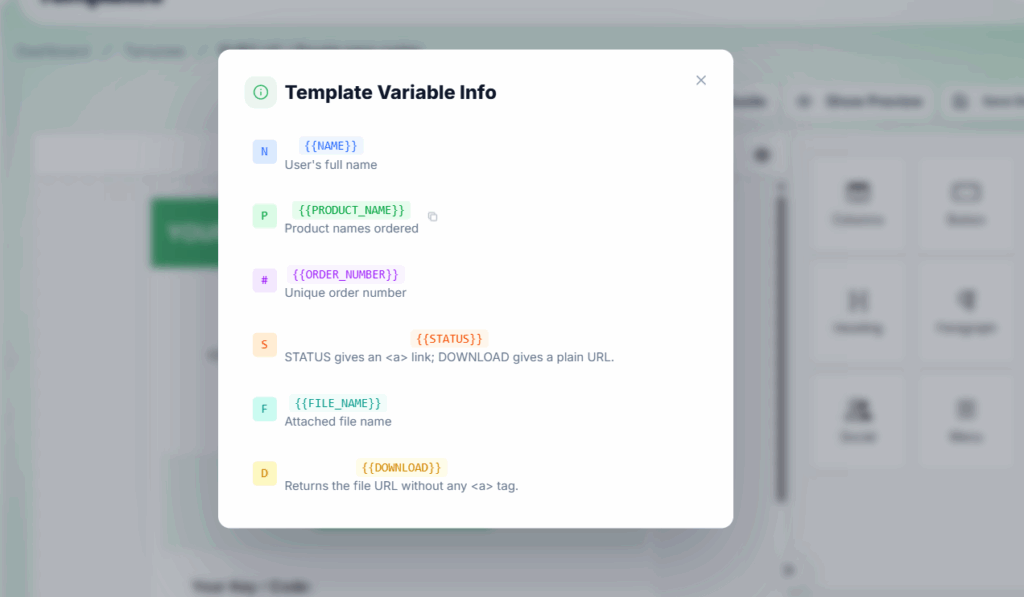
⚠️ Note: Incorrect use of variables may result in missing or incorrect information in sent emails.
5. Template Design update
When updating or redesigning a template, sellers should use variables in the proper format to ensure dynamic data (like {{NAME}}) is displayed correctly in emails. Proper use of variables guarantees accurate and professional communication.
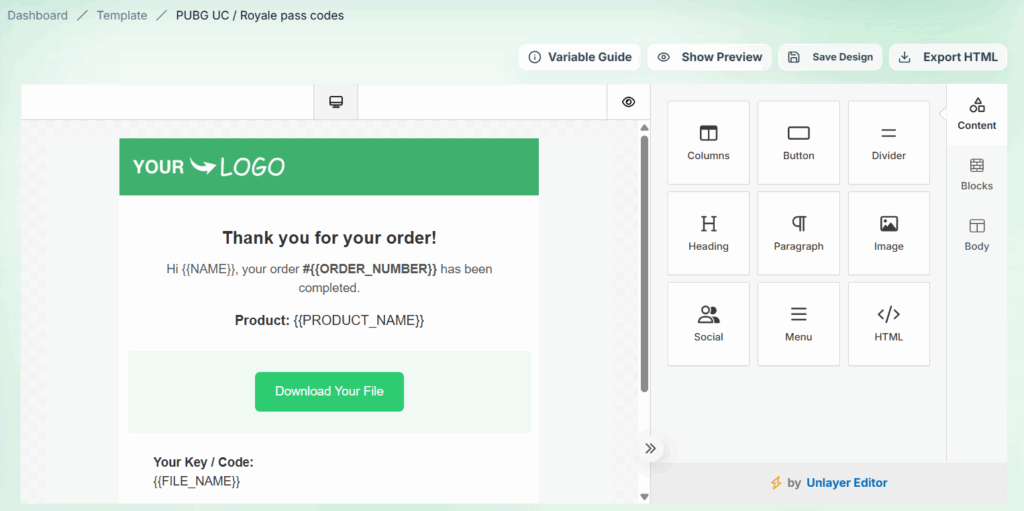
⚠️ Note: Incorrect variable formatting may cause missing or incorrect information in sent emails.
Edit Template #
Sellers can update the details of existing Template using the Edit Template feature. To do this:
1. Locate the Templates
From the Template list, find the Template you want to edit.
2. Open the Action Menu
Click the action button (…) next to the Template. A popup menu will appear.
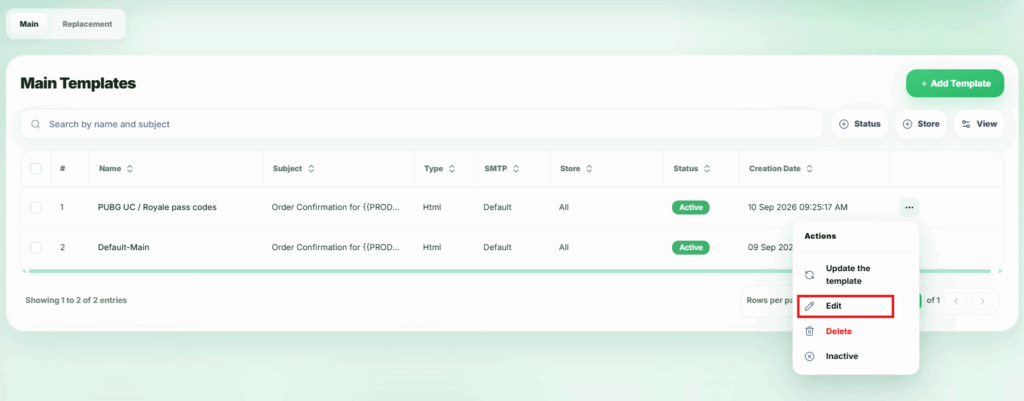
3. Select Edit
In the popup, click Edit. A modal will appear where you can update the Template details.
4. Edit Template Details
- Name – You can modify the Template name.
- Subject -You can modify Email subject
- Select type -You can modify Plain or HTML
- Select SMTP -You can modify smtp which come from SMTP data
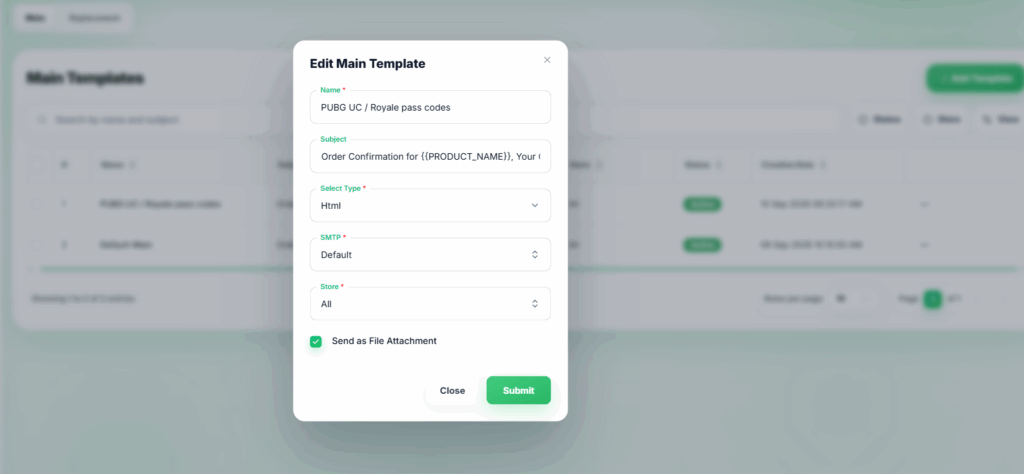
5. Save Changes
After updating the details, click Submit to apply the changes. The Template will be updated and reflected in the list.
Active or Inactive #
Sellers can activate or inactivate existing Main Email Templates to control whether they are sent to customers. Active templates are automatically sent for order success and order resent emails, while Inactive templates are disabled and will not be sent.
1. Locate the Templates
From the Template list, find the Template you want to active or inactive.
2. Open the Action Menu
Click the action button (…) next to the Template. A popup menu will appear.
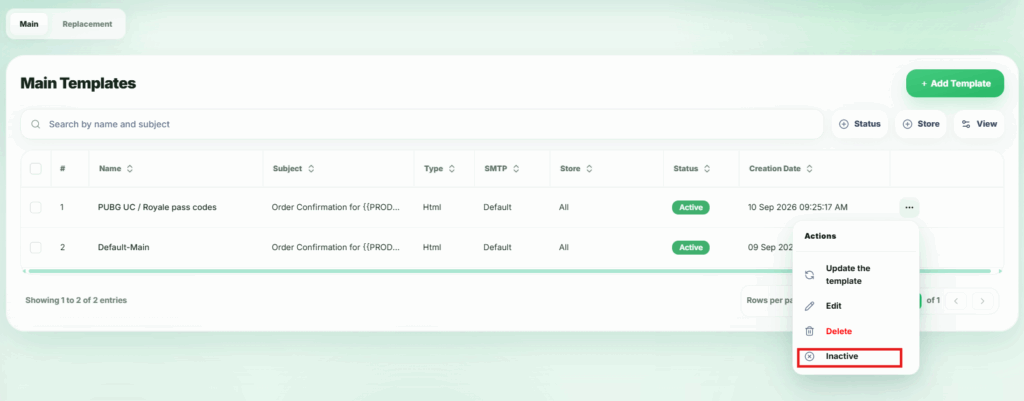
3. Select Inactive or active
In the popup, click Active or Inactive. A confirmation modal will appear to ensure you want to update it.
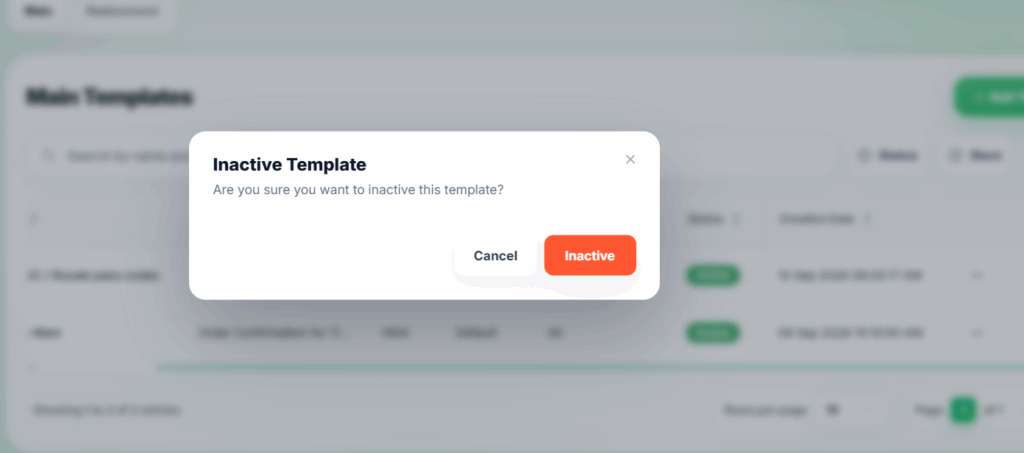
4. Confirm Active or Inactive
Click Confirm in the modal. The Template item status will update.
Delete Template #
Sellers can permanently remove a template from the Template List. Once deleted, the template will no longer be available or sent to customers, and all customizations will be lost.
1. Locate the Templates
From the Template list, find the Template you want to delete.
2. Open the Action Menu
Click the action button (…) next to the Template. A popup menu will appear.
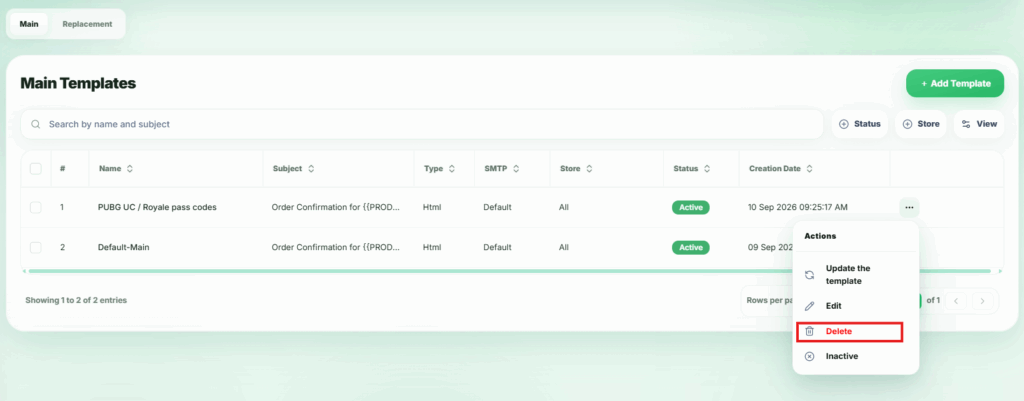
3. Select Delete
In the popup, click Delete. A confirmation modal will appear to ensure you want to proceed.
4. Confirm Deletion
Click Confirm in the modal. The Template will be permanently deleted.
⚠️ Note: Templates that are currently in use cannot be deleted.