
Transaction List #
The All Transactions page provides sellers with a high-level overview of every transaction that has occurred across all platforms and stores connected to EZDZSEND. This page is designed to help sellers monitor order activity, track transaction statuses, and take necessary actions from a single centralized location.
Transaction Overview #
Sellers can view transactions in multiple states, including Succeeded, Pending, Cancelled, Replacement, Resent, Fraud, and Refunded. Each transaction entry maintains its own status and detailed record, allowing sellers to quickly understand the order’s current state, history, and any actions that have been taken.
Filters and Search #
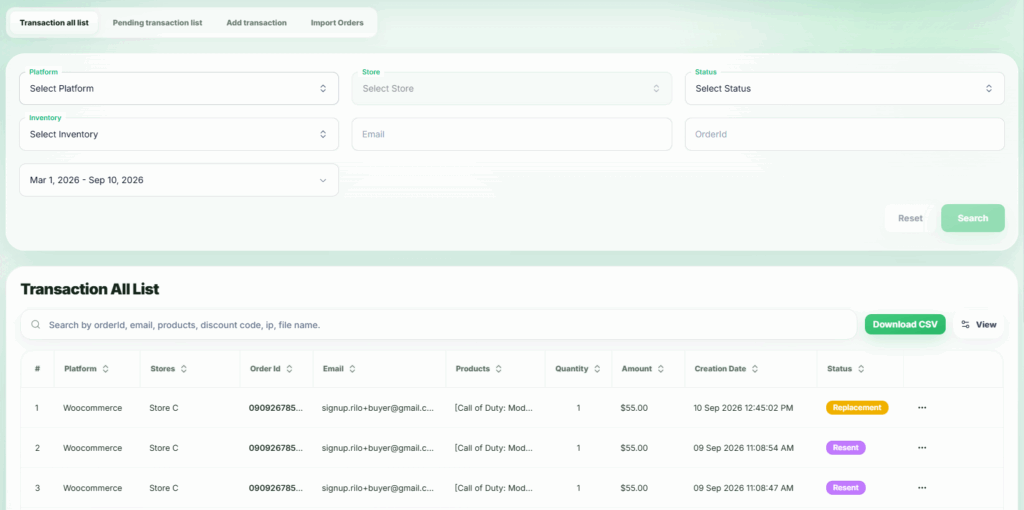
The All Transactions page includes advanced filtering and search options to help sellers quickly locate specific transactions. Sellers can filter transactions by platform, store, status, inventory, buyer email, order ID, and date range. A built-in search bar allows fast lookup across all transactions, making it easy to manage and review large volumes of transaction data efficiently.
Transaction Details Table #
The transaction list displays key details for each order, including the platform, store, order ID, buyer email, products, quantity, amount, creation date, and current status. This structured overview helps sellers monitor sales activity, track order progress, and manage fulfillment at a glance.
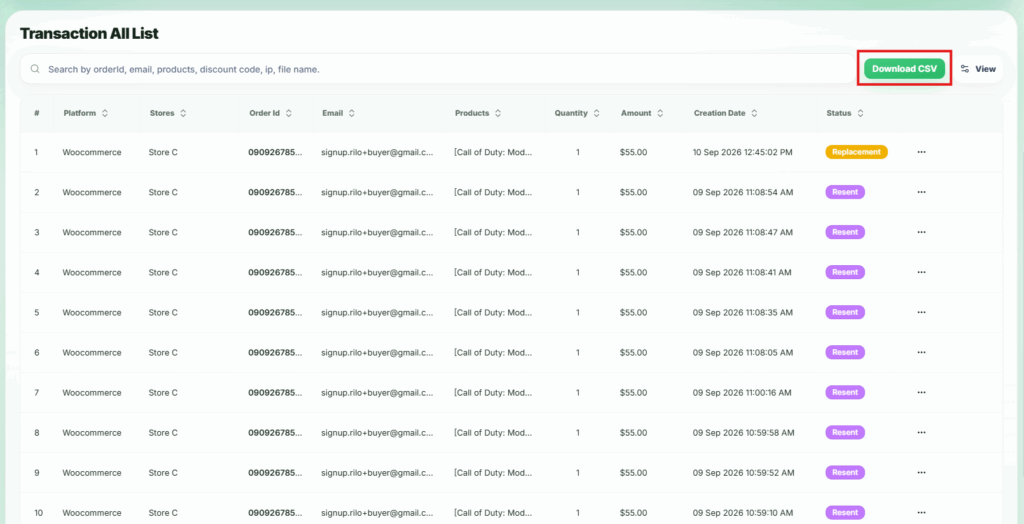
Export Transactions: #
Sellers can also download all transaction data as a CSV file, making it easy to analyze records offline, create reports, or maintain backups.
Seller Actions #
From the All Transactions page, sellers can take several actions depending on the transaction status:
Available Actions:
- Send Replacement
- Refund
- Resend
- Mark as Fraud
- View
Actions for Pending Transactions
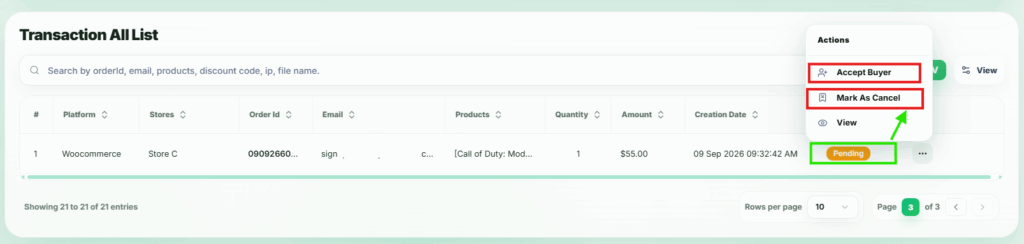
For transactions with Pending status, sellers can:
- Accept Buyer
- Mark as Cancelled
- View
⚠️ Important:
- When any action is taken on a transaction, a new transaction row is created with the updated status, while the original transaction record remains visible.
- This ensures a complete and transparent transaction history for auditing and tracking purposes.
Succeeded Transactions #
Sellers can view and manage transactions that have been successfully completed using the Succeeded Transactions feature. Follow these steps:
1. Locate the Transaction
From the All Transactions list, find the transaction with Succeeded status.
2. Open the Action Menu
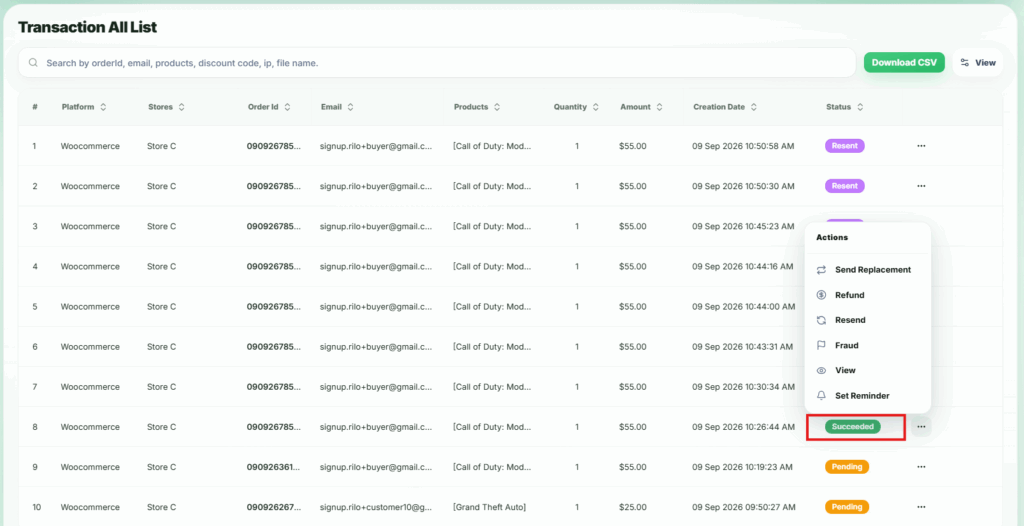
Click the action button (…) next to the transaction. A popup menu will appear.
3. Available Actions
In the popup, sellers can choose from the following options:
- Send Replacement – Provide a replacement product or file.
- Resend – Resend the product or files to the buyer.
- Mark as Fraud – Flag the transaction as fraudulent.
- View – Review full transaction details.
4. Perform the Action
Select the desired action to process the transaction further, while maintaining a complete transaction record.
Pending Transactions #
Sellers can review and take action on transactions that are Pending due to restrictions or product stock issues. Follow these steps:
1. Locate the Transaction
From the All Transactions list, find the transaction with Pending status.
2. Open the Action Menu
Click the action button (…) next to the transaction. A popup menu will appear.
3. Available Actions
In the popup, sellers can choose from the following options:
- Accept Buyer – Approve the transaction. If the product is in stock, the status changes to Succeeded, and the buyer receives access via email.
- Mark as Cancel – Cancel the transaction. The status will change to Cancelled, and the buyer will not receive access to the files.
- If seller Mark as cancel the transaction, then buyer will get the Full refund from platform
- View – Review full transaction details.
4. Perform the Action
Select the desired action to handle the pending transaction and maintain proper order management.
Send Replacement #
Sellers can send a replacement for transactions that have a Succeeded status. This allows sellers to provide a new product or file to the buyer in case of issues, errors, or requests.
1. Locate the Transaction:
From the All Transactions list, find the transaction with Succeeded status for which you want to send a replacement.
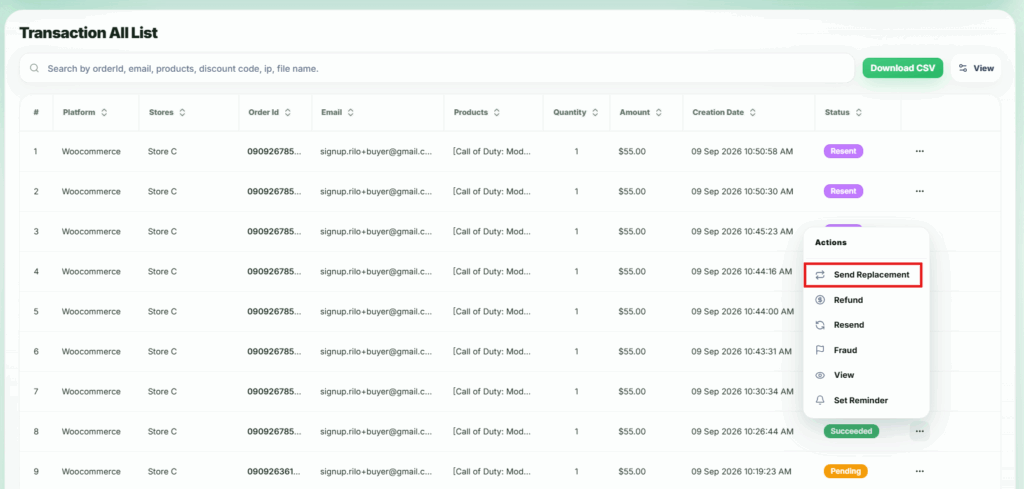
2. Open the Action Menu
Click the action button (…) next to the transaction. A popup menu will appear.
3. Select Replacement
In the popup, click Replacement. A modal will appear.
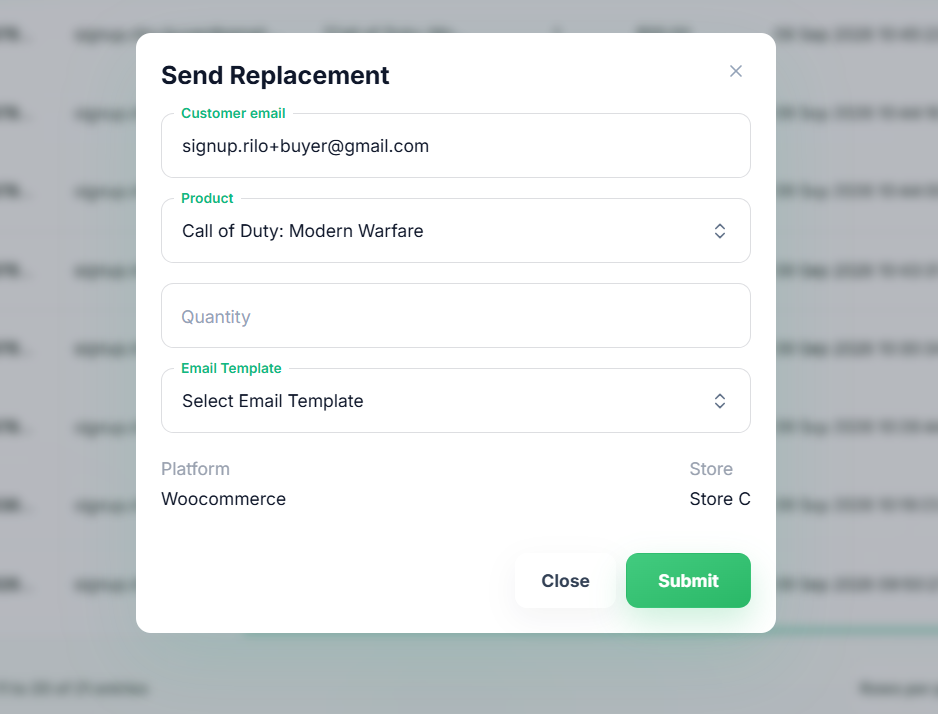
4. Fill Replacement Details in the Modal
- Customer Email – Enter or confirm the buyer’s email address.
- Select Product – Choose the product or file to be sent as a replacement.
- Quantity – Specify the number of items to send.
- Select Email Template – Choose the email template to notify the buyer about the replacement.
5. Submit the Replacement
Click the Submit button. The selected product with the specified quantity will be sent to the buyer’s email using the chosen template.
This feature ensures sellers can efficiently handle post-sale issues, provide replacements, and maintain customer satisfaction while keeping a complete transaction record.
Refund Transactions #
Sellers can issue a refund for transactions with a Succeeded status. This allows sellers to return funds to buyers either partially or fully, depending on the situation.
1. Locate the Transaction
From the All Transactions list, find the transaction with Succeeded status for which a refund is needed.
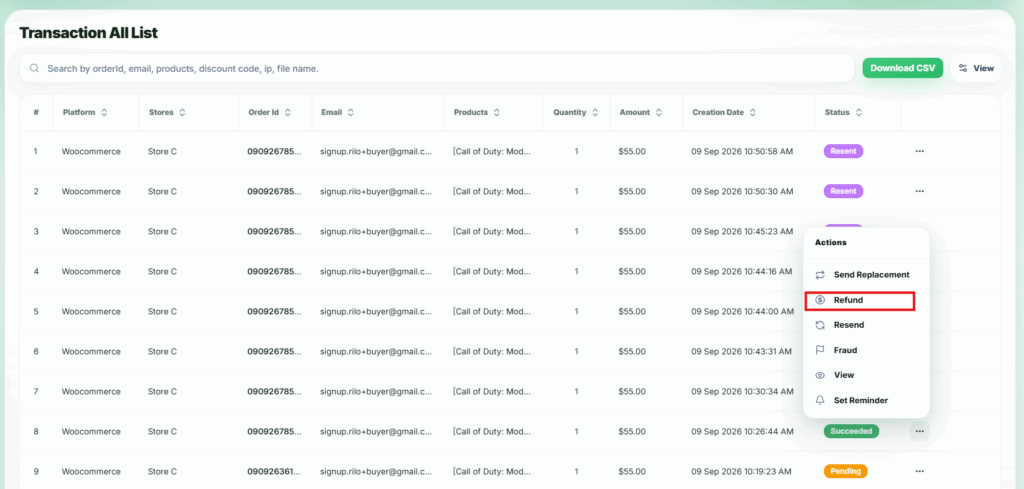
2. Open the Action Menu
Click the action button (…) next to the transaction. A popup menu will appear.
3. Select Refund
In the popup, click Refund. A modal will appear with refund options.
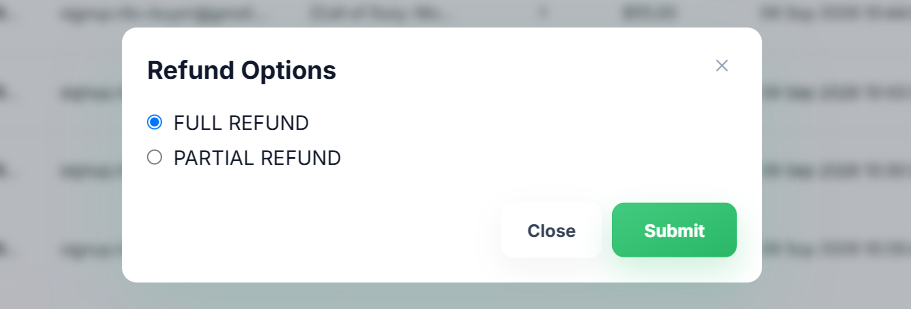
4. Choose Refund Type
- Full Refund – Selecting this option returns the full order amount to the buyer. After a full refund, no additional full or partial refunds can be issued for this transaction.
- Partial Refund – Selecting this option reveals an input field where the seller can select product and enter the amount to refund. The buyer will receive the specified amount.
- Partial refunds can be issued multiple times, as long as the total refunded amount does not exceed the original order amount.
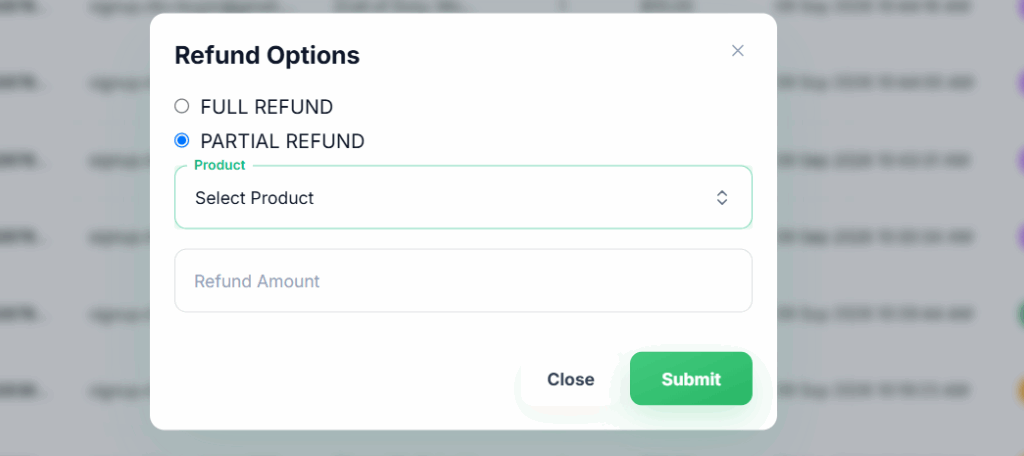
5. Submit the Refund
Click the Submit button to process the refund. The buyer will receive the refunded amount according to the selected option.
⚠️ Important:
- After processing a refund, the seller can still send a Replacement or Resend for the transaction if necessary.
- All refunds are recorded in the transaction history to maintain full transparency.
Resend #
Sellers can resend a product or file for transactions with Succeeded or Replacement status. This allows sellers to deliver the purchased item again if the buyer did not receive it, requested it again, or there was an issue with the original delivery.
1. Locate the Transaction
From the All Transactions list, find the transaction with Succeeded or Replacement status that requires a resend.
2. Open the Action Menu
Click the action button (…) next to the transaction. A popup menu will appear.
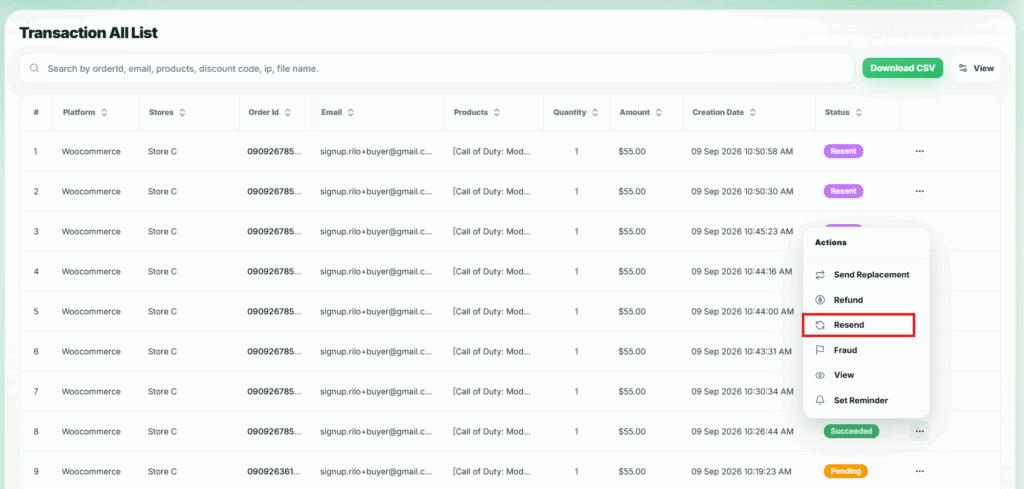
3. Select Resend
In the popup, click Resend. The selected product or file will be automatically sent to the buyer’s email using the original transaction details.
⚠️ Important:
- Resend can be performed multiple times if needed, even after a refund or replacement.
- All resends are logged in the transaction history to maintain a complete record of order activity
Fraud Transactions #
Sellers can mark a transaction as Fraud if they detect suspicious activity or believe the transaction is invalid. This action helps prevent potential losses and protects both the seller and the platform.
1. Locate the Transaction
From the All Transactions list, find the transaction that you suspect is fraudulent.
2. Open the Action Menu
Click the action button (…) next to the transaction. A popup menu will appear.
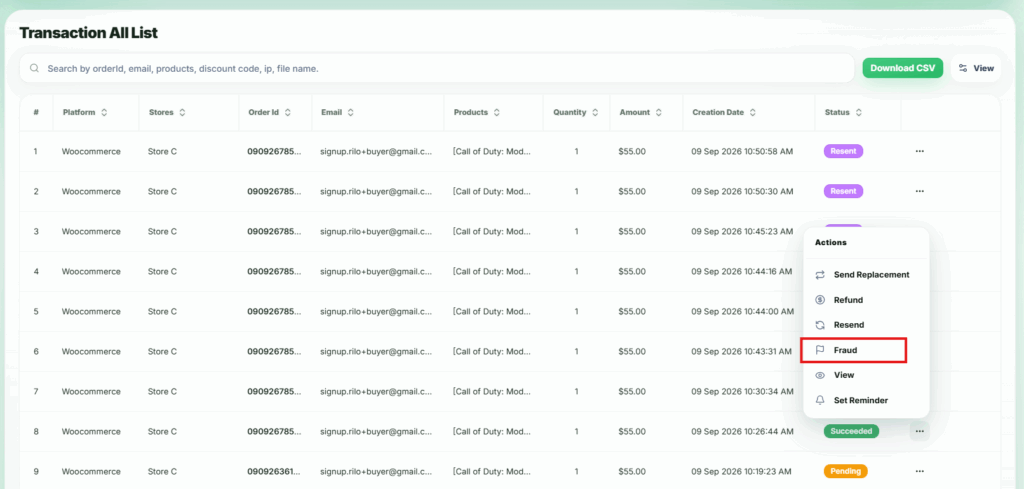
3. Select Fraud
In the popup, click Mark as Fraud. The transaction status will be updated to Fraud.
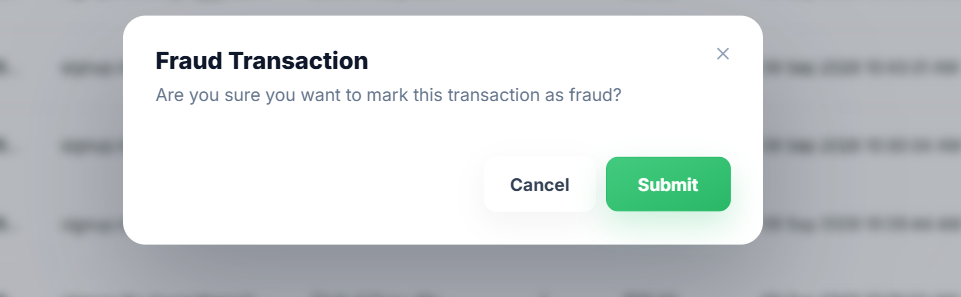
4. Confirm Fraud Action
A confirmation modal will appear. Click Confirm to mark the transaction as Fraud.
⚠️ Important:
- Once a transaction is marked as Fraud, the seller can still perform any other available actions on the transaction, such as Resend, Refund, or Send Replacement.
- All actions taken on a fraudulent transaction are logged in the transaction history to ensure transparency and traceability.
View Transaction #
Sellers can view detailed information about any transaction by using the View option. This allows sellers to access all relevant transaction data, track activities, and monitor security-related information.
1. Locate the Transaction
From the All Transactions list, find the transaction you want to view.
2. Open the Action Menu
Click the action button (…) next to the transaction. A popup menu will appear.
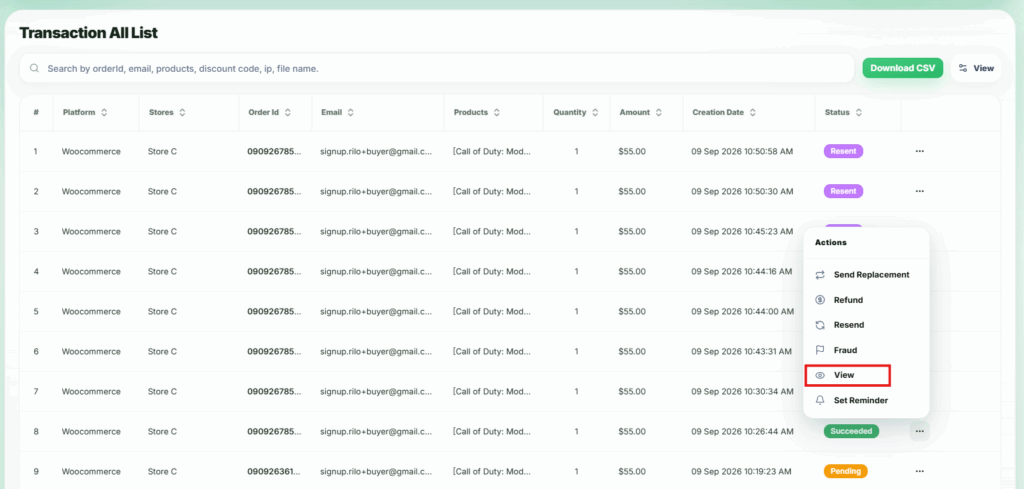
3. Select View
In the popup, click View. You will be redirected to the Transaction Details Page.
4. Transaction Details Page
On this page, sellers can see:
- Transaction Details – Full information including platform, store, order ID, buyer email, products, quantity, amount, creation date, and current status.
- Task / Activity Log – A complete record of all actions taken on the transaction, such as refunds, resends, replacements, and status changes.
- IP Logs – Security information showing the IP addresses from which the transaction was processed, providing insight into access and activity history.
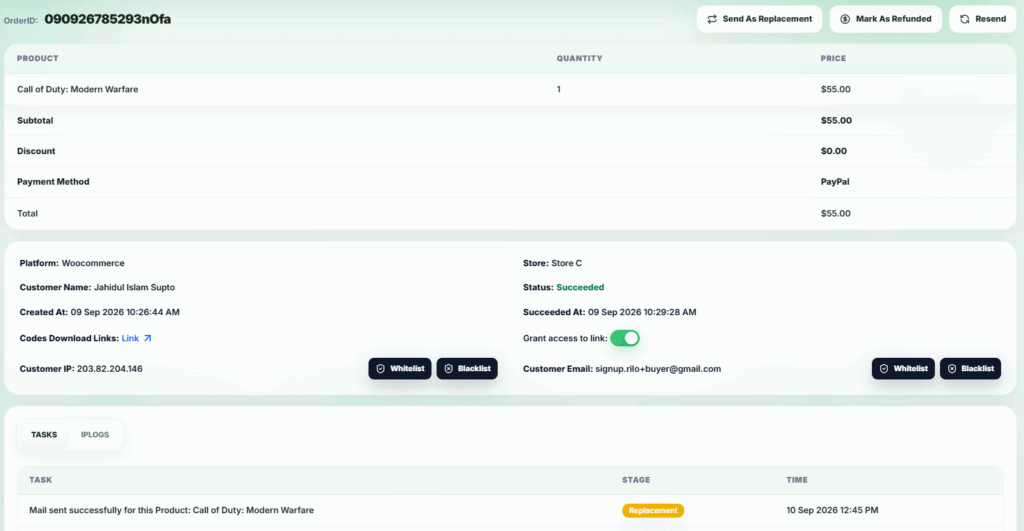
This feature helps sellers track the complete history of a transaction, monitor activity for security purposes, and maintain transparency for order management.