
The Import Orders feature allows sellers to manually import transactions that may not have been automatically recorded in the EZDZSEND platform. This is useful in cases where a buyer has purchased a product from a store, but the platform did not receive the webhook or transaction notification. By importing these orders, sellers can ensure all transactions are accounted for and properly delivered.
How It Works #
Sellers can import missing transactions either by Order ID or by a specific Time Period. After importing, sellers can take actions such as Accept Buyer, Mark as Cancel, or View for each imported transaction.
Steps to Import Orders #
1. Navigate to Import Orders
From the seller dashboard, go to the Import Orders section.
2. Apply Filters for Import
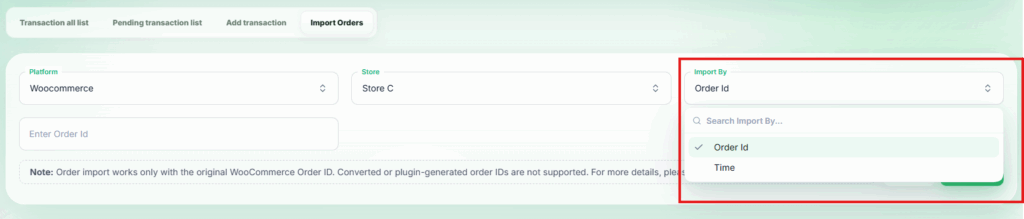
- Select Platform – Choose the platform from which you want to import transactions.
- Select Store – Select the store associated with the transactions.
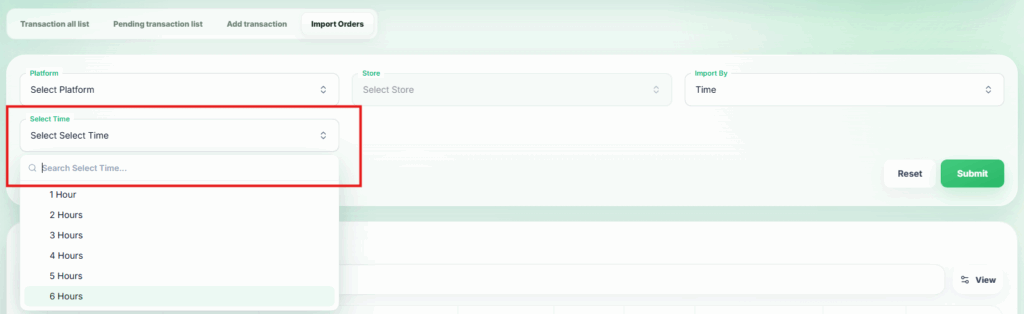
- Select Import By – Choose how to import the orders:
- Order ID – Enter the specific order ID to import.
- Time – Select a time period (1–6 hours) to import all transactions within that range.
3. Submit Import Request
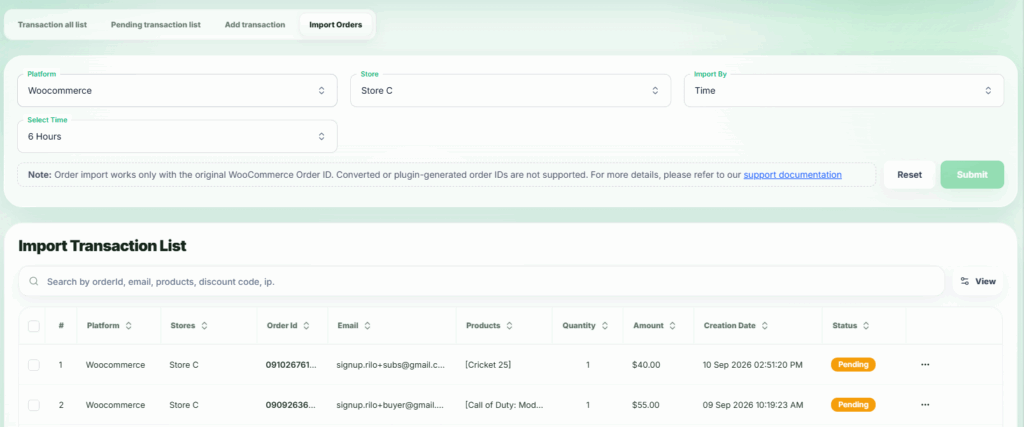
Click the Submit button. The platform will fetch and display the transactions matching your criteria.
4. Take Action on Imported Orders
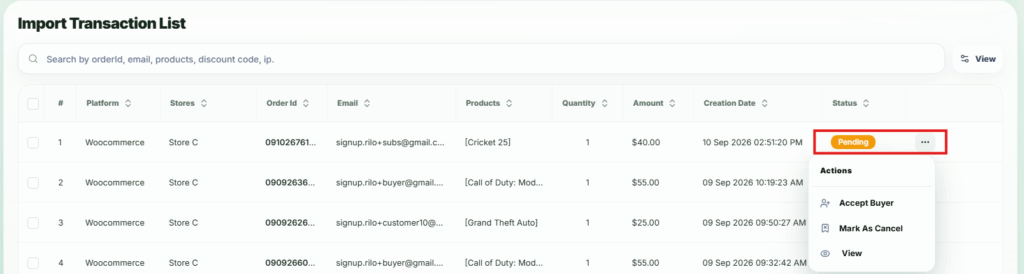
Once the transactions appear, sellers can take the following actions:
- Accept Buyer – Approve the transaction. The buyer will receive an email, and the seller will gain access to the product files.
- Mark as Cancel – Cancel the transaction. The buyer will automatically receive a full refund from the platform.
- View – Review full details of the imported transaction.
Benefits of Import Orders #
- Ensures all sales are recorded and tracked, even if the platform did not automatically receive the transaction.
- Allows sellers to deliver products and files to buyers accurately.
- Maintains full transaction history for auditing and customer support purposes.