
This guide explains how sellers can create, manage, and sell PayPal-based products using EZDZSEND.
⚠️ Important Difference
PayPal does not work like WooCommerce, Shopify, BigCommerce, Ecwid, or eBay.
PayPal has no product store, so products must be manually created inside EZDZSEND.
PayPal Product Behavior Overview #
- After connecting a PayPal account, no products are imported automatically
- Sellers must manually create PayPal products
- Each PayPal product:
- Generates a Buy Now HTML button
- Generates a Shareable Purchase Link
- Orders are processed entirely through EZDZSEND
Creating a PayPal Product #
- Go to Sales Platform → PayPal
- Open the Product List tab
- Click + New Record
- A modal will appear with the following fields:
- Select Store (PayPal account)
- Product Name
- Price
- Inventory Selection
- Email Template Selection
- Click Submit
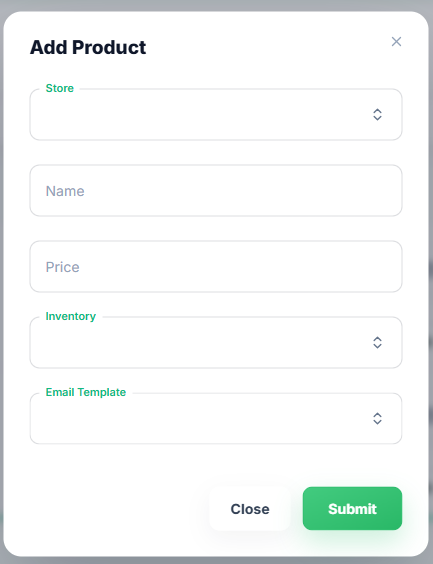
✅ The product will be created and instantly appear in the PayPal product list.
PayPal Product List Overview #
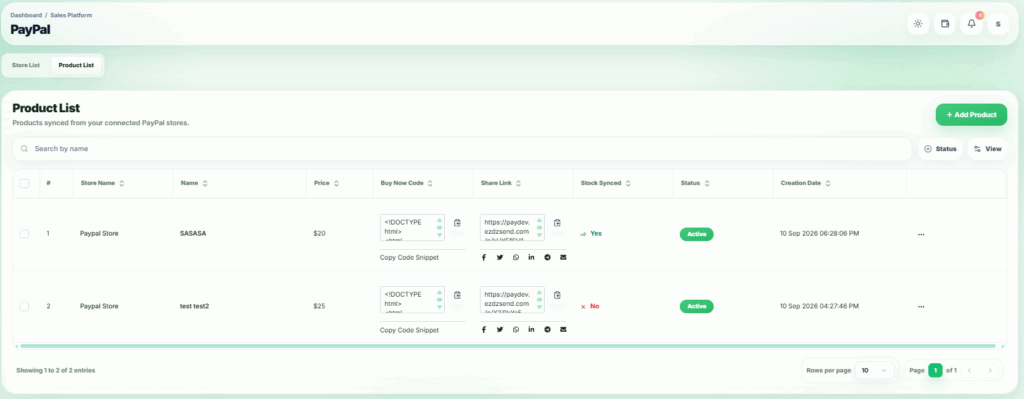
Each PayPal product shows the following information:
- Store Name
- Product Name
- Price
- Buy Now HTML Code
- Share Link
- Stock Sync Status
- Product Status (Active / Inactive)
- Creation Date
Selling Using Buy Now HTML Code #
What is the Buy Now HTML?
This HTML snippet contains:
- This HTML snippet contains:
- A PayPal Buy Now button
- Quantity selector
- It allows customers to purchase directly via PayPal
How to Use It
- Copy the HTML code
- Paste it into:
- Any website
- Landing page
- Blog
- Custom checkout page
💡 This enables sellers to sell products from any existing website without platform restrictions.
Selling Using Share Link
What is the Share Link?
- A direct purchase URL generated by EZDZSEND
- Customers can buy products by clicking the link
Use Cases
Share via:
- Social media
- Email campaigns
- WhatsApp / Messenger
- Direct customer communication
📌 No website required — perfect for quick sales.
Editing a PayPal Product #
How to Edit
- Click the three-dot (⋯) menu
- Select Edit
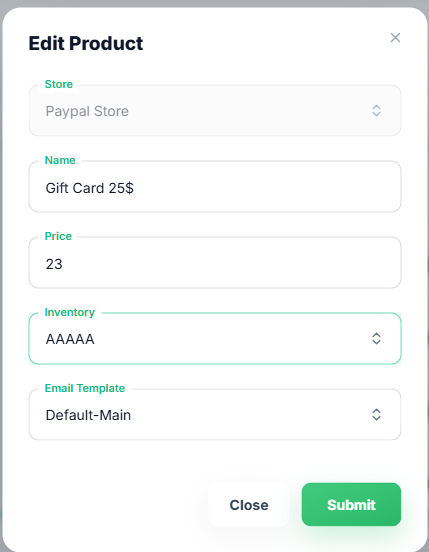
- The same product creation modal will open
- Sellers can edit:
- Product Name
- Price
- Inventory
- Email Template
- Click Submit
Deleting a PayPal Product #
- Click the three-dot (⋯) menu
- Select Delete
- Product is permanently removed
⚠️ Deleted products cannot be recovered.
Viewing Product Details #
Stock Synchronization #
Stock Synchronization allows EZDZSEND to update product quantity on your store based on available files or code on inventory.
Rules:
- ✅ Works only with Unique Code Inventory
- ❌ Not available for reusable or non-unique inventories
How it Works:
- EZDZSEND calculates available stock based on available inventory codes or files
- The product stock on the connected store updates automatically
This prevents overselling and ensures real-time stock accuracy.

Bonus Settings (Promotional Delivery) #
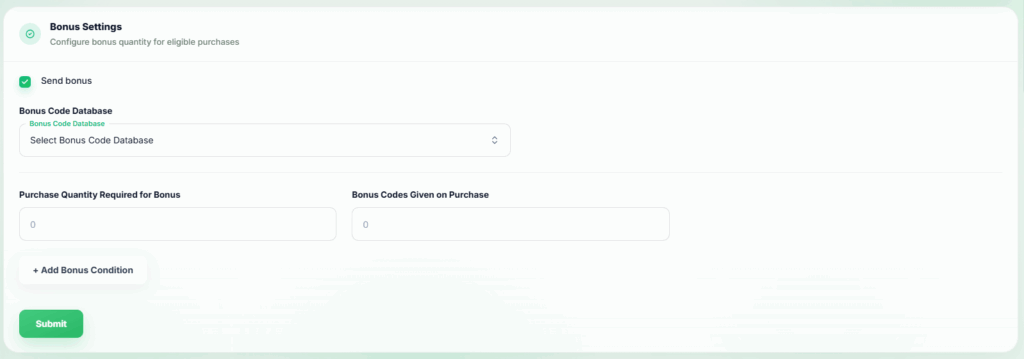
Sellers can configure bonus items/codes to be delivered automatically with purchases.
Bonus Configuration Steps:
- Enable Send Bonus
- Select Bonus Code Database (inventory/file)
- Set:
- Purchase Quantity Required
- Bonus Codes Given on Purchase
- Click Submit
Key Features:
- Multiple bonus conditions can be configured per product
- Bonus codes are delivered together with the main product
🎁 Ideal for promotions, loyalty rewards, and bulk incentives.
Selling Restrictions (Fraud Prevention) #
Selling Restrictions help protect sellers from abuse, fraud, and excessive usage.
Restrict New Customers #
- Enable Restrict new customer access
- New customer transactions will go into Pending
- Helps prevent fraud from first-time buyers

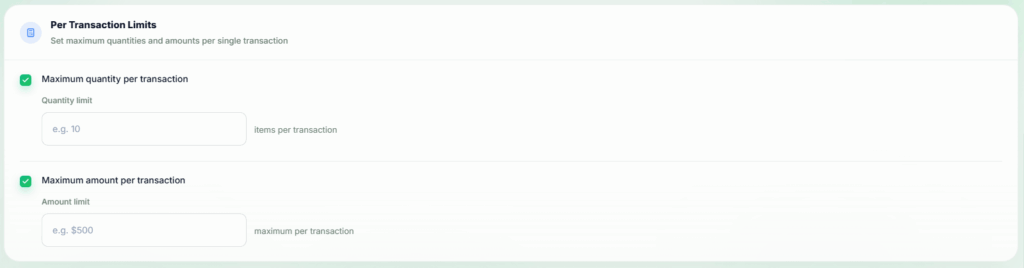
Per Transaction Limits #
Control how much a customer can buy per transaction.
Available Limits:
- Maximum Quantity per Transaction
- Maximum Amount per Transaction
📌 These limits apply per customer per order.
Time-Based Limits #
Control customer activity over a defined time period.
Available Options:
- Limit Transaction Frequency (Example: 1 transaction within 1 day)
- Limit Spending Frequency (Example: 50$ total spent within 1 day)
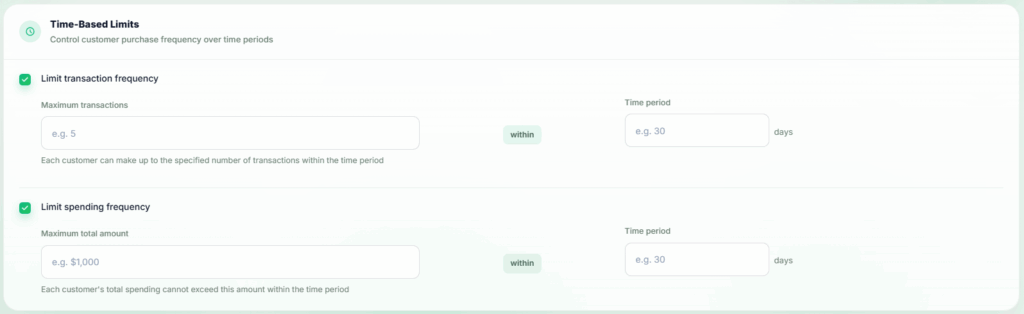
📌 Each customer must stay within these limits during the selected time window. Otherwise, the transactions will go to Pending
Saving Selling Restrictions #
After configuring any restriction:
- Click Save Restrictions
- Rules apply immediately to new transactions