
The Add Transaction feature allows sellers to manually create a new transaction and deliver a product directly to a buyer. This is useful for handling offline orders, special requests, or situations where a transaction needs to be added without going through the standard checkout process.
How It Works #
Sellers can fill in all necessary details for the new transaction, including buyer information, product selection, and delivery options. Once submitted, the product is sent to the buyer’s email, and a new transaction record is created in the All Transactions list.
Steps to Add a Transaction #
1. Navigate to Add Transaction
From the seller dashboard, go to the Add Transaction section.
2. Fill Transaction Details
In the form, the seller must provide the following information:
- First Name – Buyer’s first name.
- Last Name – Buyer’s last name.
- Customer Email – Email address to which the product will be sent.
- Select Platform – Choose the platform where the transaction is recorded.
- Select Store – Choose the store associated with the product.
- Select Product – Pick the product or inventory item to deliver.
- Quantity – Number of items to send.
- Price – Price of the transaction.
- Select Email Template – Choose the template used to notify the buyer.
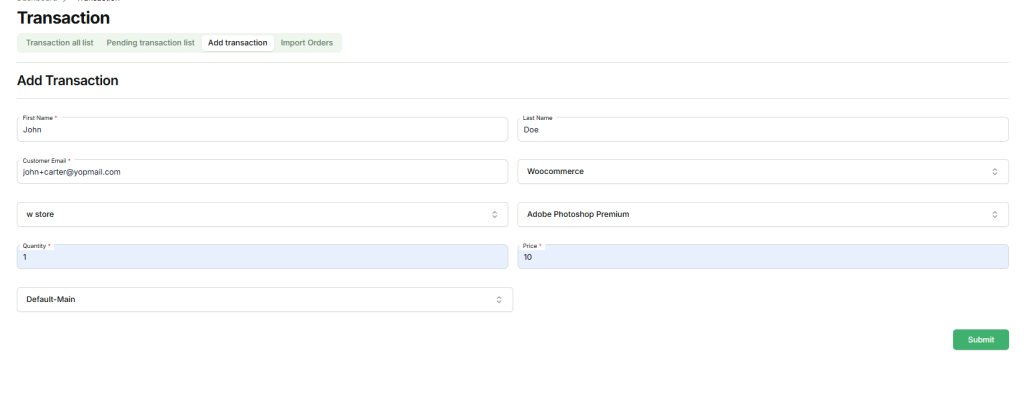
3. Submit the Transaction
Click the Submit button. The selected product will be sent to the buyer’s email, and a new transaction record will be added to the list
Transaction Restrictions #
- If the selected product is out of stock, the transaction will not be marked as Succeeded.
- If there are any product restrictions or the customer’s email or IP / Email /Domain is on a block list, the transaction will also not succeed.
- Sellers must resolve these issues before the transaction can be successfully created.
This feature allows sellers to manually manage and fulfill orders, ensuring that products reach buyers even outside of the standard automated processes, while maintaining complete transaction records.