
Open the Product List tab to see imported products from stores
This guide explains how sellers can manage products imported from connected stores and configure them to process orders through EZDZSEND.
Supported Platforms:
WooCommerce, Shopify, Ecwid, BigCommerce, eBay
(All platforms follow the same workflow and rules)
Note: For PayPal products see this documentation. [Click here]
Product Import from Connected Store #
After successfully connecting your store (WooCommerce, Shopify, Ecwid, BigCommerce, or eBay):
- All products from the connected store automatically appear in the Product List tab.
- By default, all imported products remain Inactive.
- Inactive products will not process orders through EZDZSEND until configured.
Product List Overview #
The Product List displays all imported products with the following information:
- Product Name
- Price
- Email Template
- Inventory Type
- Store Name
- Stock Sync Status
- Product Status (Active/Inactive)
- Creation Date
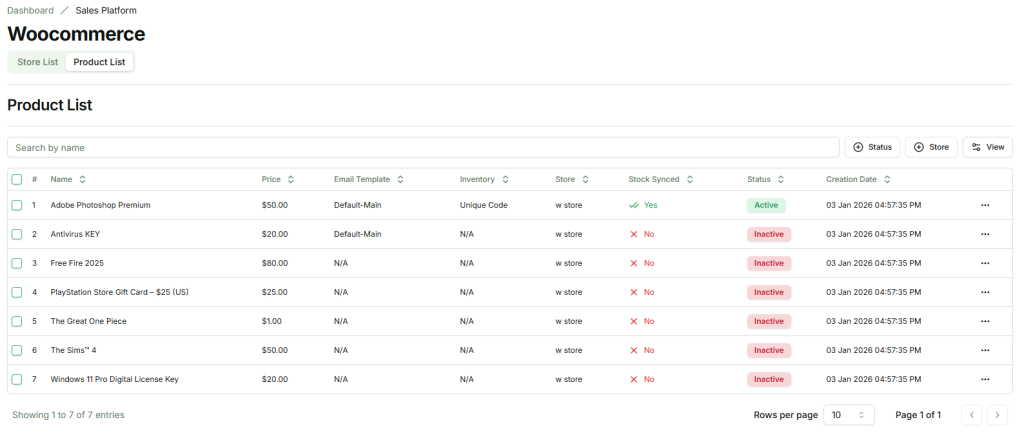
Each product row includes a three-dot (⋯) action menu for configuration and viewing.
Activating a Product (Required Step) #
To allow EZDZSEND to process orders for a product:
- Go to Product List
- Click the three-dot (⋯) menu
- Select Config
- A configuration modal will appear
- Configure the following fields:
- Select Template – Email/template used for delivery
- Select Inventory – Inventory source (codes/files)
- Status – Set to Active
- Click Submit
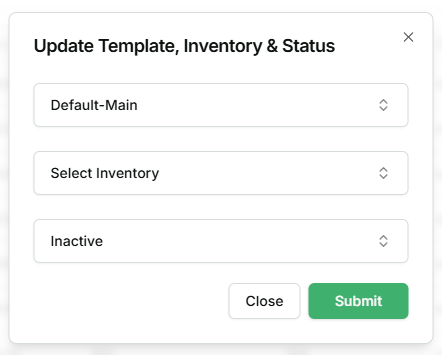
Once activated, EZDZSEND will start processing orders for this product.
Product View & Customization #
From the three-dot (⋯) menu, click View to open the Product Details page.
Edit Product Title & Price #
- Sellers can update the product name and price.
- Changes are synced back to the original store automatically.

Stock Synchronization #
Stock Synchronization allows EZDZSEND to update product quantity on your store based on available files or code on inventory.
Rules:
- ✅ Works only with Unique Code Inventory
- ❌ Not available for reusable or non-unique inventories
How it Works:
- EZDZSEND calculates available stock based on available inventory codes or files
- The product stock on the connected store updates automatically

This prevents overselling and ensures real-time stock accuracy.
Bonus Settings (Promotional Delivery) #
Sellers can configure bonus items/codes to be delivered automatically with purchases.
Bonus Configuration Steps:
- Enable Send Bonus
- Select Bonus Code Database (inventory/file)
- Set:
- Purchase Quantity Required
- Bonus Codes Given on Purchase
- Click Submit
Key Features:
- Multiple bonus conditions can be configured per product
- Bonus codes are delivered together with the main product
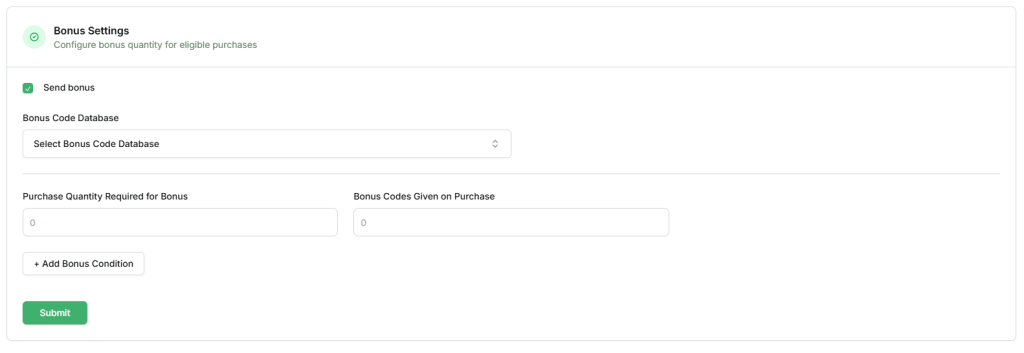
🎁 Ideal for promotions, loyalty rewards, and bulk incentives.
Selling Restrictions (Fraud Prevention) #
Selling Restrictions help protect sellers from abuse, fraud, and excessive usage.
Restrict New Customers #
- Enable Restrict new customer access
- New customer transactions will go into Pending
- Helps prevent fraud from first-time buyers

Per Transaction Limits #
Control how much a customer can buy per transaction.
Available Limits:
- Maximum Quantity per Transaction
- Maximum Amount per Transaction
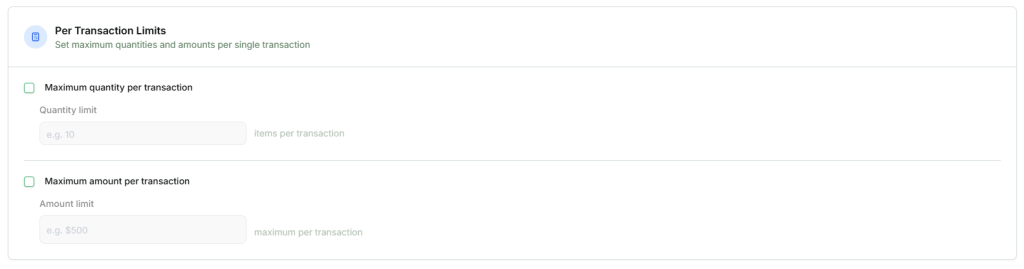
📌 These limits apply per customer per order.
Time-Based Limits #
Control customer activity over a defined time period.
Available Options:
- Limit Transaction Frequency (Example: 1 transaction within 1 day)
- Limit Spending Frequency (Example: 50$ total spent within 1 day)
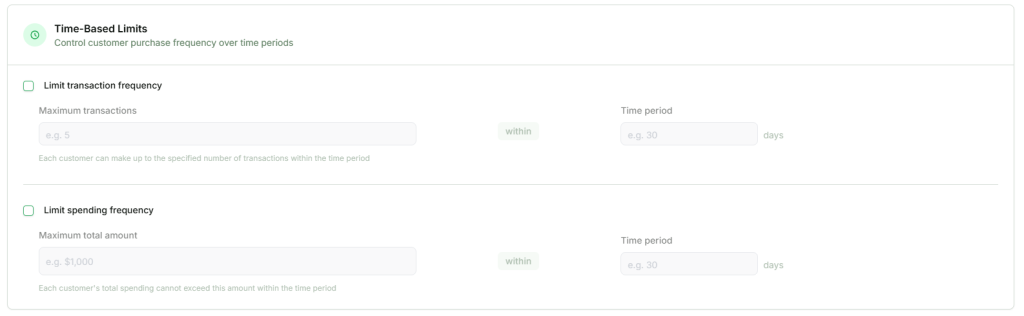
📌 Each customer must stay within these limits during the selected time window. Otherwise, the transactions will go to Pending
Saving Selling Restrictions #
After configuring any restriction:
- Click Save Restrictions
- Rules apply immediately to new transactions