
eBay Integration and Linking Products with Inventory & Templates
Learn how to connect your eBay store with EZDZSEND and link your products to delivery templates and inventory for smooth automated digital delivery.
🎥 Prefer to watch the video?
Click here to watch the full eBay integration guide. (Coming Soon.)
Connect your eBay store #
To get started, log in to your EZDZSEND dashboard and open the eBay integration section.
You will see two main tabs:
- Store List
- Product List
Add a New eBay Store #
Inside the Store List tab, click the New Record button. A pop-up named Add New Store will appear.
Fill in the field:
- Name → Store nickname (Example: “My eBay Store”)
- Click Submit.
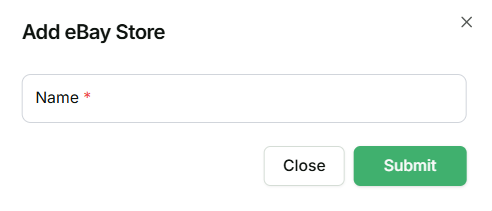
Add eBay Store Modal – Sales Platform → eBay → New Record
What happens next:
You are redirected to eBay.
- If the eBay seller is not logged in, eBay will ask you to log in to your personal or business seller account.
- After login, you will be taken to the official eBay access consent page named:
Review and Grant Application Access: EZDZSEND
eBay shows details explaining what the app can do.
This screen clearly states:
• The app does NOT get your eBay password
• You can revoke access anytime from My eBay → Sign in & Security → Third-party app access
eBay Permission Summary Includes:
→ View public data
→ View your marketing activities
→ Manage your marketing activities
→ View inventory and offers
→ Manage inventory and offers
→ View your account settings
→ Manage your account settings
→ View order fulfillments
→ Manage order fulfillments
→ View selling analytics
→ View and manage payment/order data (including refunds)
→ Manage disputes
→ View basic user info
→ View & manage feedback/reputation
→ Manage event notification subscriptions
→ View & manage eBay Stores
→ Access eDelivery International Shipping APIs
→ Access VeRO program APIs
You will also see Terms of Service and Privacy Policy notices.
Click Agree and Continue.
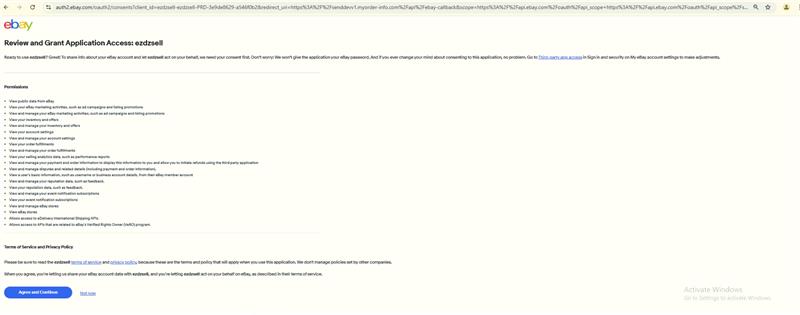
Give EZDZSEND Permissions to Connect with eBay
Verify that eBay store is connected
eBay Store Table #
After completing the authorization, you will be redirected back to:
EZDZSEND → Sales Platform → eBay
Your eBay store will now appear in the Store List table with details such as:
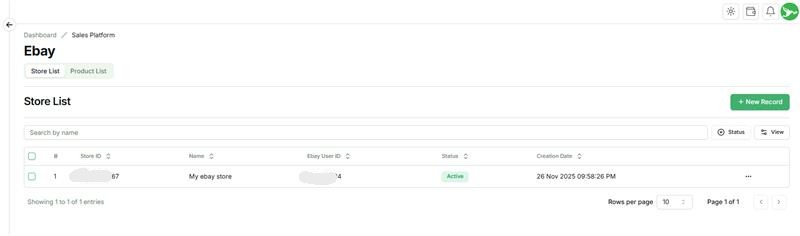
Connected eBay Store Displayed in Store List
Actions Column:
- Edit → Edit store info.
- Inactive / Active → Change store status.
- Reconnect Store → Sometimes, a connected store may have problems updating properly, such as:
- Expired access tokens
- Revoked permissions
- Webhook or API errors
- Temporary connection failures → In these cases, sellers don’t need to delete the store or do anything complicated. They can use the “Reconnect Store” option to quickly and safely reconnect it, so the store updates correctly again.
- Delete → Remove store (Deleting this store will also remove all related transactions and products.)
Product List Tab 🛒 #
Once the store is successfully connected, your eBay products automatically sync and appear in the Product List table.
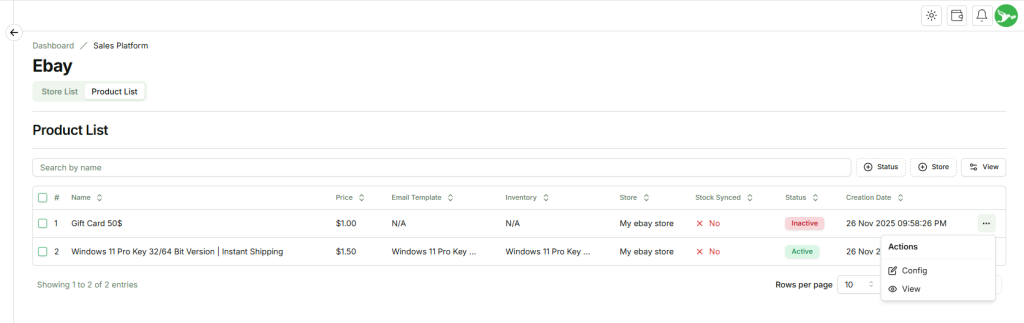
Imported Products from eBay – Action Options Available.