
Ecwid Integration and Linking Products with Inventory & Templates
Connect your Ecwid store to EZDZSEND to automate product delivery, sync inventory, and manage orders from your dashboard. Follow this easy step-by-step guide to set up your store.
🎥 Prefer to watch the video?
Click here to watch the full Ecwid integration guide.
Connect your Ecwid store #
Open your EZDZSEND dashboard and go to Sales Platform → Ecwid.
You will see two tabs:
- Store List
- Product List
These tabs help you manage your Ecwid stores and products.
Add a New Ecwid Store #
- In the Store List tab, click + New Record.
- A popup opens: Add Ecwid Store
- Fill in the fields:
- Name → Any name you like for your store
- Click Submit
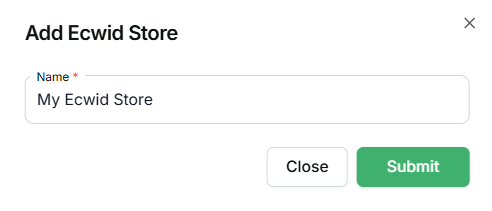
Displays the add new store modal.
What happens next:
- You are redirected to Ecwid.
- If you are not logged in, you will be asked to log in.
- Ecwid shows a Custom App for your account (e.g., [email protected]) with details: App Website → Shows the developer website
This app will be able to:- Read your store profile → Includes store ID, URL, name, and basic settings such as store currency
- Create, read, and update your products
- Read and update orders
- Read and update customers
- Click Accept to authorize.
- Once accepted, your Ecwid store is added to EZDZSEND, and products are imported automatically.
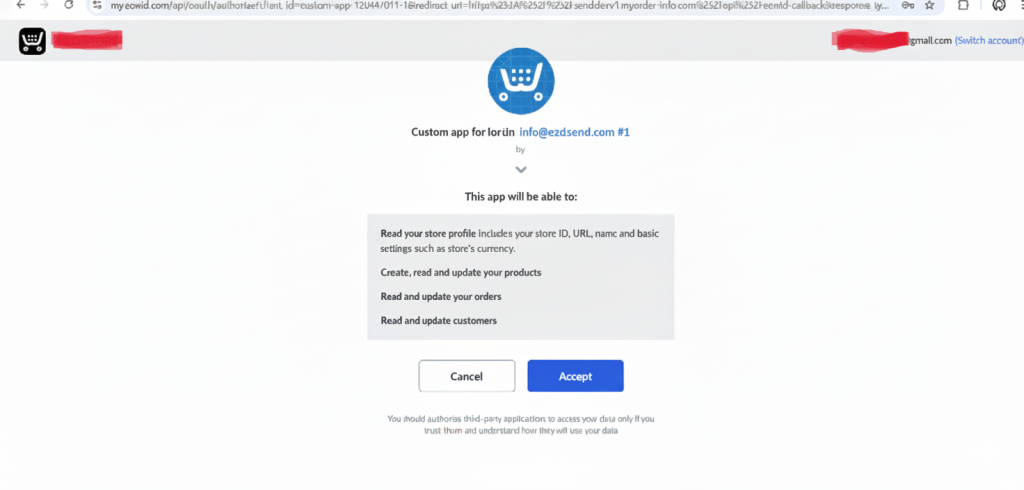
Accept the custom app to connect your store to EZDZSEND seamlessly
Ecwid Store Table #
Once connected, your store appears in the Store List table:
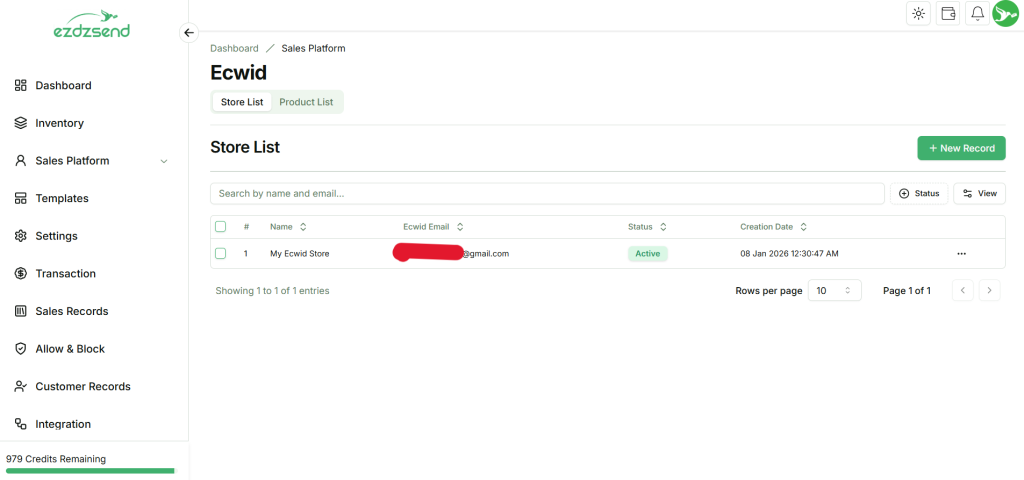
Connected Ecwid Store Displayed in Store List
Verify that store is connected #
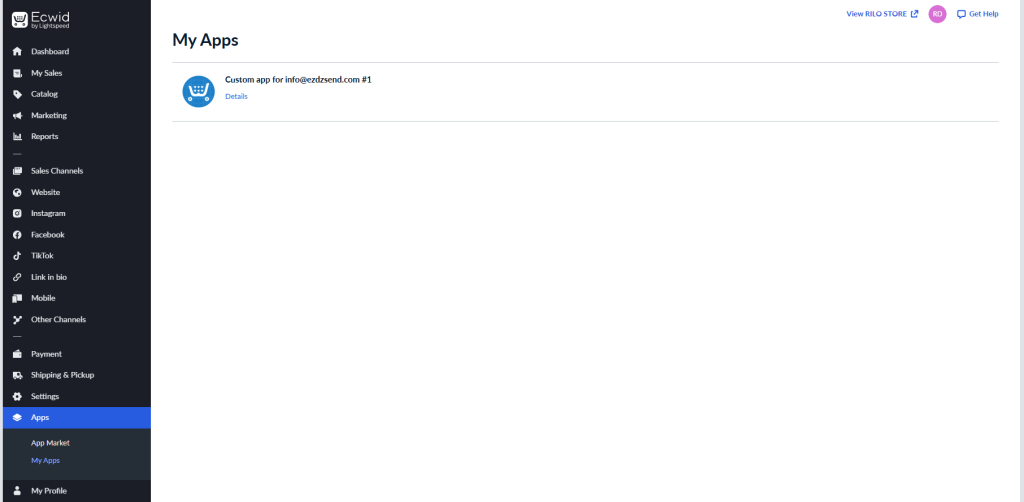
In this page our app named “Custom app for [email protected]” will be installed.
Actions Column:
- Edit → Edit store info.
- Inactive / Active → Change store status.
- Reconnect Store → Sometimes, a connected store may have problems updating properly, such as:
- Expired access tokens
- Revoked permissions
- Webhook or API errors
- Temporary connection failures → In these cases, sellers don’t need to delete the store or do anything complicated. They can use the “Reconnect Store” option to quickly and safely reconnect it, so the store updates correctly again.
- Delete → Remove store (Deleting this store will also remove all related transactions and products.)
Product List & Product Management 🛒 #
Open the Product List tab to see imported products from Ecwid.
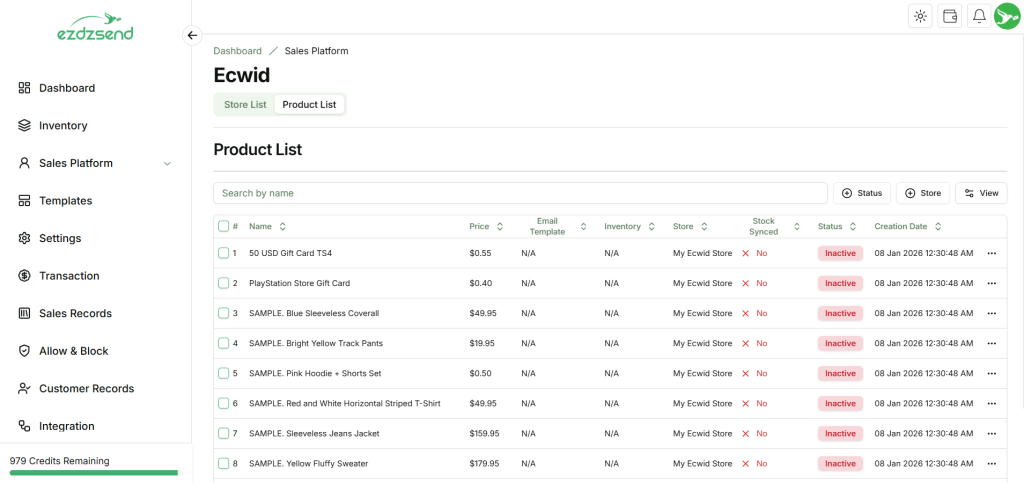
Imported Products from Ecwid – Action Options Available.