
The Allow & Block feature in the EZDZSEND platform helps sellers enhance platform security and prevent fraud by managing trusted and restricted IP addresses. Using Whitelists (Allow) and Blacklists (Block), sellers can control buyer purchase behavior based on IP address rules.
- Whitelisted IPs (Allow List): Buyers using these IP addresses can complete purchases successfully without any restrictions.
- Blacklisted IPs (Block List): Buyers using these IP addresses will have their transactions set to Pending. The purchase will only be completed after the seller manually reviews and approves the transaction.
This feature ensures safer transactions and gives sellers full control over suspicious or trusted traffic.
Here Seller Can Do:
- Add IP address to Whitelist (Allow) or Blacklist (Block)
- Edit existing IP address details
- Delete IP address records
- Activate or inactivate IP addresses
- Import IP list in bulk
- Export IP list
- Perform mass actions:
- Delete selected IPs
- Activate all
- Inactivate all
- Filter IP records by:
- Status (Active / Inactive)
- List Type (Whitelist / Blacklist)
Add New Ip Address #
To add a new Ip Address to your allow & block list, follow these steps:
1. Navigate to the Allow & Block Page
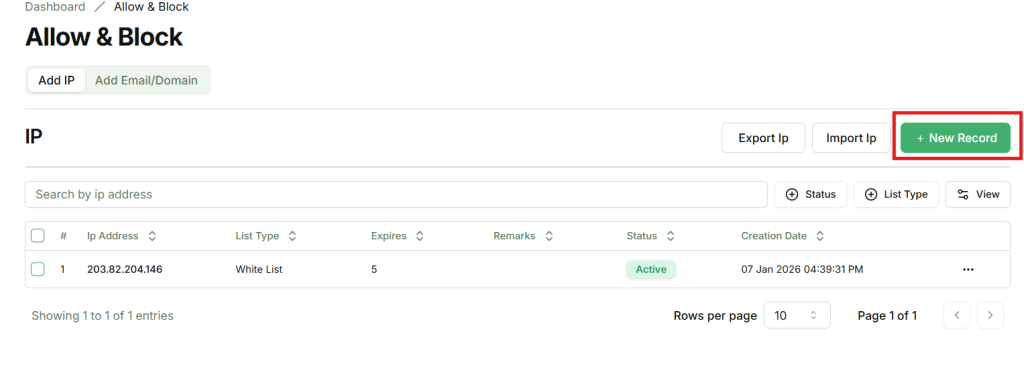
From your seller dashboard, go to the Add Ip section. Here, you will find a button labeled New Record.
2. Open the New Record Modal
Clicking New Record will open a modal where you can add a new Ip Address.
3. Fill in IP Address Details
In the modal, provide the following information:
- Ip Address – Give a Ip Address.
- Select Type – WhiteList or BlackList
- Expiration Day – Expiry Day for temporary WhiteList or BlackList
- Remarks – Notes for internal reference
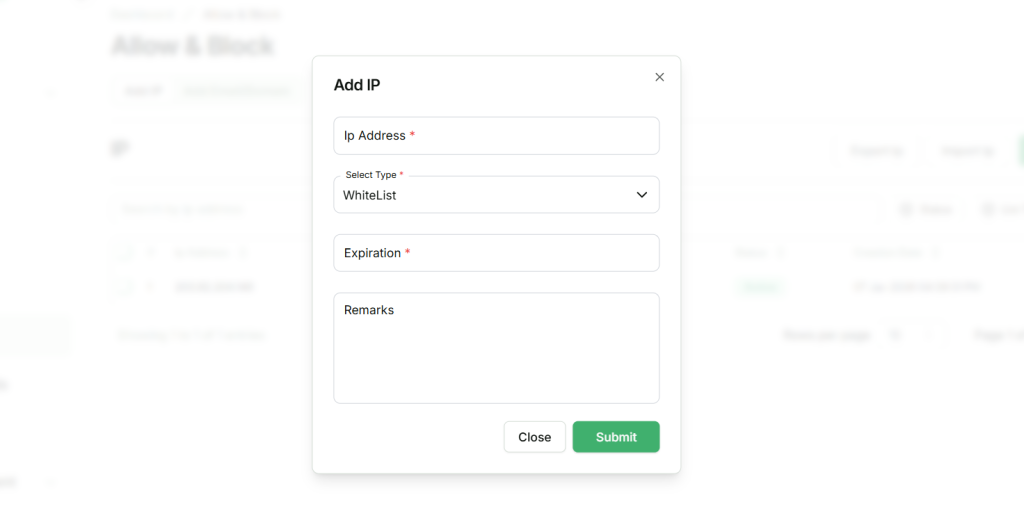
⚠️ Important: After expire day automatic inactive ip address from blacklist or whitelist.
4. Ip Address Added
Once all conditions are satisfied and the required fields are filled correctly, the Ip Address will be successfully created and whitelist or blacklist logic apply.
Edit IP Address #
Sellers can update the details of existing Ip details using the Edit Ip feature. To do this:
1. Locate the ip address
From the Ip Address list, find the Ip Address you want to edit.
2. Open the Action Menu
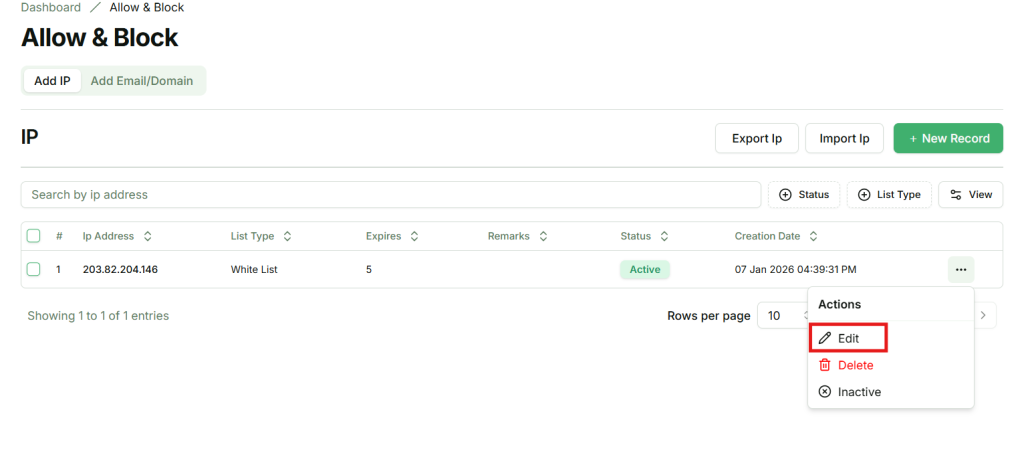
Click the action button (…) next to the Ip Address. A popup menu will appear.
3. Select Edit
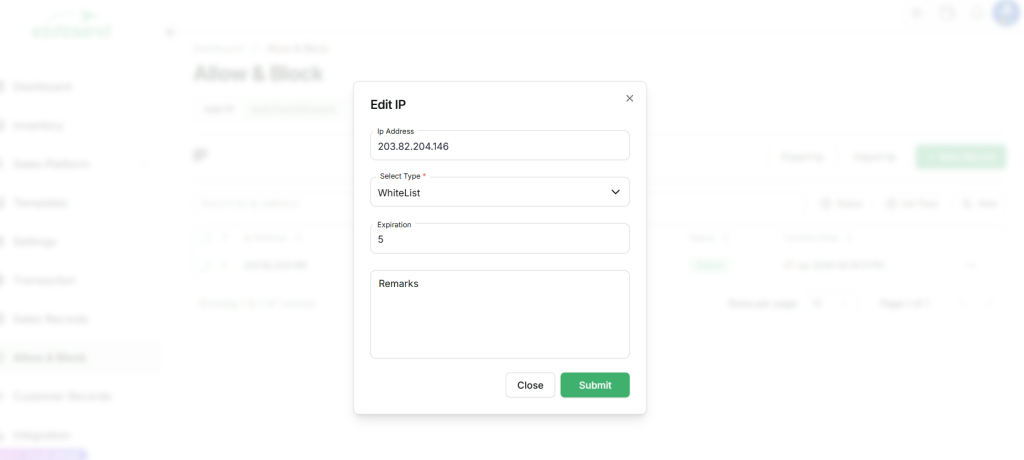
In the popup, click Edit. A modal will appear where you can update the Ip Address details.
4. Update Ip Address Details
- Ip Address – You can modify the Ip Address.
- Select Type – You can modify WhiteList or BlackList
- Expiration Day – You can modify Expiry Day for temporary WhiteList or BlackList
- Remarks – Notes for internal reference
5. Save Changes
After updating the details, click Submit to apply the changes. The Ip Address will be updated and reflected in the list.
Active or Inactive #
Sellers can activate or inactivate existing IP addresses from the list to control whether whitelist or blacklist rules are applied.
- By default, an IP address is set to Active if the remark days are valid.
- When an IP status is Active:
- Whitelist IP: Buyer purchases are completed successfully without restrictions.
- Blacklist IP: Buyer transactions are marked as Pending and require seller approval.
- When an IP status is Inactive:
- Whitelist or blacklist rules do not apply
- The IP address is ignored during the purchase process, and no restrictions or allowances are enforced.
This flexibility allows sellers to temporarily disable IP rules without deleting records, ensuring better control over security and transaction management.
1. Locate the ip address
From the Ip Address list, find the Ip Address you want to active or inactive.
2. Open the Action Menu
Click the action button (…) next to the Ip Address. A popup menu will appear.
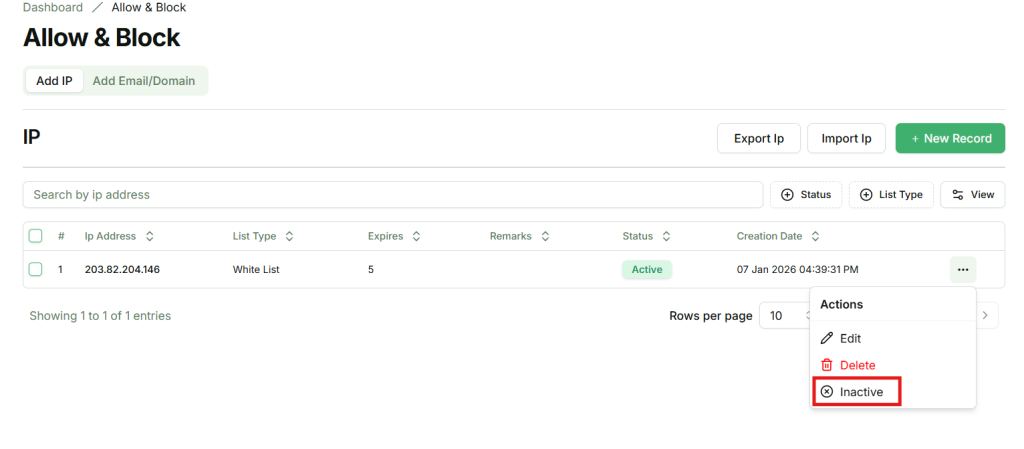
3. Select Inactive or active
In the popup, click Active or Inactive. A confirmation modal will appear to ensure you want to update it.
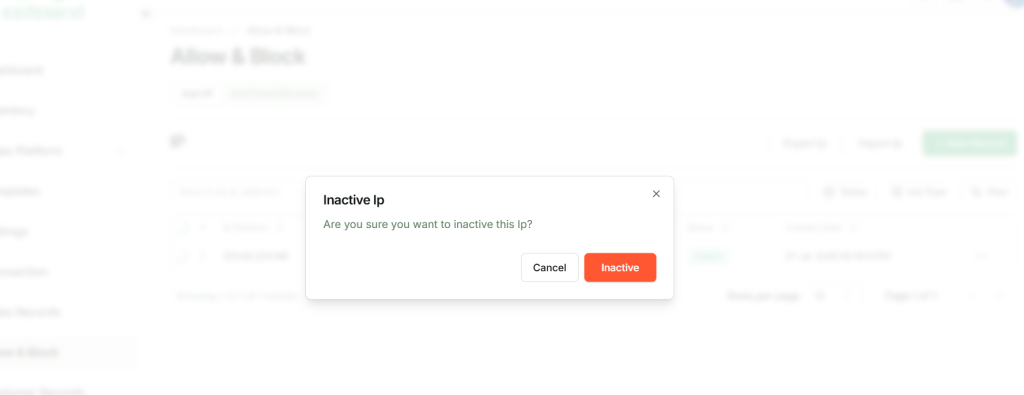
4. Confirm Active or Inactive
Click Confirm in the modal. The ip address item status will update.
⚠️ Note: Once the expiration day has passed, the IP address cannot be set to Active. Expired IP entries will remain inactive and will no longer apply whitelist or blacklist rules.
Delete Ip Address #
Sellers can permanently remove an IP address from the allow or block list. Once deleted, the IP address will no longer be tracked, and no whitelist or blacklist rules will apply to it.
1. Locate the Ip address
From the Ip address list, find the Ip address you want to delete.
2. Open the Action Menu
Click the action button (…) next to the Ip Address. A popup menu will appear.
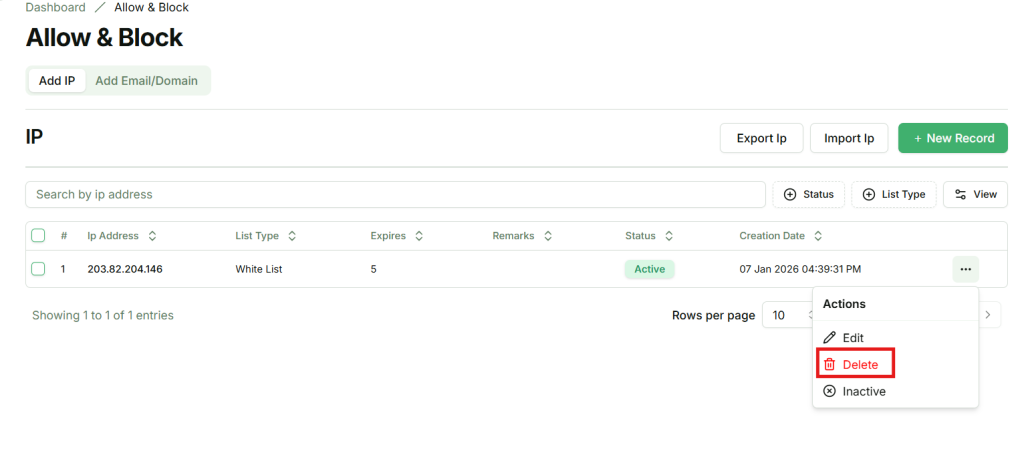
3. Select Delete
In the popup, click Delete. A confirmation modal will appear to ensure you want to proceed.
4. Confirm Deletion
Click Confirm in the modal. The Ip address will be permanently deleted.
⚠️ Note: Deleted IP addresses cannot be recovered. To apply rules again, the IP address must be added as a new entry.