
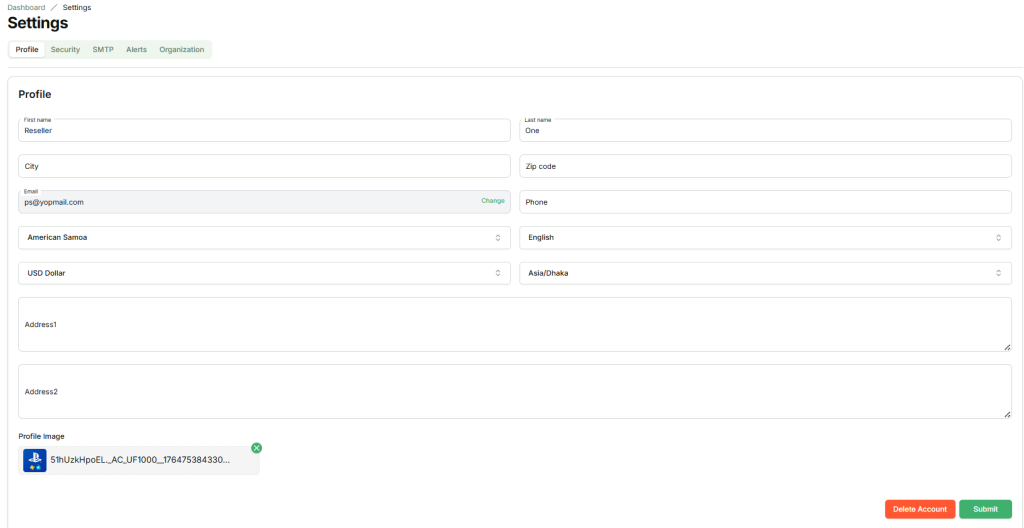
The Profile section allows users to add or update personal and account details, including name, contact information, address, country, language, currency, and timezone. Users can also upload or change a profile image and delete their account (permanent delete all data) if needed. The selected currency is used for all transactions, while the selected timezone is applied across the entire application for consistent date and time display.
Here Seller Can Do:
- Add or update personal and application information
- Delete account (permanent delete)
1. Navigate to the Settings page
From your seller dashboard, go to the Profile section.
2. Fill in Profile Details
provide the following information:
- First Name – Give your first name.
- Last Name – Give your last name.
- Phone – Provide a valid phone number.
- Country – Select your country of residence.
- City – Enter your city name.
- Zip Code – Provide your postal or ZIP code.
- Address Line 1 – Enter your primary address details (street, area, building, etc.).
- Address Line 2 – Enter additional address details (optional).
- Language – Select your preferred language.
- Currency – Select your preferred currency. This currency will be used for all transactions.
- Timezone – Select your local timezone. This timezone will be applied across the entire application for date and time display.
- Profile Image – Upload a profile image to personalize your account.
3. Change Email
The Change Email feature allows users to update their registered email address securely. Users must provide their current email and new email, and verify the change using a one-time password (OTP). Once the OTP is successfully verified, the email address will be updated.
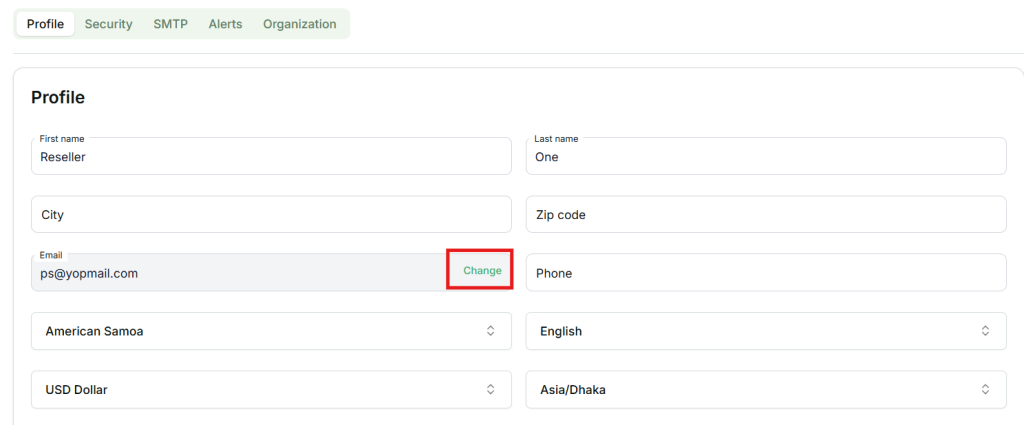
Open Change Email Modal
Clicking Change will open a modal where you can add a new email.
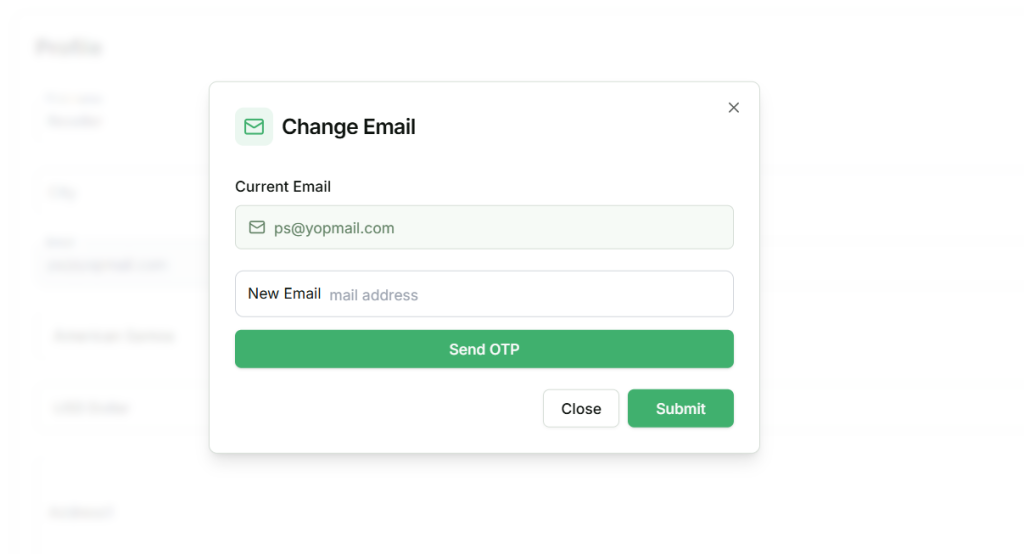
Fill in Email Details
- Current email – Current email (auto fill).
- New email – Give new email
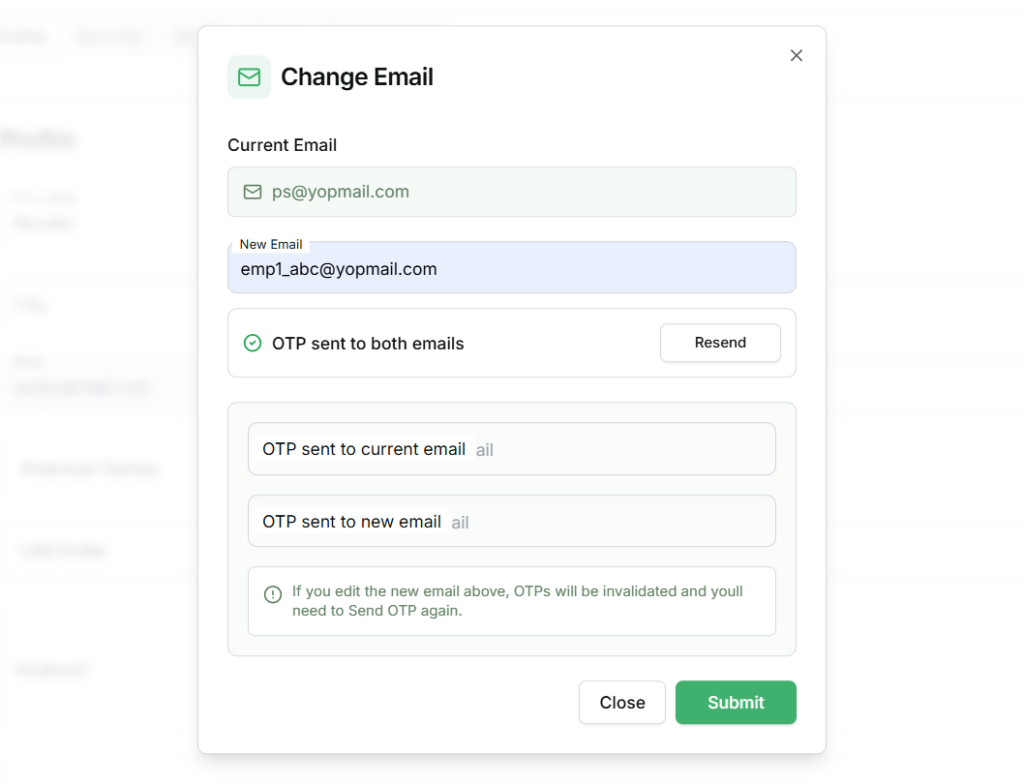
After entering the new email and clicking the Send OTP button, a one-time password (OTP) is sent to the current email and new email address for verification. Once the OTP is successfully verified, the email address is updated.
4. Delete account
Deleting your account will permanently remove all your data from the platform, including stores, transactions, SMTP settings, inventory, and customer information. This action cannot be undone, so please ensure you have backed up any important data before proceeding.
Open Delete Account Modal
Clicking Delete button will open a modal where you can delete account. A one-time password (OTP) will be sent to your registered email for verification.
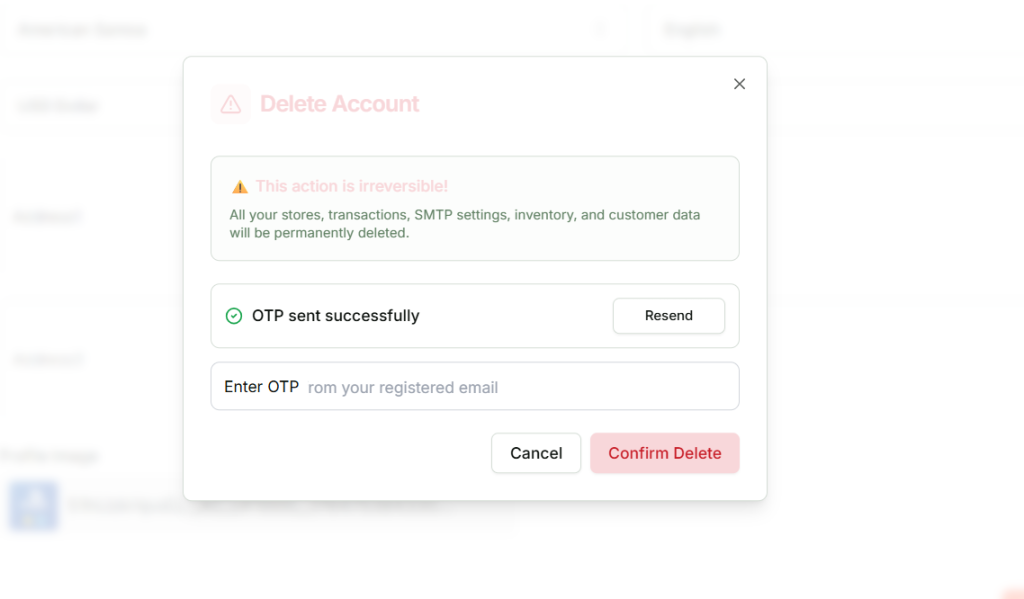
Once the OTP is successfully verified, click the Confirm Delete button to permanently delete your account.
⚠️ Note: Once deleted, the account and its data cannot be recovered.