
The Organization section allows sellers to manage their business profile. Activating this option will display your profile on the instant download page, including your logo, company name, email, and full address. You can also add or update social media links for Facebook, Instagram, YouTube, Twitch, Discord, and TikTok to enhance your online presence.
Add Business Profile #
To add a new Business profile to your Business Profiles list, follow these steps:
1. Navigate to the Settings
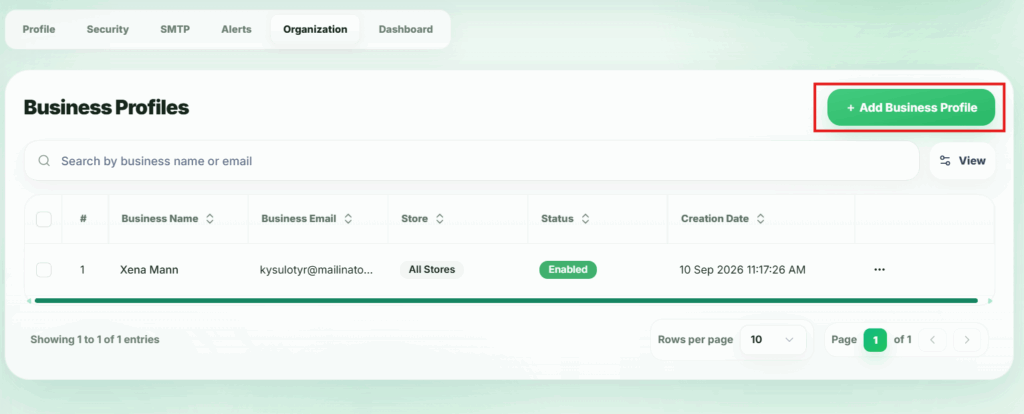
From your seller dashboard, go to the organization section. Here, you will find a button labeled Add Business Profile.
2. Open the New Record Modal
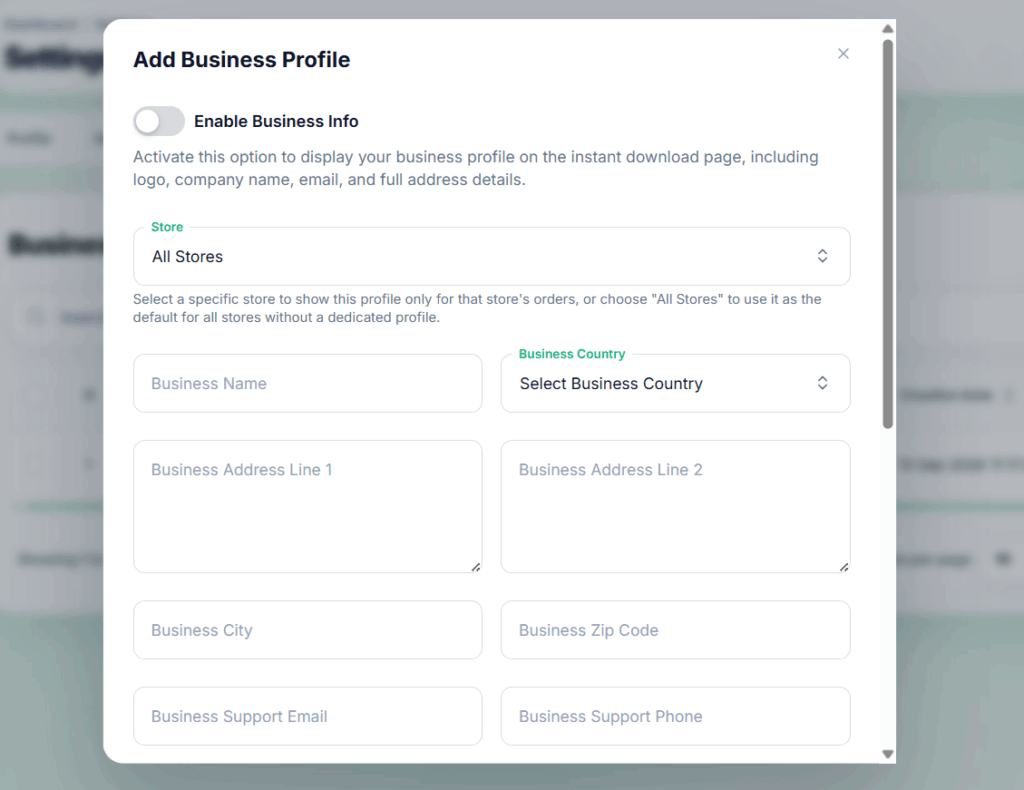
Clicking Add Business Profile will open a modal where you can add a new Business profile.
3. Fill in Business Profile Details
In the modal, provide the following information:
- Business Name
- Business Email
- Business Address Line 1
- Business Address Line 2
- Business Country
- Business City
- Business Zip Code
- Business Logo
- Facebook URL
- Instagram URL
- YouTube URL
- Twitch URL
- Discord URL
- TikTok URL
4.Business Profile Added
Once all conditions are satisfied and the required fields are filled correctly, the Business Profile will be successfully created.
⚠️ Note: Activate this option to display your business profile on the instant download page, including logo, company name, email, and full address details.
Edit Business Profiles #
Sellers can update the details of existing Business Profiles using the Edit feature. To do this:
1. Locate the Organization
From the Business Profiles list, find the Business Profile you want to edit.
2. Open the Action Menu
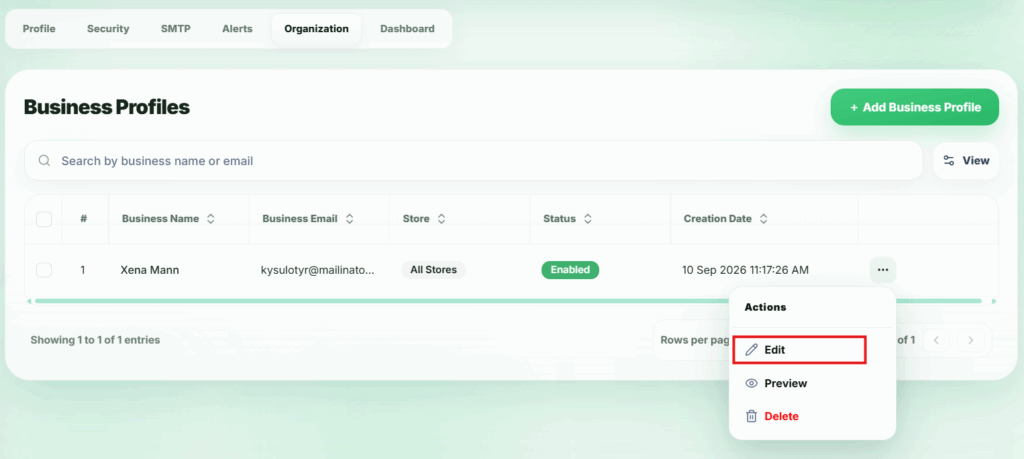
Click the action button (…) next to the Business Profile. A popup menu will appear.
3. Select Edit
In the popup, click Edit. A modal will appear where you can update the Business Profile details.
5. Save Changes
After updating the details, click Update to apply the changes. The Business Profile will be updated and reflected in the list.
Preview Business Profiles #
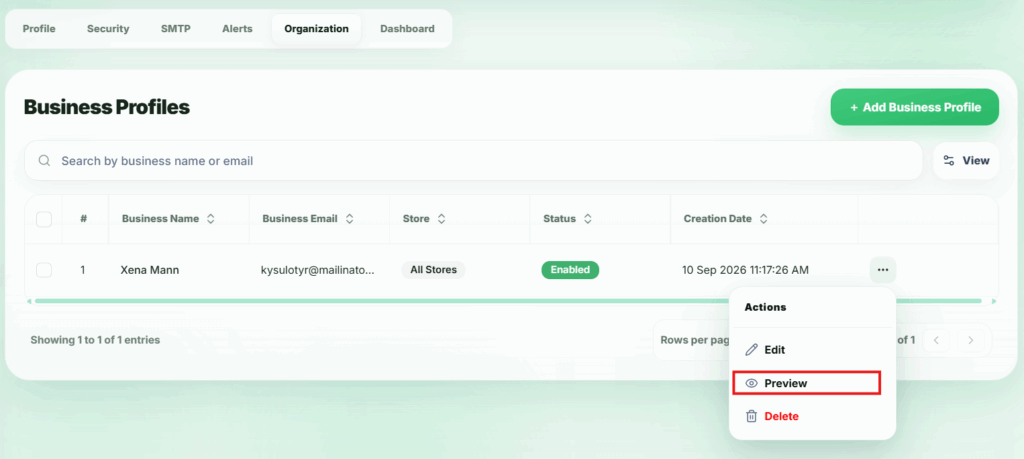
By clicking Preview button, you can see the Business Profiles preview
Delete Business Profiles #
Sellers can permanently remove a Business Profiles from the Business Profiles List. Once deleted, the Business Profiles will no longer be available.
1. Locate the organization
From the Business Profiles list, find the Business Profiles you want to delete.
2. Open the Action Menu
Click the action button (…) next to the Business Profiles. A popup menu will appear.
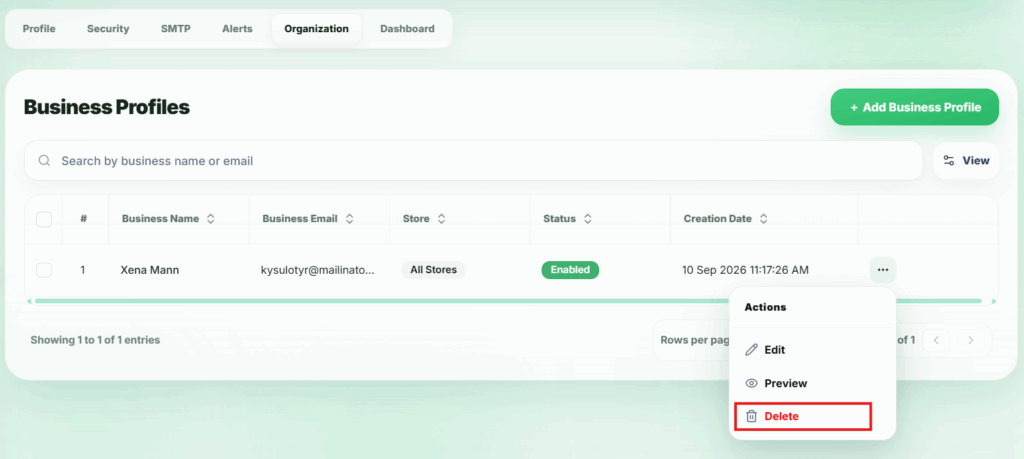
3. Select Delete
In the popup, click Delete. A confirmation modal will appear to ensure you want to proceed.
4. Confirm Deletion
Click Confirm in the modal. The Business Profiles will be permanently deleted.