
Customer Records brings together customer purchase information from the sales platforms and stores connected to your EZDZSEND account. Customer records are based on the email addresses used for completed orders.
Go to Customer Records → All Customers to find customers and review their purchase activity.
All Customers #
Open All Customers to see customers who placed completed orders within the selected date range. Each row shows:
- Customer – The customer’s name, when available.
- Email – The email address used for the order.
- Orders – Completed orders within the selected date range.
- Total Spent – The amount spent on those orders. Refunds are shown separately and are not deducted from this figure.
- Last Purchase – The customer’s most recent purchase within the selected date range.
Use the table search to find a customer by name or email. You can also filter by date range, platform, store, Allow or Block list status, amount spent, and number of orders.
If an email is whitelisted or blacklisted, an icon appears beside it. Customers with neither status have no list icon. Users with the required permissions can download the matching customer records as a CSV file.
View a Customer’s Details #
Select View from a customer’s row to open their details. The customer page contains five tabs:
- Overview – Shows order and spending totals, refunded amount, files sent, first and last purchase dates, average order value, platform usage, and recent activity.
- Order History – Shows the customer’s orders and their statuses.
- Products – Shows products the customer has purchased.
- Files Delivered – Shows records of files sent to the customer.
- Activity Log – Shows recorded activity for the customer’s delivery links.
The available actions depend on your account or team member permissions.
Allow and Block List Actions
From a customer’s row or details page, permitted users can add the customer’s email address to the Whitelist or Blacklist. The customer’s list status is displayed beside their email or name after it is updated.
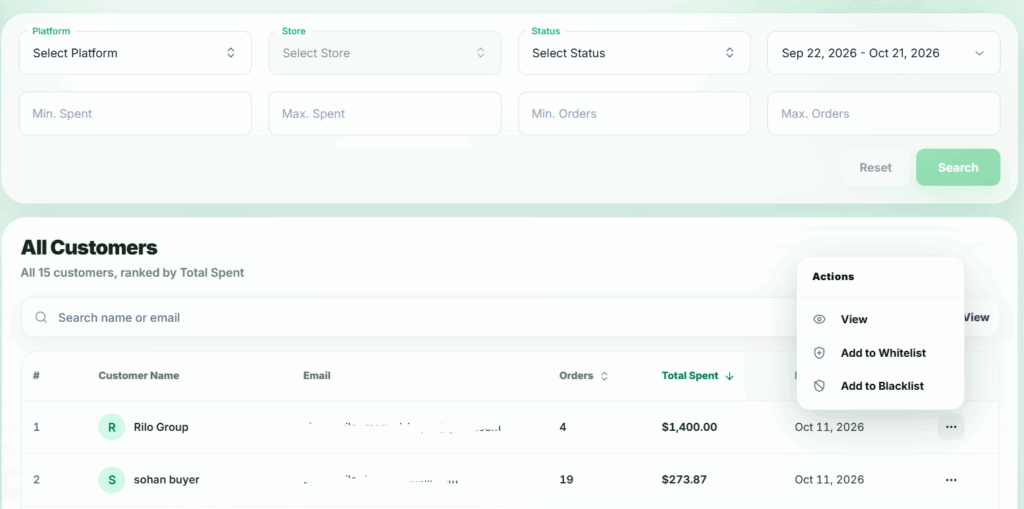
All Customers page
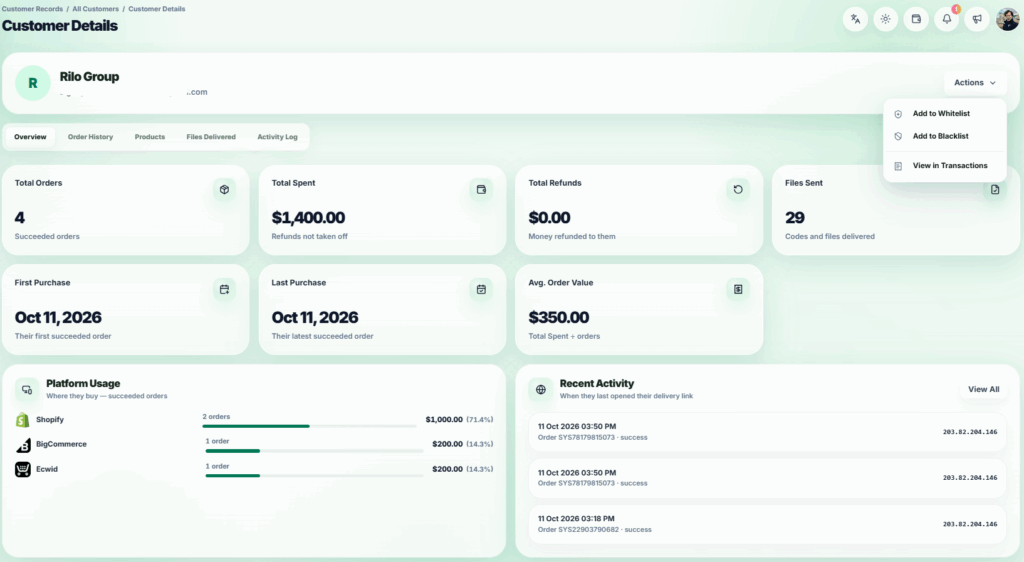
Customer Details page