
A role is a set of permissions assigned to team members. Permissions control which parts of EZDZSEND a member can access and which actions they can perform.
Go to Team → Roles & Permissions to manage them.
Create a Role #
Select Create Role, then:
- Enter a Role name.
- Add a description if needed.
- Select the permissions the role should have.
- Save the role.
Permissions are grouped by feature. You can select individual permissions or use the group checkbox to select all permissions in that group. Review both List and action permissions: selecting an action without its List permission may leave members unable to reach the page where that action is used.
Case and Messages permissions cannot be granted if those features are not included in your plan. A team member creating a role can grant only permissions they already have.
When adding a team member, you must assign them a role created on this page. Create a role first if you do not have one yet.
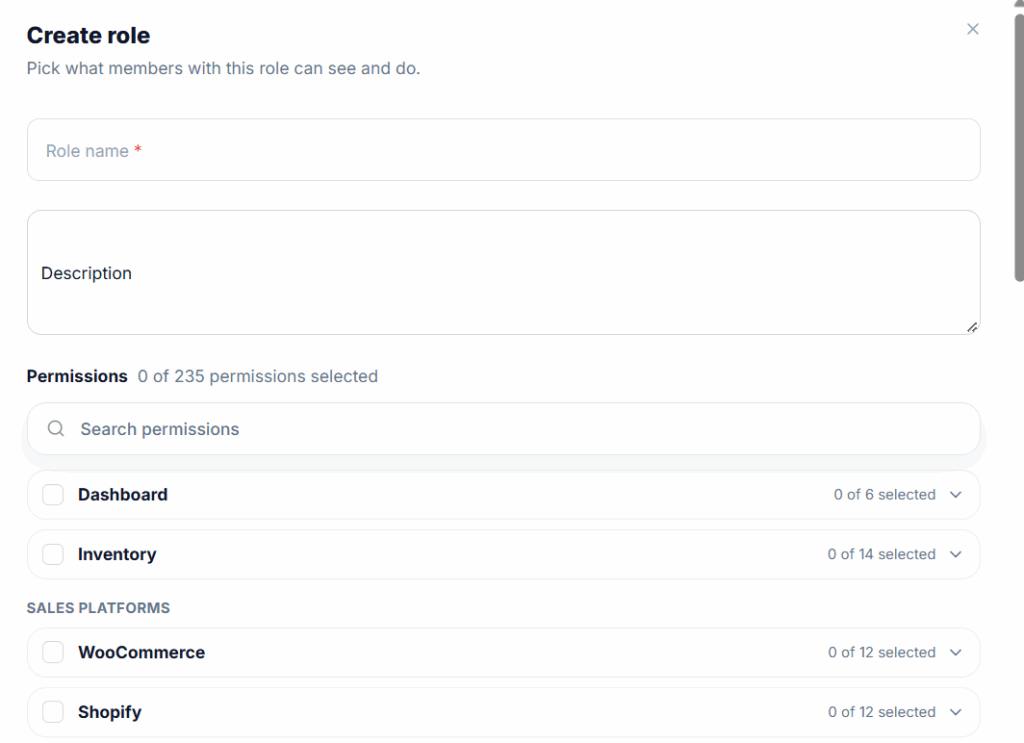
Create role modal
Roles Table #
The table shows each role’s name, description, number of members, permissions, and last updated information. Use search to find a role.
From a role’s actions, you can:
- Edit its name, description, or permissions. Updated permissions are applied when team access is checked on subsequent requests.
- Delete the role if no members are assigned to it.
A team member cannot edit or delete their own role. To delete a role that has members, assign those members to another role first.
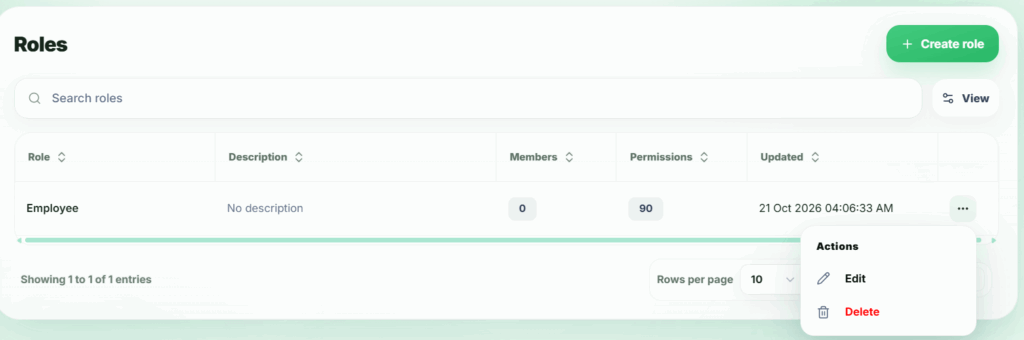
Available actions