The Customer Overview page summarizes customer activity across the sales platforms and stores connected to your EZDZSEND account. Customer records are based on the email addresses used for successful orders.
Go to Customer Records → Overview to open the page.
Filter Customer Activity
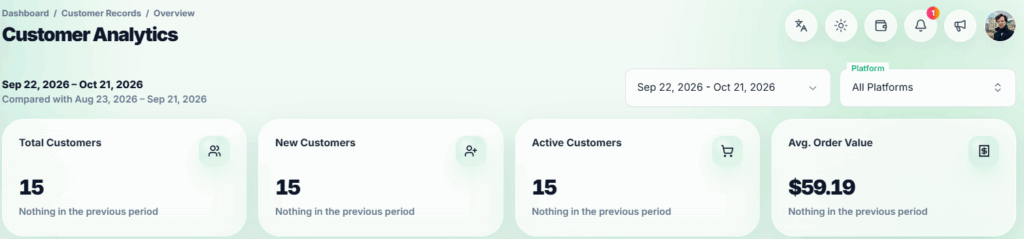
Use the date range picker to choose a period and the Platform filter to view one platform or All Platforms. The default date range is the last 30 days, including today.
The summary cards and tables follow both filters. The Customer Growth chart follows the Platform filter but always shows its own 12-month period.
Customer Summary #
Four cards appear at the top:
- Total Customers – Customers whose first successful order was placed on or before the end of the selected period.
- New Customers – Customers whose first successful order was placed within the selected period.
- Active Customers – Customers who placed at least one successful order within the selected period.
- Avg. Order Value – The value of successful orders in the selected period divided by the number of those orders.
Each card compares its figure with the immediately preceding period of the same length.
Customer Growth #
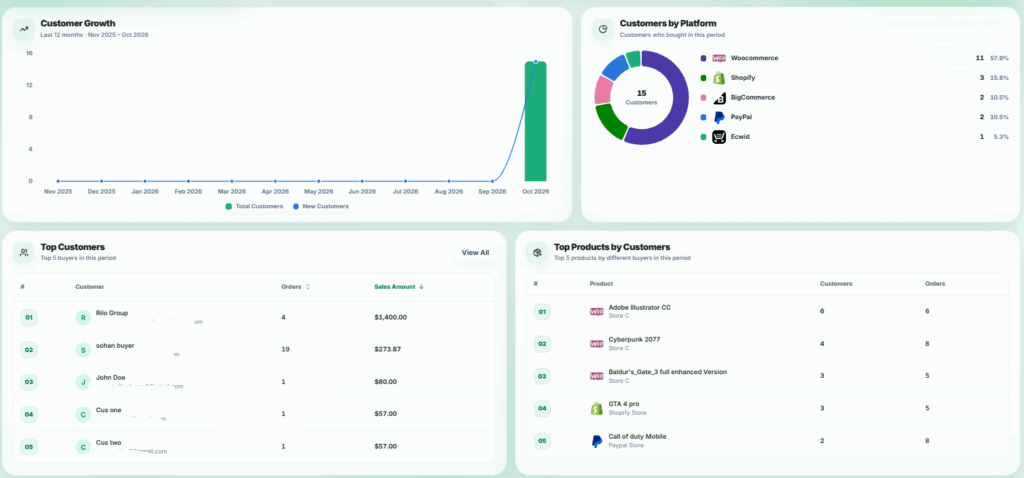
The Customer Growth chart shows Total Customers and New Customers by month for the last 12 months, including the current month. It follows the selected Platform but does not use the date range selected at the top of the page.
Customers by Platform #
Customers by Platform shows how many different customers purchased on each platform within the selected date range. A customer who purchased on two platforms appears in both platform figures, while the total in the center counts that customer once.
Top Customers and Top Products #
- Top Customers shows up to five buyers for the selected date range and Platform. You can rank them by Sales Amount or Orders. View All opens the full Sales Analytics → Top Customers report when you have access to it.
- Top Products by Customers shows up to five products ranked by the number of different customers who ordered them. It also displays the order count and the store associated with each product.