
WooCommerce Integration and Linking Products with Inventory & Templates
Connect your WooCommerce store with EZDZSEND and automate digital delivery for files, keys, coupons, and gift cards. Manage orders, instant downloads, product syncing, and inventory — all in one place, completely hassle-free.
🎥 Prefer to watch the video?
Click here to watch the full WooCommerce integration guide.
Connect your WooCommerce store #
Log in to your EZDZSEND account and navigate to:
Sales Platform → WooCommerce
You will see two main tabs:
- Store List
- Product List
Add a New WooCommerce Store #
You can add a new WooCommerce store using one of the following methods:
- Add a new store via OAuth
- Add a new store via Basic Auth
🔑 Connect Store by OAuth #
Inside Store List, click Add Store.
A modal named Add WooCommerce Store will appear with the fields:
- Name → Your store name
- URL → Your WooCommerce store URL
- Authentication Type → OAuth (default)
Click Submit.
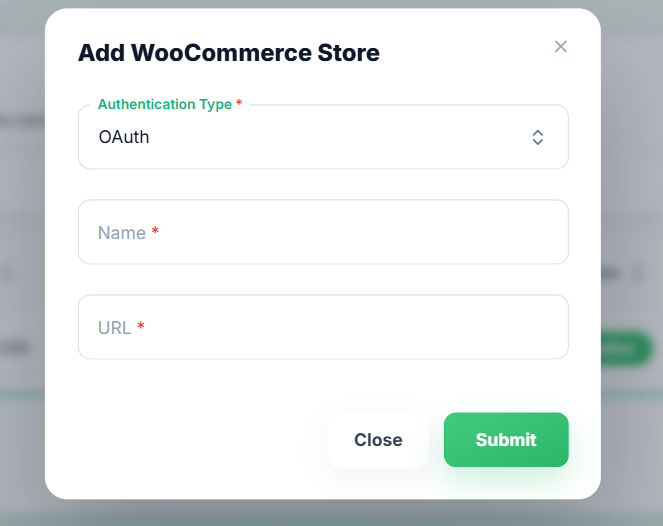
Displays the add new store modal.
🔐 What happens next:
You will be redirected to your WooCommerce login page.
If you are not logged in, WooCommerce will ask:
- Username or email address
- Password
After logging in, WooCommerce will show this permission screen:
WooCommerce — EZDZSEND would like to connect to your store
This will grant “Read/Write” access so EZDZSEND can:
- Create webhooks
- View & manage coupons
- View & manage customers
- View & manage orders & reports
- View & manage products
Click Approve.
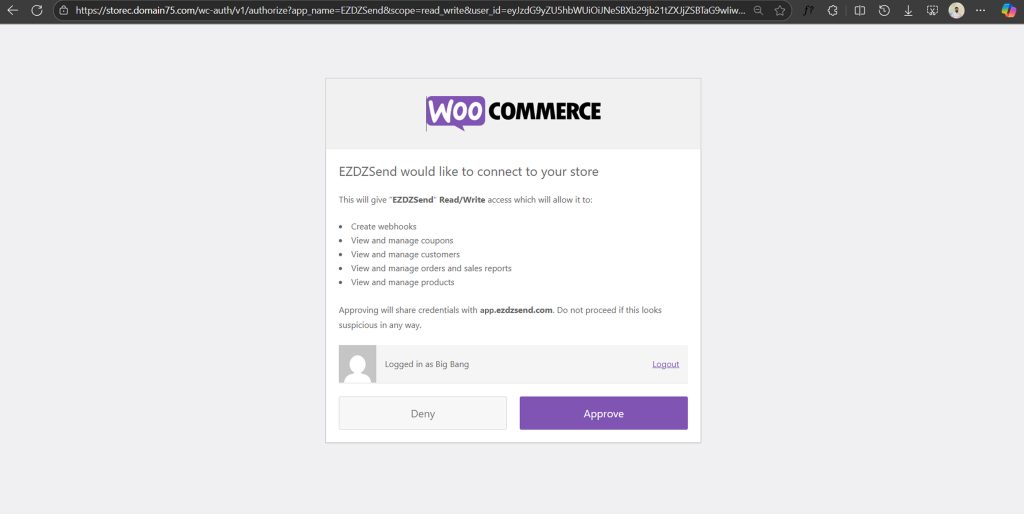
Approve the connection between EZDZSEND and WooCommerce.
✔️ After approval, you are redirected back to:
EZDZSEND → Sales Platform → WooCommerce
Your store is now connected.
🔑 Connect Store by Basic Auth #
Step 1: Generate WooCommerce API Keys
Before connecting your store to EZDZSEND, you need to generate API credentials from WooCommerce.
- Log in to your WooCommerce store admin.
- Go to WooCommerce > Settings > Advanced > REST API.
- Click the “Add Key” button.
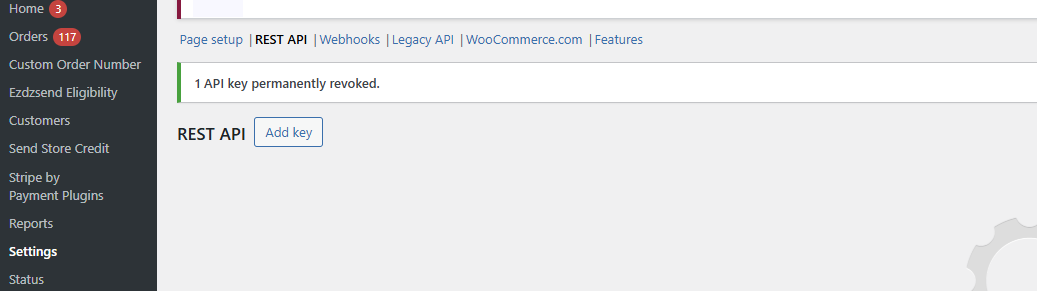
Shows WooCommerce settings page with REST API selected.
- Enter a description (e.g., “EZDZSEND”), set Permissions to Read/Write, and click Generate API Key.
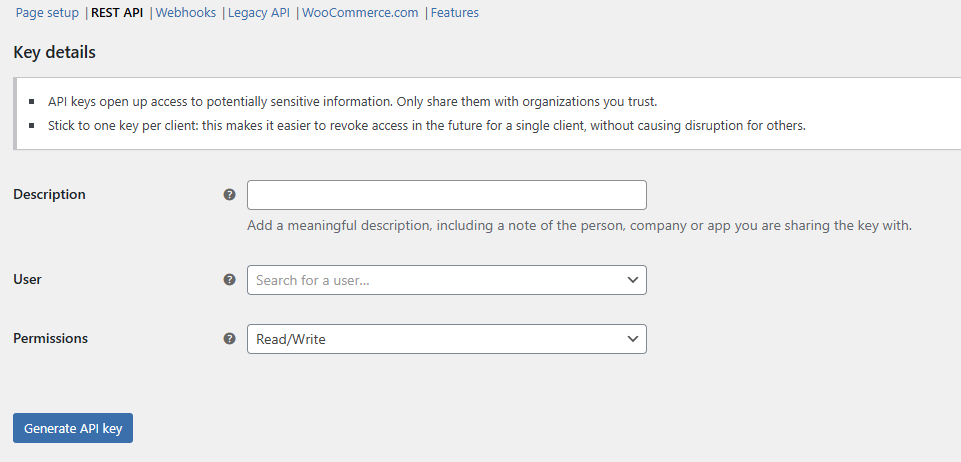
Displays the key creation form.
- Copy your Consumer Key and Consumer Secret.
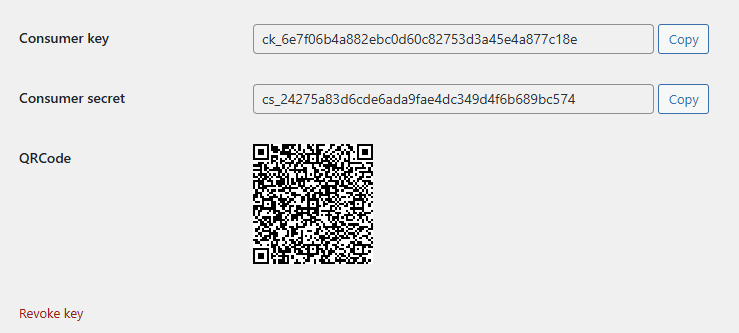
Shows generated keys ready for copy.
- In your EZDZSEND dashboard, go to Sales Platforms.
- Select WooCommerce.
- Click “Add Store” to add a new store.
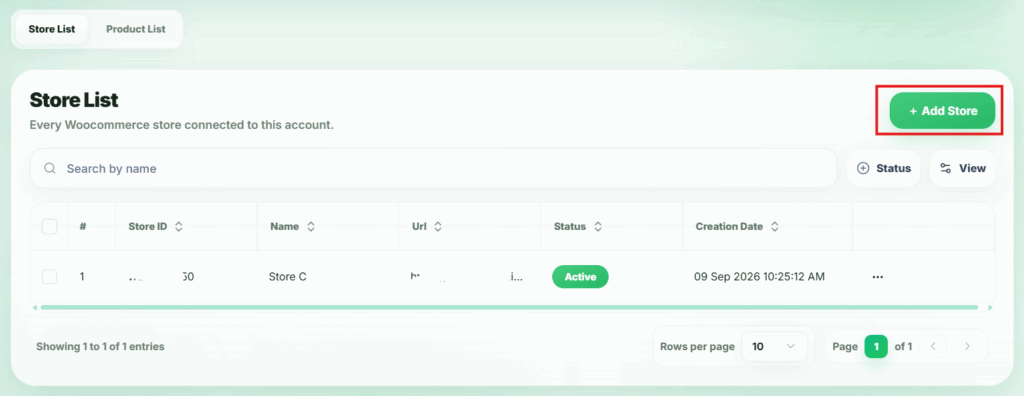
Shows WooCommerce tab inside the Sales Platforms section.
- In the pop-up window, enter:
- Store Name
- Store URL
- Consumer Key
- Consumer Secret
- Click Submit to finish setup.
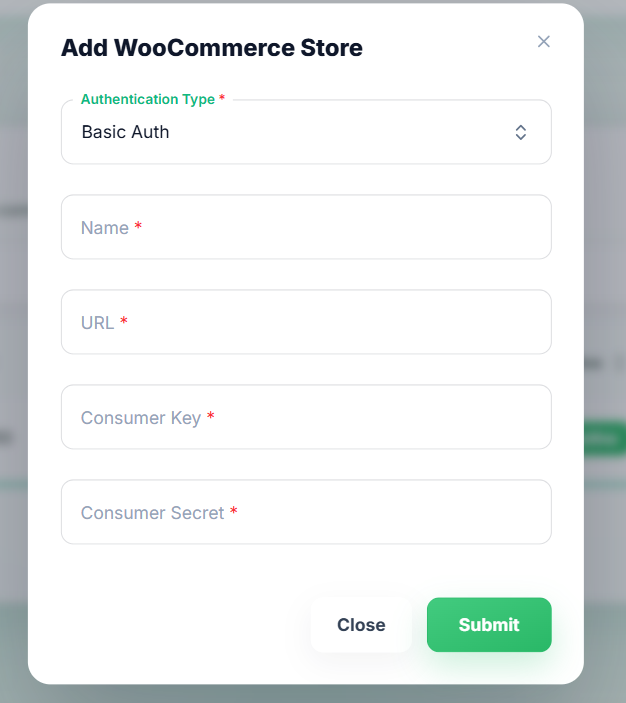
Displays the add new store modal.
✅ Once submitted, your WooCommerce store will be connected and product will be imported automatically.
WooCommerce Store Table #
After connection, your store will appear in Store List with:
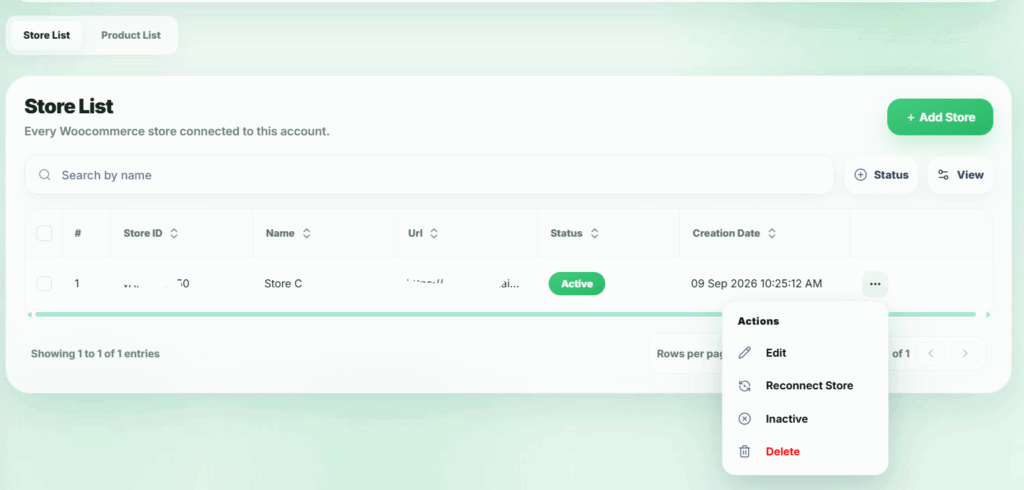
Connected WooCommerce Store Displayed in Store List
Webhook Verification & Connection Status (Important) #
EZDZSEND uses WooCommerce webhooks to keep your store fully synchronized.
These webhooks allow EZDZSEND to instantly receive updates about orders and products, ensuring:
- Real-time order processing
- Accurate product synchronization
- Reliable instant delivery
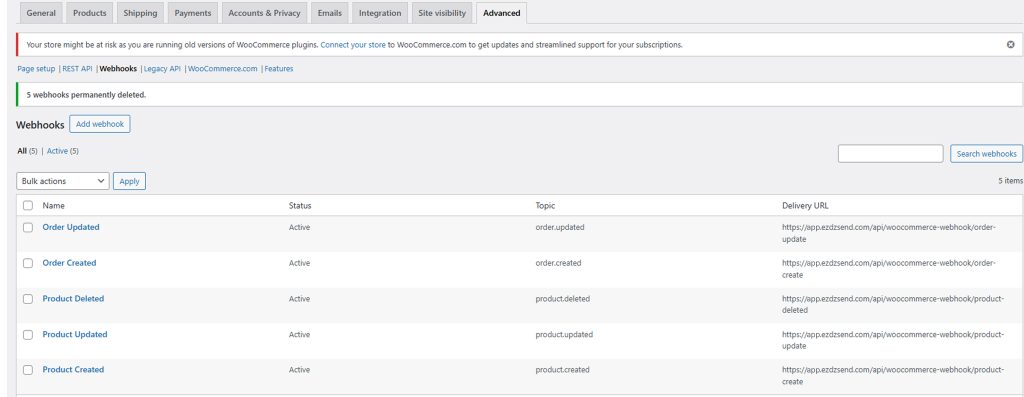
If these webhooks exist and are active, your store is successfully connected.
Actions Column:
- Edit → Edit store info.
- Inactive / Active → Change store status.
- Reconnect Store → Sometimes, a connected store may have problems updating properly, such as:
- Expired access tokens
- Revoked permissions
- Webhook or API errors
- Temporary connection failures → In these cases, sellers don’t need to delete the store or do anything complicated. They can use the “Reconnect Store” option to quickly and safely reconnect it, so the store updates correctly again.
- Delete → Remove store (Deleting store will also remove all related transactions and products. All related webhooks are automatically removed from WooCommerce)
Product List Tab 🛒 #
After connecting, your WooCommerce products automatically appear in the Product List table.
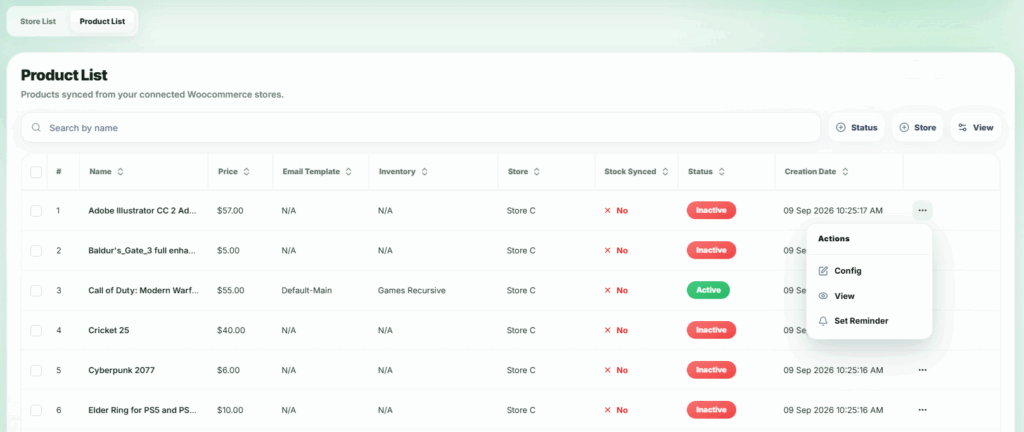
Imported Products from WooCommerce – Action Options Available.
Enable instant download 📩 #
To unlock instant download features (Click Here button, Download tab, etc.) sellers must install our EZDZSEND plugin.
Download EZDZSEND WooCommerce Plugin 🔽 #
Install Plugin in WordPress📥 #
- Go to WP-Admin → Plugins → Add New Plugin
- Click Upload Plugin
- Select the plugin ZIP file
- Install → Activate
Mark Products Eligible for Instant Download 📦⚡ #
Go to WP-Admin → Plugins → Installed Plugins → ezdzsend → settings
or
Go to WooCommerce → EZDZSEND Eligibility, you will see:
Eligible Products Table
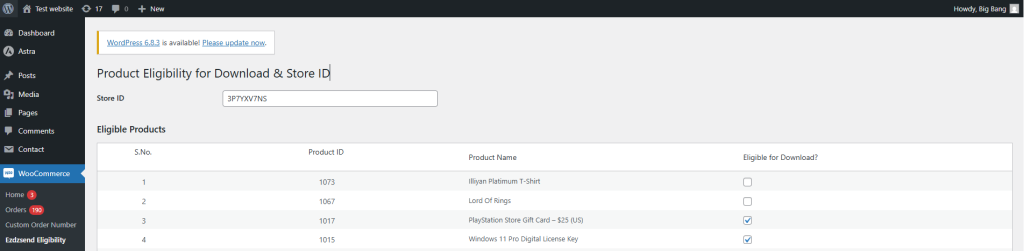
| S.No | Product ID | Product Name | Eligible for Download? |
|---|
Tick ✔️ the products that should deliver files digitally.
Click Save Changes.
🌟 What Activating the Plugin Unlocks
If Activated:
- Buyers see a “Click Here” instant download button right after payment
- In customer My Account, a new tab appears: Custom Downloads
- Buyers can download purchased files anytime
If Deactivated:
- No instant download button
- Custom Downloads tab disappears
PHP Handler & Server Configuration (Important for Instant Download) #
Your hosting provider controls the PHP handler, not WordPress.
✔️ If using cPanel:
- Log in to cPanel
- Open Select PHP Version or MultiPHP Manager
- Select your store domain
- Choose PHP 8.2 (recommended)
- Save changes
⚙️ PHP Handler Compatibility Table
| PHP Handler | Works with Instant Download? | Notes |
|---|---|---|
| CGI (php-cgi) | ✅ Yes (ONLY if PHP-FPM is enabled) | Must enable PHP-FPM |
| suPHP / DSO / LSAPI | ✅ Fully supported | Stable performance |
| CGI without FPM | ❌ Not supported | Instant download will fail |
✔️ Recommended: CGI + PHP-FPM or LSAPI for best performance.
⭐ Keep Data Synced 🔄
Once WooCommerce is connected:
- Product updates → Sync to EZDZSEND.
- New orders → Appear in Transaction Table.
- Inventory changes → Sync automatically.
- Credits deducted on each sale.
- Instant downloads handled by plugin.
Everything stays fully automated.