
Stripe Integration and Linking Products with Inventory & Templates
Learn how to connect your Stripe store with EZDZSEND and link your products to delivery templates and inventory for smooth automated digital delivery.
🎥 Prefer to watch the video?
Click here to watch the full PayPal integration guide.
Connect your Stripe store #
To get started, log in to your EZDZSEND dashboard and open the Stripe integration section.
You will see two main tabs:
- Store List
- Product List
Add a New Stripe Store #
Inside the Store List tab, click the Add Store button. A pop-up named Add Stripe Store will appear.
Fill in the field:
- Name → Store name (Example: “My Etsy Store”)
- Click Submit.
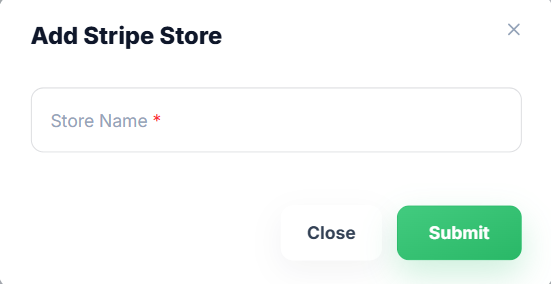
Add Stripe Store Modal – Sales Platform → Stripe → Add Store
What happens next:
You are redirected to Stripe.
- Sign in to Stripe and follow the steps shown to authorize the connection.
- After you approve, Stripe redirects you back to EZDZSEND.
- Your connected Stripe account appears in Sales Platform → Stripe → Store List.
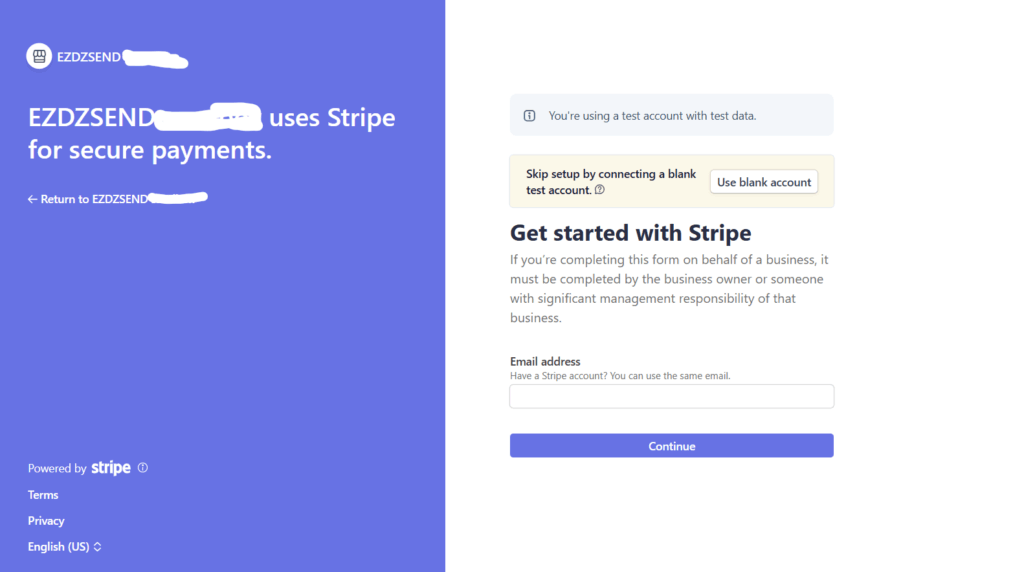
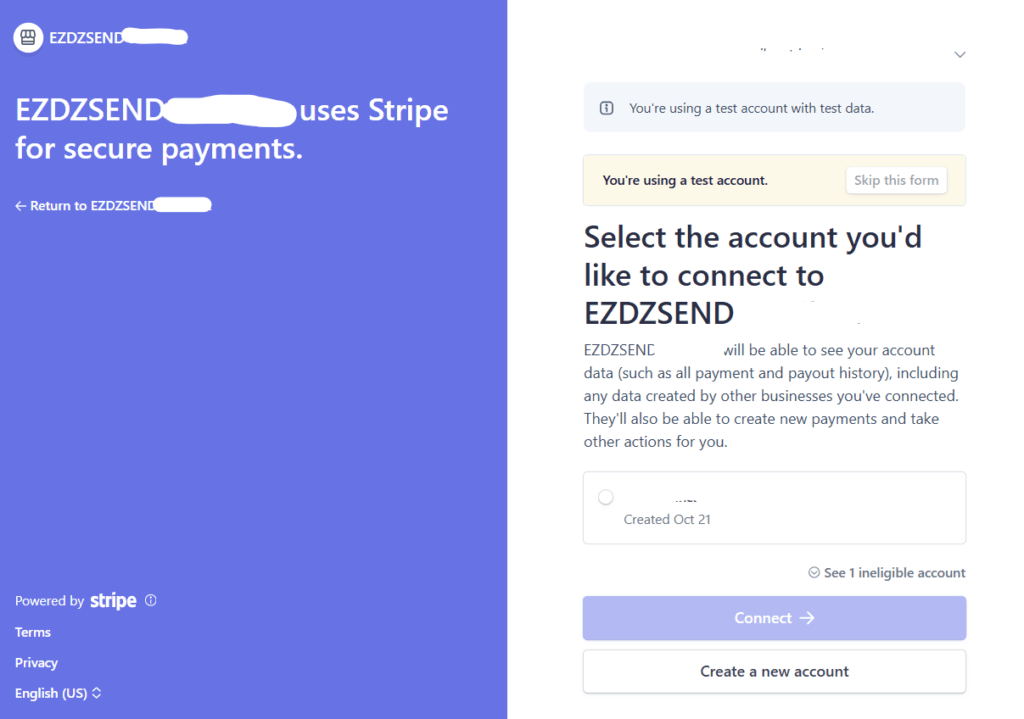
Verify that Etsy store is connected
Stripe Store Table #
After completing the authorization, you will be redirected back to:
EZDZSEND → Sales Platform → Stripe
Your Stripe store will now appear in the Store List table with details such as:
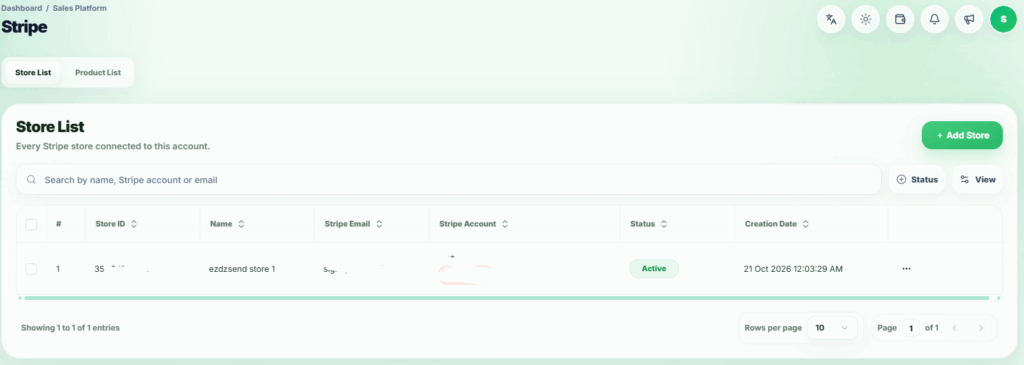
Connected Stripe Store Displayed in Store List
Actions Column:
- Edit → Edit store info.
- Inactive / Active → Change store status.
- Delete → Remove store (Deleting this store will also remove all related transactions and products.)
Product List Tab 🛒 #
Once your Stripe account is connected, go to the Product List tab and click Add Product. After you create the product, it appears in the product table.
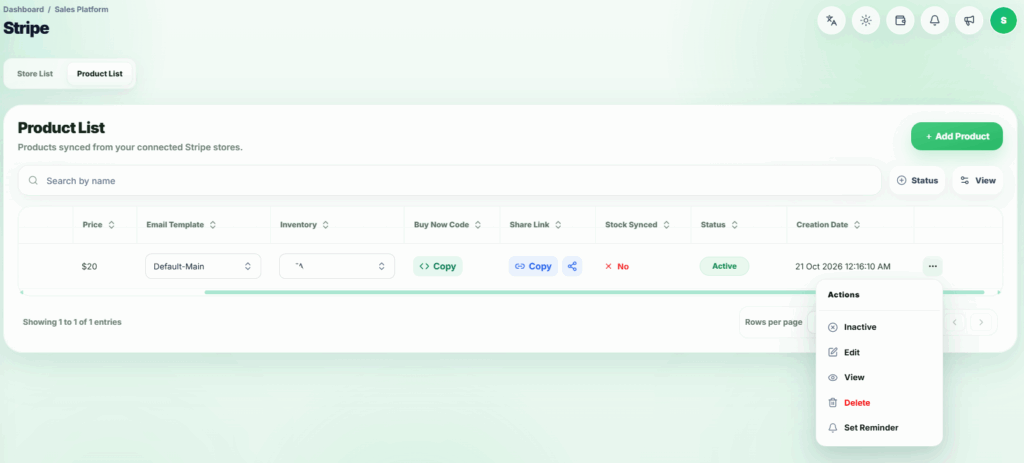
Products from Stripe – Action Options Available.