
Use Create Support to send a question or report an issue to the EZDZSEND Support Team. After submitting, you can follow the ticket’s status and continue the conversation from its details page.
How to Create a Support Ticket #
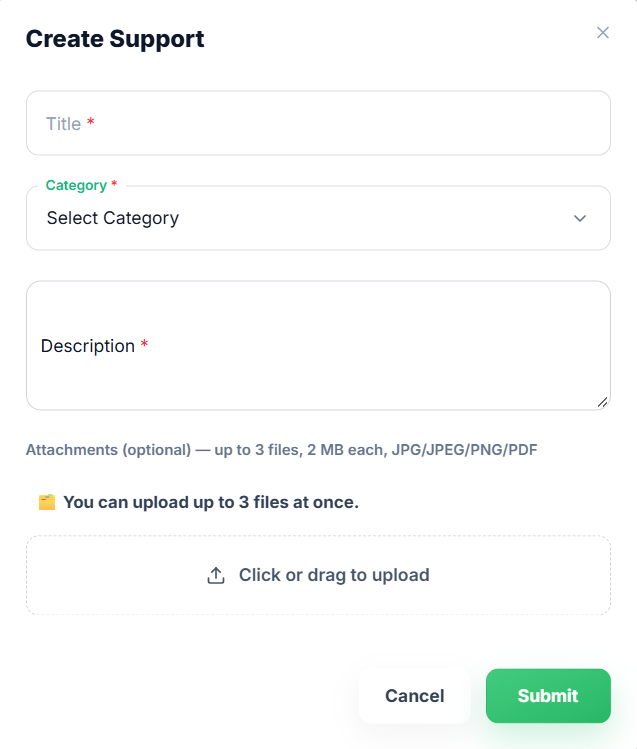
- Go to Support in your EZDZSEND dashboard.
- Click Create Support.
- Enter a Title that briefly describes your request.
- Select a Category.
- Describe the issue in the Description field.
- Add attachments if they help explain the issue.
- Click Submit.
The Title, Category, and Description are required.
Adding Attachments
Attachments are optional. Selected files appear in the form so you can review or remove them before submitting. They are uploaded when you click Submit
After You Submit
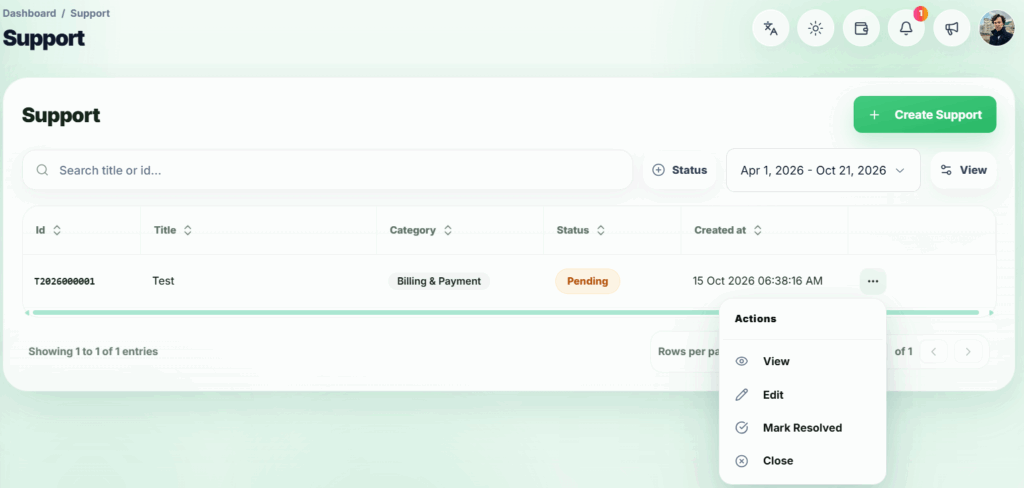
EZDZSEND creates a ticket with its own ticket ID and an initial status of Pending. You can find it on the Support page, which lists each ticket’s ID, title, category, status, and creation date.
A confirmation email to your account email address and a notification to the Support Team are queued when the ticket is created.
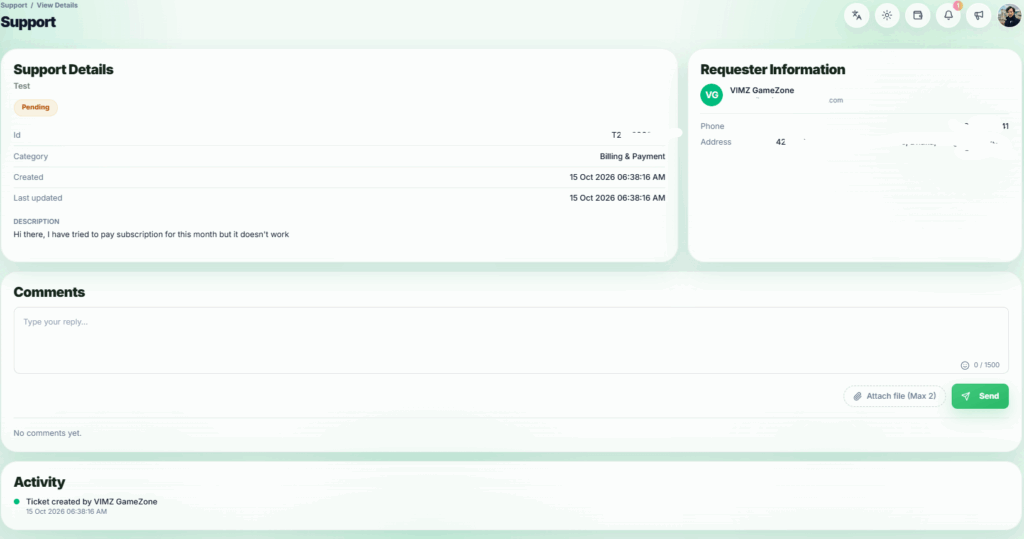
Select View on a ticket to open its details. There you can review its description, attachments, status, comments, activity, and updates from the Support Team.
Replying to the Support Team #
On an open ticket’s details page, type your reply in the Comments section and click Send.
Your saved reply appears in the ticket conversation. You can reply while the ticket is Pending or In Progress.
Editing or Finishing a Ticket
While a ticket is Pending, its row action menu offers Edit. You can update its title, category, description, and attachments.
If the issue is finished, use Mark Resolved or Close from the ticket’s row action menu. These actions are available while it is Pending or In Progress. A Resolved or Closed ticket remains viewable, but it cannot be edited or receive further comments.
Available actions may depend on your team member permissions.
Support details page