
The Cases page helps you review buyer disputes and respond when the platform allows it. You can find a case, check the related order and delivery information, and view what happened after a response.
Go to Cases from the sidebar.
Where Do Cases Come From? #
Cases can come from:
- eBay stores connected to EZDZSEND.
- PayPal or Stripe stores connected as sales platforms.
- Supported stores linked to a separate PayPal or Stripe payment account through the Cases page.
eBay, PayPal and Stripe sales platform stores bring in their own cases without a separate Cases payment account connection.
For stores paid through your own PayPal or Stripe account, the Connect flow supports WooCommerce, BigCommerce, Ecwid and Shopify stores shown as available in your account. The connection screen notes that Shopify stores can use their own Stripe account where Shopify Payments is not offered; otherwise, disputes are handled in Shopify admin.
Find and Browse Cases #
At the top of the page, select All cases or a sales platform card. Each card displays its number of open cases and filters the list when selected.
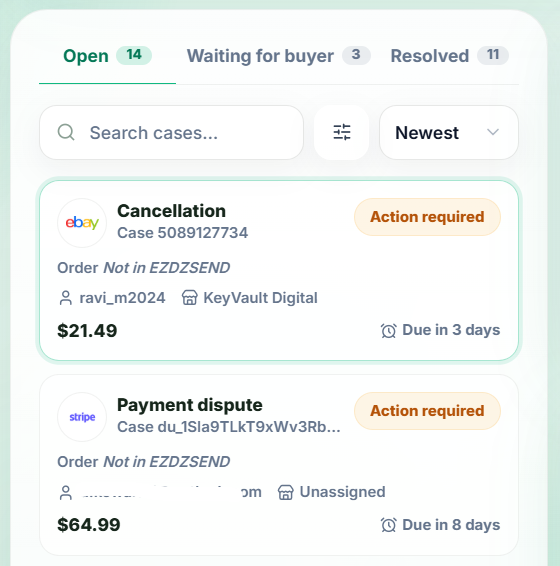
Use the list tabs to view:
- Open – Cases marked Action required or Under review.
- Waiting for buyer – Cases waiting for the buyer’s next step.
- Resolved – Closed cases.
Search by order ID, buyer, case ID or item. Select Filters to narrow results by case type and store. On the Open tab, you can also filter by Action required or Under review. Sort cases by Newest, Oldest or Due soonest.
The case types shown in the filter include Item not received, Return, Cancellation, Escalated case and Payment dispute. The actions available for a case depend on its platform, type and current state.
Each case card shows its type, case ID, status, order ID when available, buyer, store, amount and response deadline. Closed cases show a date instead of a response deadline. Select a card to open its details.
Sync eBay Cases #
The page shows when cases were last synced. Select Sync now to request an update from your eBay stores. If an expected eBay case is missing, request a sync and check the list again after it completes.
Sync now requests an eBay case sync. PayPal and Stripe disputes come through their respective store or payment account connections.
Connect a Payment Account #
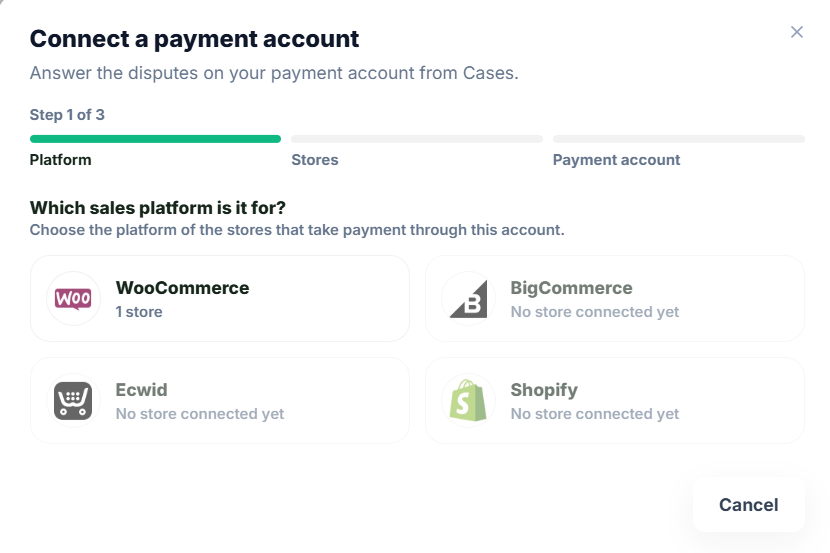
If a supported store takes payments through your own PayPal or Stripe account, connect that account to bring its disputes into Cases:
- On the Cases page, select Connect.
- Choose the store’s sales platform.
- Select the store or stores paid through the same account, then select Next.
- Choose Stripe or PayPal.
- Select Continue to Stripe or Continue to PayPal.
- Sign in to the payment account used by those stores and complete the authorization.
After a successful connection, you return to EZDZSEND. The account appears under Connected accounts.
A store can be linked to only one payment account in Cases at a time. Stores already linked to another account cannot be selected for a new connection.
Manage Connected Accounts #
Select Connected accounts on the Cases page to review connected payment accounts and their linked stores. The dialog shows whether an account is active or disconnected, and its connection details when available. PayPal and Stripe sales platform stores also appear here as stores whose disputes come in through their own connections.
For an active payment account, users with the required permission can:
- Select Edit stores to change which stores are linked to it.
- Select Disconnect to stop using that account for Cases.
- Select Connect an account to start another connection.
After disconnecting an account, cases already in EZDZSEND remain visible, but you can no longer answer them through EZDZSEND using that account. If you want to remove EZDZSEND’s access to a disconnected PayPal account completely, also revoke it in your PayPal account.
Review Case Details #
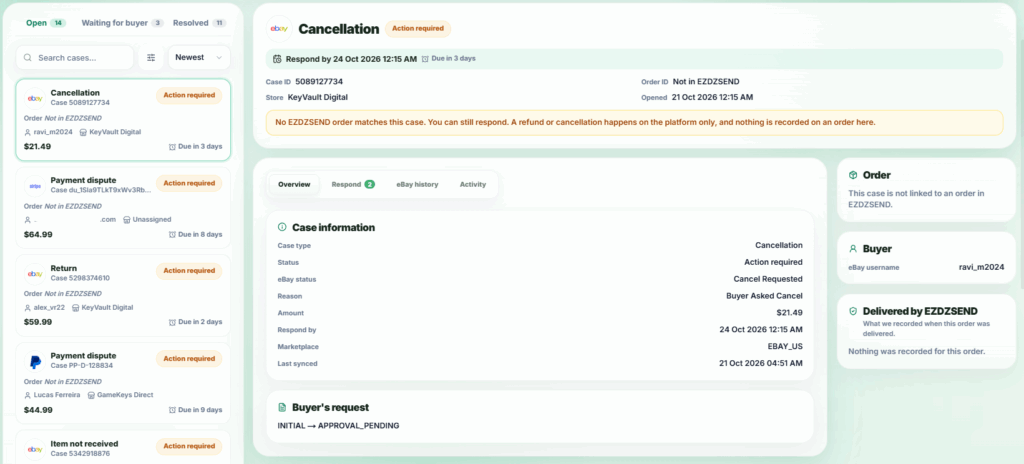
Select a case from the list to see its details. The header shows the case type, status, case ID, order ID, store and opening date. An open case may also show a Respond by deadline. The page displays a closing date for a closed case when available.
The details area contains:
- Overview – The case reason, amount, status and other information available from its platform. A PayPal case may also show its stage and messages. A Stripe case may show whether it is an inquiry or chargeback.
- Respond – The responses currently available for this case.
- History – eBay case history or PayPal messages and evidence history. Stripe cases do not show this tab.
- Activity – Actions and changes recorded in EZDZSEND.
The page also shows related Order, Buyer and Delivery information when available. Review these records before responding, particularly if a buyer reports that a digital item was not received.
Cases Without a Matching EZDZSEND Order #
A dispute from a connected payment account may not match an order in EZDZSEND. Its card can show Not in EZDZSEND, and it may appear under Unassigned in the store filter.
You can still review and respond to the case if the platform offers a response. If you refund or cancel an unmatched case, that action takes place on the platform; it does not create a refund or cancellation record for an EZDZSEND order.
Respond to an eBay Case #
Open the case and select Respond. EZDZSEND shows the responses eBay currently allows for that case. No action is selected automatically. Choose an action, complete its form and submit it.
Depending on the case, eBay may allow you to:
- Send a message or add shipment details.
- Refund the buyer or ask eBay to step in.
- Approve or decline a return, offer a partial refund, offer a return, provide an RMA number, or mark a return as received.
- Approve or reject a cancellation.
- Accept or contest a payment dispute, or add evidence.
- Appeal an eBay decision.
An offer of a partial refund is an offer to the buyer; sending the offer does not immediately issue a refund. Review the form and confirmation shown for the action you select.
eBay evidence uploads accept JPG or PNG images up to 1.5 MB per file. If eBay does not currently allow a response—for example, while it reviews the case or waits for the buyer—the Respond tab shows the current state instead of an action form.
Respond to a PayPal Dispute #
For a PayPal case, the Respond tab shows only the actions PayPal currently makes available. Select an action, complete its form and submit it.
Depending on the dispute, you may be able to Send a message, Make an offer, Accept the claim, Send evidence, Confirm the returned item, Add supporting information, Ask PayPal to decide, or Appeal PayPal’s decision.
Make an offer proposes a refund or replacement; sending an offer does not immediately issue a refund. If the buyer accepts an applicable refund offer, PayPal handles the refund. Accept the claim is a separate action that can refund the buyer, so review its confirmation carefully.
PayPal evidence uploads accept JPG, GIF, PNG or PDF files. If PayPal is waiting for the buyer, reviewing the dispute or has closed it, there may be no action available to submit.
Respond to a Stripe Dispute #
For a Stripe case, the Respond tab provides an evidence form when Stripe allows a response. The form may be filled from EZDZSEND delivery records or from a draft previously saved at Stripe. Review every field and attachment before sending.
When available, you can:
- Select Save draft to keep the evidence at Stripe without sending it to the buyer’s bank.
- Select Submit to bank to send the evidence. You can submit it only once, and it cannot be changed afterward.
- Select Accept dispute if you choose not to contest it. Confirm this action only after reviewing its effect on the payment.
Stripe evidence uploads accept PDF, JPG or PNG files, with a 4.5 MB combined limit. After submission, the Respond tab shows that the bank is reviewing the evidence. Submitted text can be reviewed there; attached files remain at Stripe and are not displayed in that summary. The outcome appears when Stripe reports it.
Check History and Activity #
Use History to review the case information received from eBay or PayPal. PayPal’s Overview may also show its conversation with the buyer. Stripe cases do not have a History tab.
Use Activity to review what happened in EZDZSEND. Entries can show who acted, when an action happened, whether it succeeded or failed, and whether a distribution was used. Where a related refund record exists, Activity may provide a link to it.
Team Permissions and Distribution Usage #
A team member needs permission to view Cases. Their role also controls whether they can connect accounts and which responses they can submit. An action may be unavailable because the platform does not currently allow it or because the member’s role does not grant it.
A successful case response uses one distribution. Saving a Stripe evidence draft is free; submitting that evidence or accepting a Stripe dispute uses a distribution. Review the action and any confirmation message before submitting.