
Messages brings conversations from your connected stores into one place. You can read customer messages, reply to existing conversations, organize your inbox, and check a sender’s related orders.
Go to Messages from the sidebar.
Where Messages Come From #
For most stores, Messages reads customer emails from the Outlook or Microsoft 365 account connected to that store. Each store can have its own Outlook account. Replies are sent from that mailbox. EZDZSEND reads the emails from Outlook rather than saving mailbox messages on its servers.
eBay stores work differently: their messages come through the eBay store connection. You do not connect an Outlook account for an eBay store.
Connect a Store’s Email #
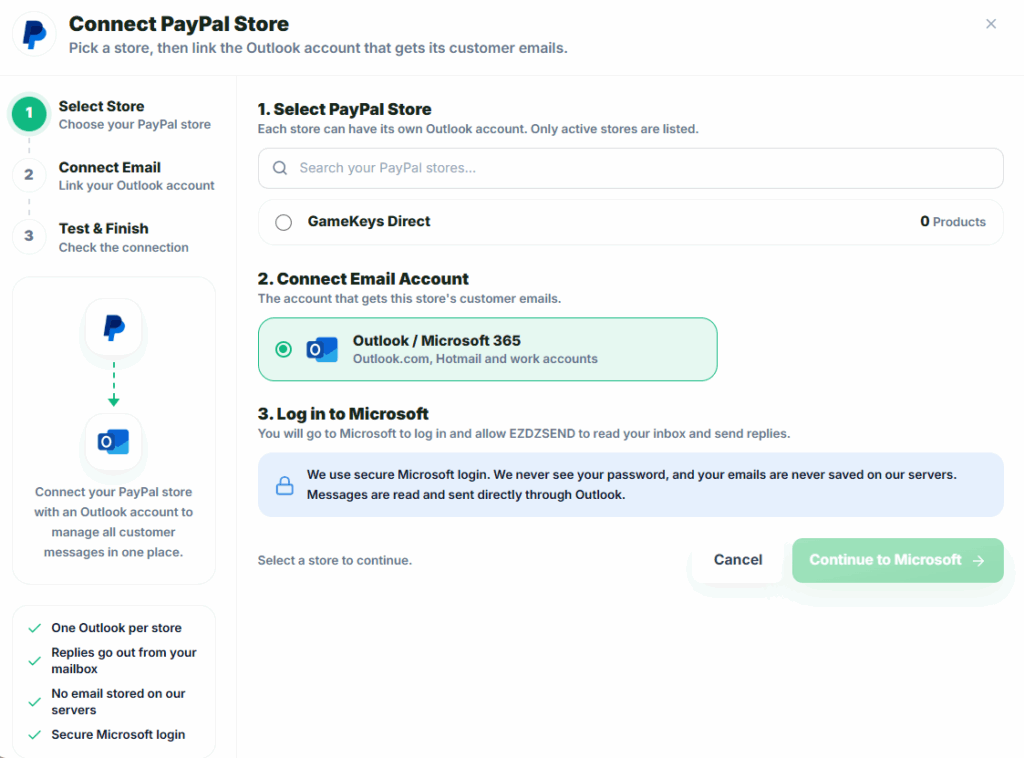
To connect an Outlook account:
- Select Connect Email on the Messages page.
- Choose the sales platform.
- Select an active store on that platform.
- Select Continue to Microsoft.
- Sign in to the Outlook or Microsoft 365 account that receives the store’s customer emails and authorize the connection.
- Return to EZDZSEND and check the connection result.
The connection flow shows Select Store, Connect Email, and Test & Finish. If the store already has an Outlook account connected, the existing connection remains in place until the new one works.
Manage Connected Emails #
Open Connect Email → Manage connected emails to see each store’s Outlook address and connection status.
- Connected means the mailbox connection is working.
- Needs reconnect means EZDZSEND can no longer access that mailbox. Select Reconnect and complete a new Microsoft sign-in.
- Disconnect removes the mailbox connection from Messages. Its emails leave this page, but nothing is deleted from Outlook.
If a mailbox or eBay store cannot be read, Messages displays a notice identifying the affected store. Emails from an Outlook account that needs reconnecting are hidden until the connection works again.
Browse the Inbox #
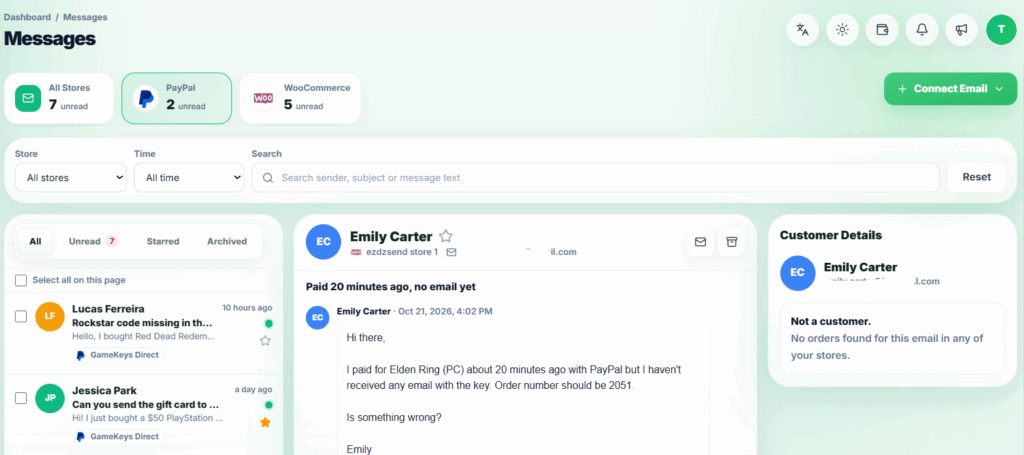
The cards at the top show unread counts for All Stores and each available sales platform. Select a card to view conversations from that platform.
Use the conversation tabs to view:
- All – Conversations in the inbox.
- Unread – Unread conversations.
- Starred – Starred Outlook conversations.
- Archived – Archived conversations.
Each conversation row shows the sender, subject, message preview, store and time. An unread dot marks an unread conversation; a paperclip indicates an attachment. Use Previous and Next to move through the list.
eBay conversations cannot be starred. Star and Unstar apply to Outlook conversations.
Search and Filter Messages #
Use the Store filter to view conversations from one store. The Time filter offers All time, Today, Last 7 days, Last 30 days, Last 90 days, and a Custom range with From and To dates.
For Outlook conversations, search can find a sender, subject or message text. For eBay conversations, search finds a buyer username or item number. The Time filter is unavailable while you search. Select Reset to clear the filters and search.
Read a Conversation #
Select a conversation to open its message thread. Opening an unread Outlook conversation marks it as read. The thread shows messages and their timestamps. You can open or download available attachments.
Images in an email may initially be hidden. Select Show images if you want to display them.
The thread also offers Mark as unread and Archive or Move back to Inbox. Outlook conversations can additionally be starred or unstarred.
Reply to a Customer #
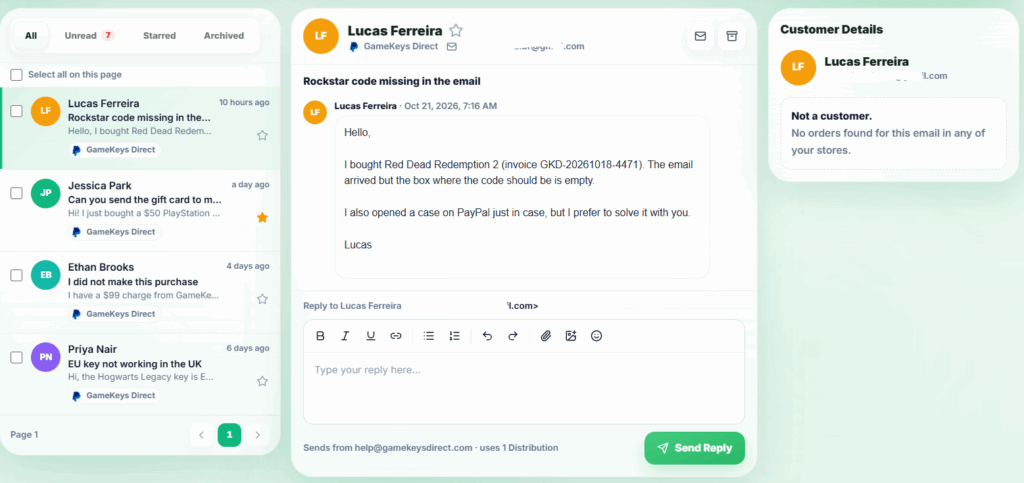
Messages lets you reply to an existing conversation. Open a conversation from the list, write in its reply box, and select Send Reply. The reply is sent from the Outlook account connected to that store or through eBay for an eBay buyer conversation.
For Outlook replies, the composer supports text formatting, links, lists, emoji, inline images and file attachments. You can attach up to 10 files, with a 25 MB combined attachment limit.
For eBay buyer replies, the message is plain text, limited to 2,000 characters, and does not support file attachments. Messages sent by eBay itself are read-only and cannot be answered from this page.
A successfully sent reply uses one distribution. If sending fails, the composer displays an error so you can review it and try again.
Organize Multiple Conversations #
Select conversations in the list, or use Select all on this page, to apply an action to the selected conversations. Available actions include Read, Unread, Archive, Unarchive, Star and Unstar.
Bulk actions apply to conversations selected on the current page. Star and Unstar skip eBay conversations because eBay does not support starring here. If some conversations cannot be updated, EZDZSEND shows how many succeeded and failed.
View Customer Details and Related Orders #
When you open a conversation, the Customer Details panel looks for the sender in your EZDZSEND orders. Outlook senders are matched by email address; eBay buyers are matched by username.
When a customer is found, the panel shows Total orders, Total spent, their stores and Related Orders. Select an order number to open its transaction details, or select View all to open the customer’s record.
A related order may offer Send Replacement, Refund or Resend. The available actions depend on the order’s status and your team permissions. If the sender has no matching orders, the panel shows Not a customer. Messages sent by eBay itself have no customer record to display.
Team Permissions #
Team roles control access to Messages:
- View allows a member to read the inbox and conversations.
- Reply allows them to send replies and use conversation management actions.
- Connect allows them to connect and manage Outlook accounts.
The account’s plan must include Messages for these permissions to be granted.